Bulk AI image generation is the process of producing many images from one approved creative setup, using a production table where each row is an output and each column is a variable you deliberately change. Instead of writing 100 prompts, you write one creative direction and describe what is allowed to differ between the results.
Generating one good AI image is easy. Generating 100 while the product, the lighting and the brand stay recognisable is a different problem — and it is a production problem, not a prompting one.
This guide covers how to plan, generate and review a batch of 100 images using the Mujo Bulk Editing Board: the setup, the variables, the test batch, the review pass, and how to turn a run that worked into something you can run again next month.
The short version
- Start from one approved master image, not from a blank prompt.
- Decide what changes — product, colour, scene, market, format — and treat each as a column.
- Build the full plan as rows before spending credits on generation.
- Run a test batch of five to eight rows and check it against the master.
- Only then run the rest, review the batch as a set, and save the setup for next time.
What is bulk AI image generation?
Bulk AI image generation means creating multiple images from a shared creative setup, using structured variables to control what differs between outputs. The common elements — product, art direction, lighting, brand references — are defined once. The differences are organised into a table.
A worked example. An ecommerce brand needs:
- 5 product colours
- 4 environments
- 5 advertising formats
Five colours across four environments, in five formats, is 100 planned outputs. Each combination becomes one row.
The distinction that matters: you are not generating 100 unrelated images. You are generating 100 variations of one controlled creative direction. Everything in this guide follows from that difference.
Step 1: Start from an approved creative
Before you generate a single variation, settle the master asset. That can be an approved product photograph, a campaign image, a saved AI character, or a generation setup that already produced something you signed off.
The master fixes what must not drift:
- Product — shape, packaging, identity.
- Visual direction — composition and art direction.
- Lighting — the photographic treatment you intend.
- Brand — colours, references, styling.
- Creative intent — what the image has to communicate.
This also makes quality control possible. With a master, reviewing 100 images is a comparison against one reference. Without one, it is 100 separate opinions — which is how a batch ends up looking like four different brands.
Step 2: Decide which variables are allowed to change
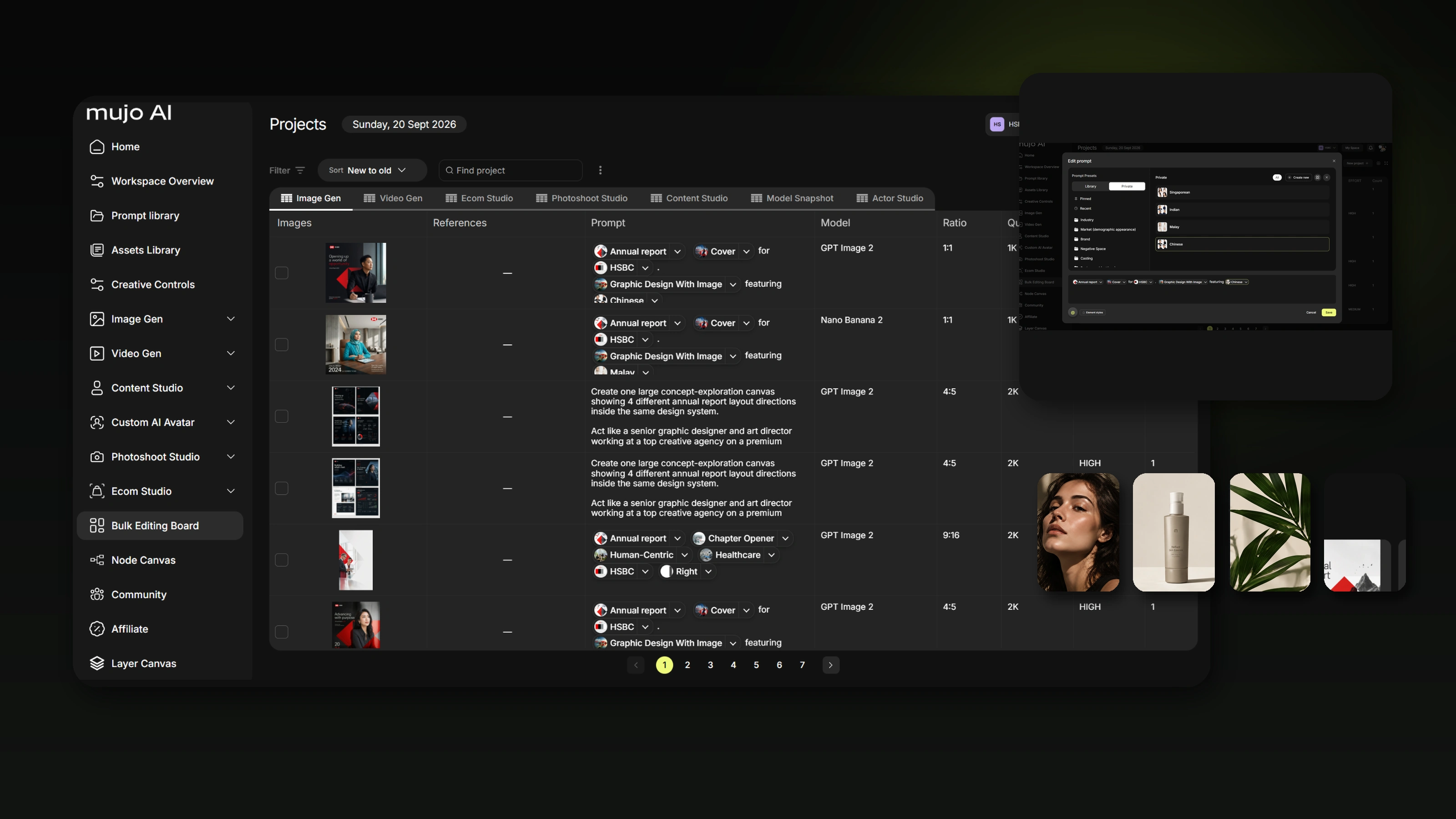
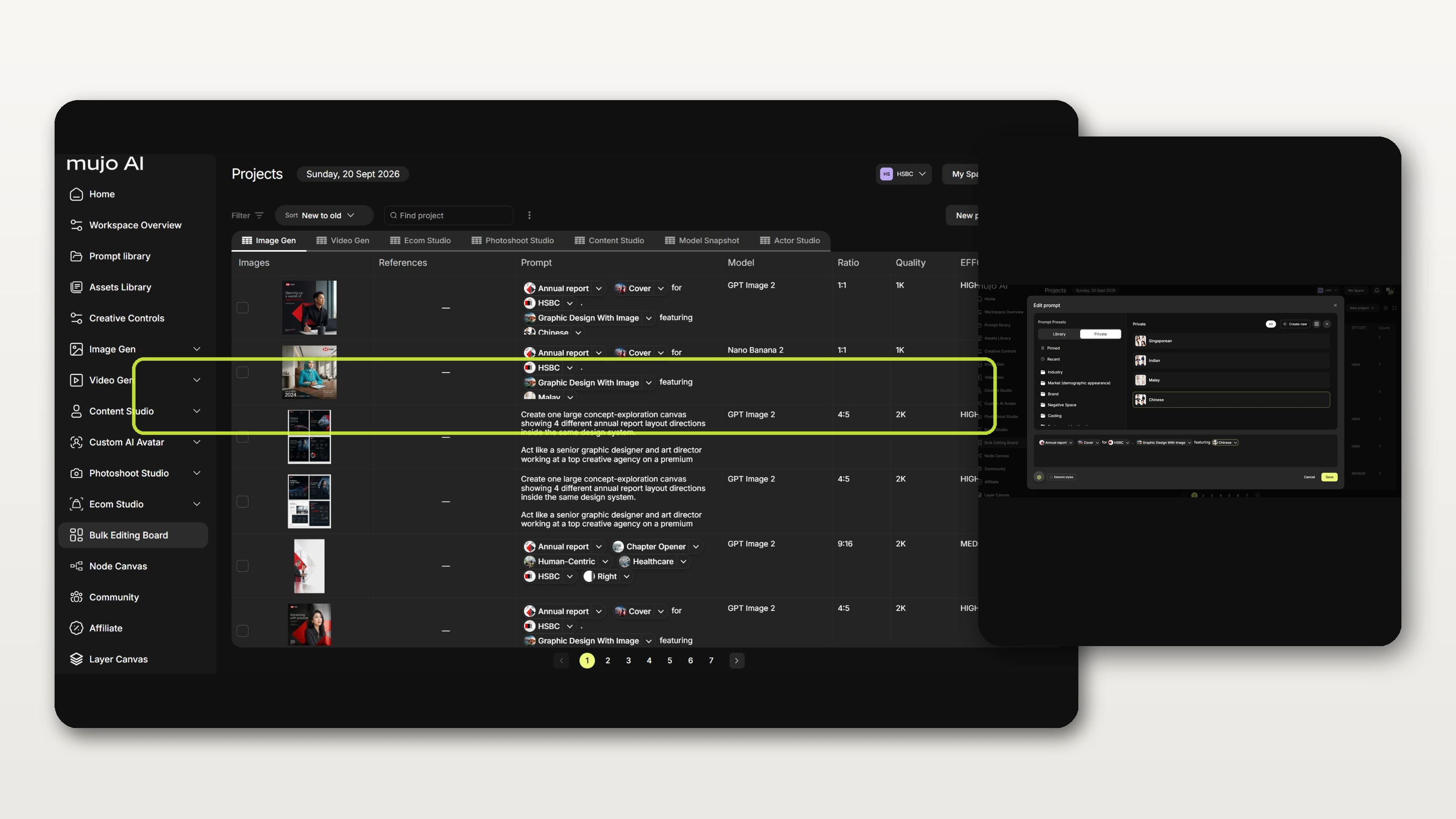
In Mujo, the Bulk Editing Board organises production as a table. Each row is an output. Each column is a creative variable. Depending on the workflow, those can include:
- People and avatars — swap the person, keep the direction.
- Products — one visual setup applied across SKUs.
- Colours — product colourways or visual treatments.
- Markets — region-specific references and inputs.
- Formats — aspect ratios and channel versions.
- AI models — the model that suits each job.
- Creative controls — camera, lighting, composition and style, set as reusable settings rather than rewritten prompt text.
The working principle is one line: change only what needs to vary, and hold everything else. A variation you cannot describe in one word is not a variation — it is a second brief.
Step 3: Build the whole plan as rows before you generate
A structured table lets you see the entire production plan before committing credits. A simplified version:
Laying it out this way surfaces the three things that quietly ruin a batch: missing combinations, duplicates nobody noticed, and rows whose settings drifted from the rest. All three are cheap to fix in a spreadsheet and expensive to fix in ninety finished files.
Step 4: Test a small batch first
Do not start with all 100.
Generate a representative sample — five to eight rows that cover your hardest cases: the tightest crop, the darkest scene, the product with the most text on the packaging. Then review them against the master:
- Does the product stay accurate?
- Is the intended person still recognisable?
- Does the lighting match the creative direction?
- Does the composition survive every required format?
- Are text, packaging and product details correct?
If the sample shows a recurring problem, it is a setup problem. Fix it once, before scaling. Correcting one shared creative issue takes minutes; correcting the same issue across ninety completed outputs takes an afternoon and a fresh set of credits.
What usually goes wrong at 100 images
Four failure modes account for most of the waste in large batches. All four are predictable, which means all four are avoidable.
Drift
The first thirty images share one look, the last thirty share another. This happens when settings are re-entered per row instead of inherited from a saved setup. Fix: one approved setup as the default, deliberate per-row exceptions only.
Packaging and text errors
Generative models are unreliable with small text, logos and labels. On a hundred-image catalogue run this is the single most common reason an asset cannot ship. Fix: check fine detail against the real product on every image destined for a listing, and treat generated text as something to verify rather than trust.
Crops that do not survive the format
A composition that works at 1:1 can lose the product at 9:16. Fix: include the extreme format in your test batch rather than discovering it at row 70.
Batches nobody can trace
Six weeks later, someone asks for "the same thing but in green" and nobody can find the setup that produced the original. Fix: keep inputs, outputs and settings together — which is the whole argument for step six below.
Step 5: Generate and review the batch
Once the setup is validated, run the rest of the table in the Bulk Editing Board. Because models, creative controls and production tools sit in one workspace, the batch stays one project rather than a hundred isolated generations.
Review the outputs together, as a grid — the way a customer will eventually see them on a category page — not one file at a time. For larger campaigns, sorting into three buckets keeps the review moving:
- Approved — ready for the deliverable.
- Needs adjustment — right direction, specific fixable issue.
- Rejected — wrong for the campaign or the product.
Pay particular attention to product fidelity, generated text, anatomy and brand consistency. AI output still needs a human pass before it goes anywhere commercial.
Step 6: Turn a run that worked into a reusable workflow
The real gain is not the first hundred images. It is the second hundred, when the setup already exists.
Keep reference assets, prompts and generation settings organised rather than rebuilt. Mujo's Node Editor gives you a visual environment for building reusable multi-step creative workflows: define the production logic once in Nodes, then use the Bulk Editing Board to run variations against it at scale.
A typical shape:
Product reference → Creative setup → Generation → Variations → Review → Final assets
Approved assets stay in the Asset Library, which is what makes next season's run a selection job rather than a rebuild.
Where bulk AI image generation is most useful
Ecommerce product photography
Multiple treatments per product across colours, scenes and formats. The value rises with catalogue size — see product catalog production for the catalogue-scale version of this workflow.
Advertising campaign variations
An approved concept adapted for placements, directions and markets. The related use case is creative variations.
AI photoshoots and casting
Different people, looks and compositions under one creative direction. Saved AI characters are what keep a cast consistent between runs.
Social media production
Multiple formats and visual variations for organic posts, paid placements and creative testing.
Multi-market creative
Market-specific inputs and references for localised versions. Always have local language, cultural relevance and any generated text checked by someone who reads that language before publication.
How much does it cost to generate 100 AI images?
It depends on the models you choose, the quality settings and how many generation requests the batch actually needs. Mujo uses a credit-based system across supported models and production tools.
A workable way to budget:
- Take the credit cost of one generation at your chosen model and quality.
- Multiply by your planned output count.
- Add the test batch.
- Add a rejection allowance — on a first run with a new setup, plan for a meaningful share of rows needing a second pass.
The step people skip is the fourth one, and it is the reason batch budgets get blown. Check current Mujo pricing for plans and credit allowances.
Frequently asked questions
Can I generate 100 AI images from one prompt?
Not from one prompt, but from one approved setup. You define the creative direction once and describe the variables that change between outputs, rather than writing each generation from scratch.
Can I generate multiple product images in bulk?
Yes. A structured workflow uses product references and controlled variables to produce multiple product image variations. Review the results for product accuracy before anything reaches a listing.
Can I generate different faces using the same creative direction?
Yes. Different character references can be used while the styling, composition and creative setup stay fixed. How closely identity holds depends on the model, the references and the generation settings.
Does bulk AI generation produce identical results?
No. Generative models introduce differences even when settings are unchanged. Consistent references, controlled parameters and a human review pass reduce unwanted variation — they do not eliminate it.
Can I use different AI models in one production workflow?
Mujo provides access to multiple image and video models in one platform. Which models are available, and which controls they support, depends on the generation workflow you select.
Is bulk AI image generation unlimited?
No. Bulk production is governed by credits, model availability and your account or workspace limits. "Bulk" describes the workflow, not an unlimited allowance.
How long does a batch of 100 images take?
The generation itself is queued work and depends on the models and settings you pick. In practice the planning and review passes take longer than the generation — which is the argument for getting the table right before the run starts.
Stop generating images one at a time
Producing 100 images should not mean rebuilding the same creative setup 100 times. Start from a direction that works, turn the differences into variables, validate a small batch, then scale.
That is the difference between using an image generator and running a production process: the generator gives you a picture, the process gives you a set you can ship.
One setup. Hundreds of outputs.
Turn an approved creative direction into controlled image and video variations with Mujo Bulk Production.