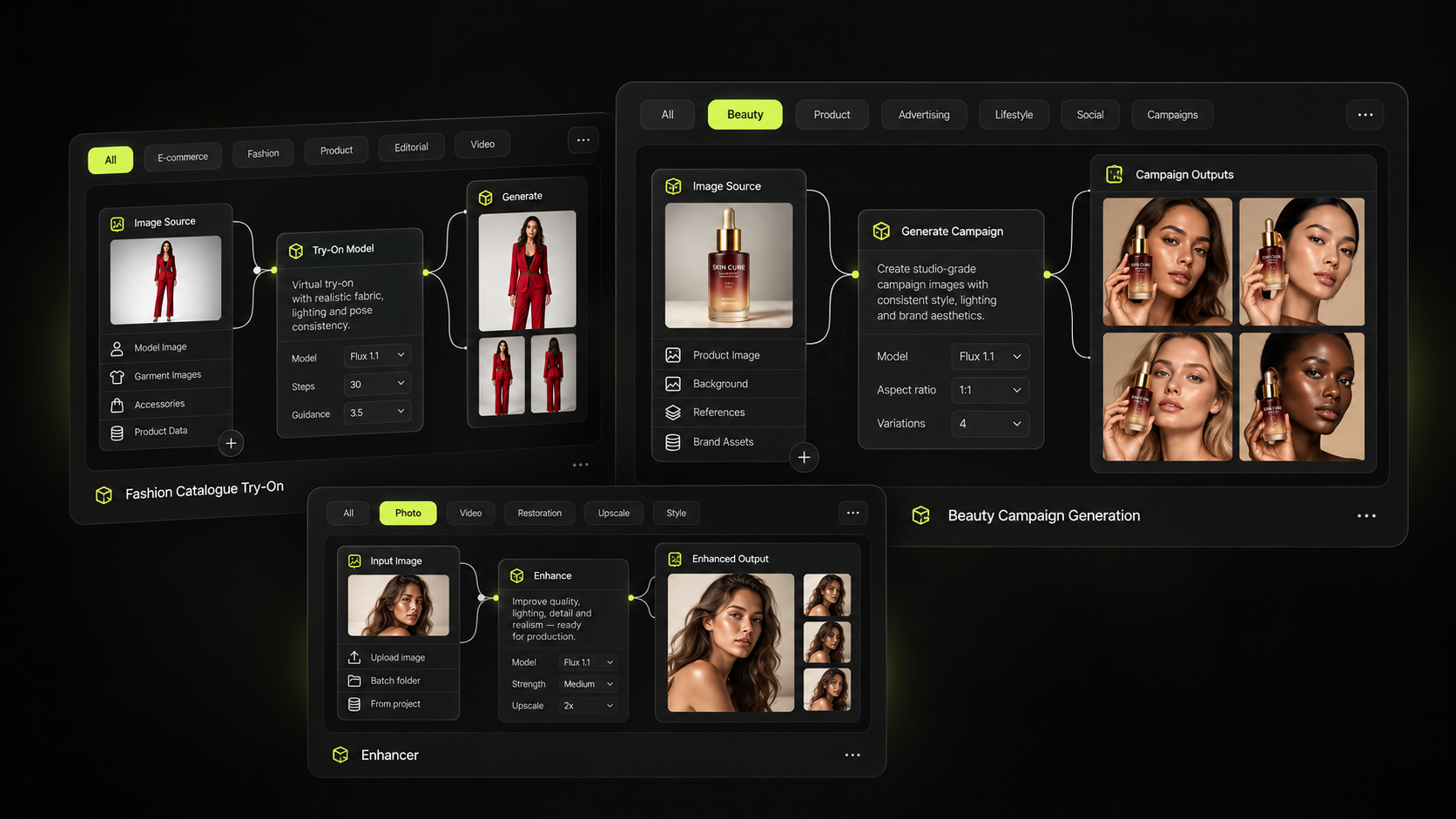
Nodes
A node is one step of the job: an image or text source, a prompt, an AI model, an edit such as upscaling or background removal, or an export.
Mujo's node editor connects prompts, AI models, images, video, text and tools on a single canvas. You build a creative process step by step, change only the inputs that matter, and run the same workflow again for the next product, brief or campaign.
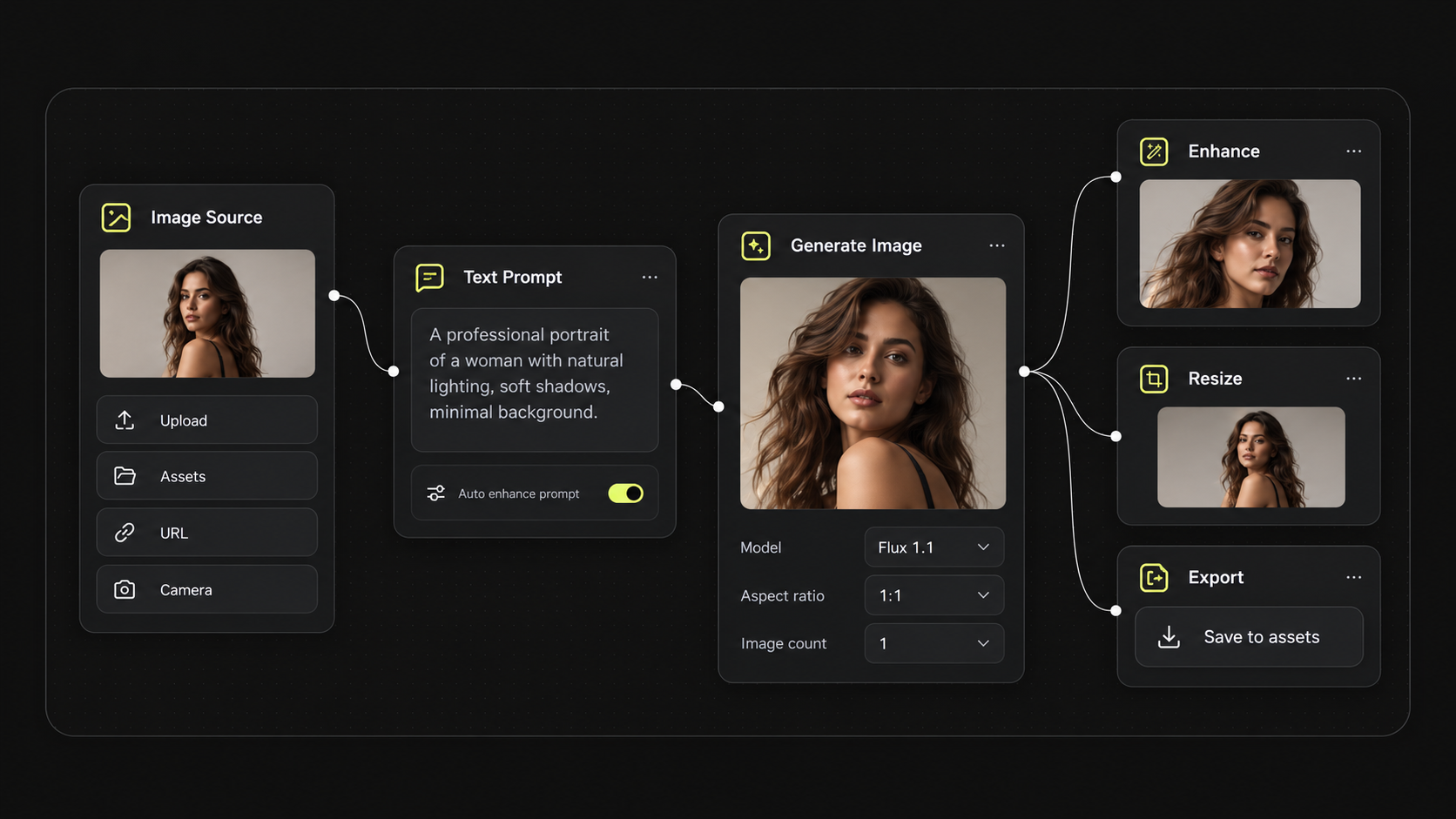
A node editor is a visual canvas where each step of a process is a block (a node) and the connections between blocks define the order those steps run in. In creative production it replaces a chain of manual actions — write a prompt, generate, pick a result, edit it, resize it, export it — with one workflow that can be saved, shared and run again with different inputs.
A node is one step of the job: an image or text source, a prompt, an AI model, an edit such as upscaling or background removal, or an export.
Connecting nodes defines the order of the process. The output of one node becomes the input of the next, so the whole sequence is visible on the canvas.
Running the workflow executes every step in order. Change an input or a setting and run it again — the process itself stays the same.
A node handles one part of the job — a source, a prompt, a model, an edit, an export. Connect the nodes once and a manual creative process becomes a workflow you can rerun, branch and scale.
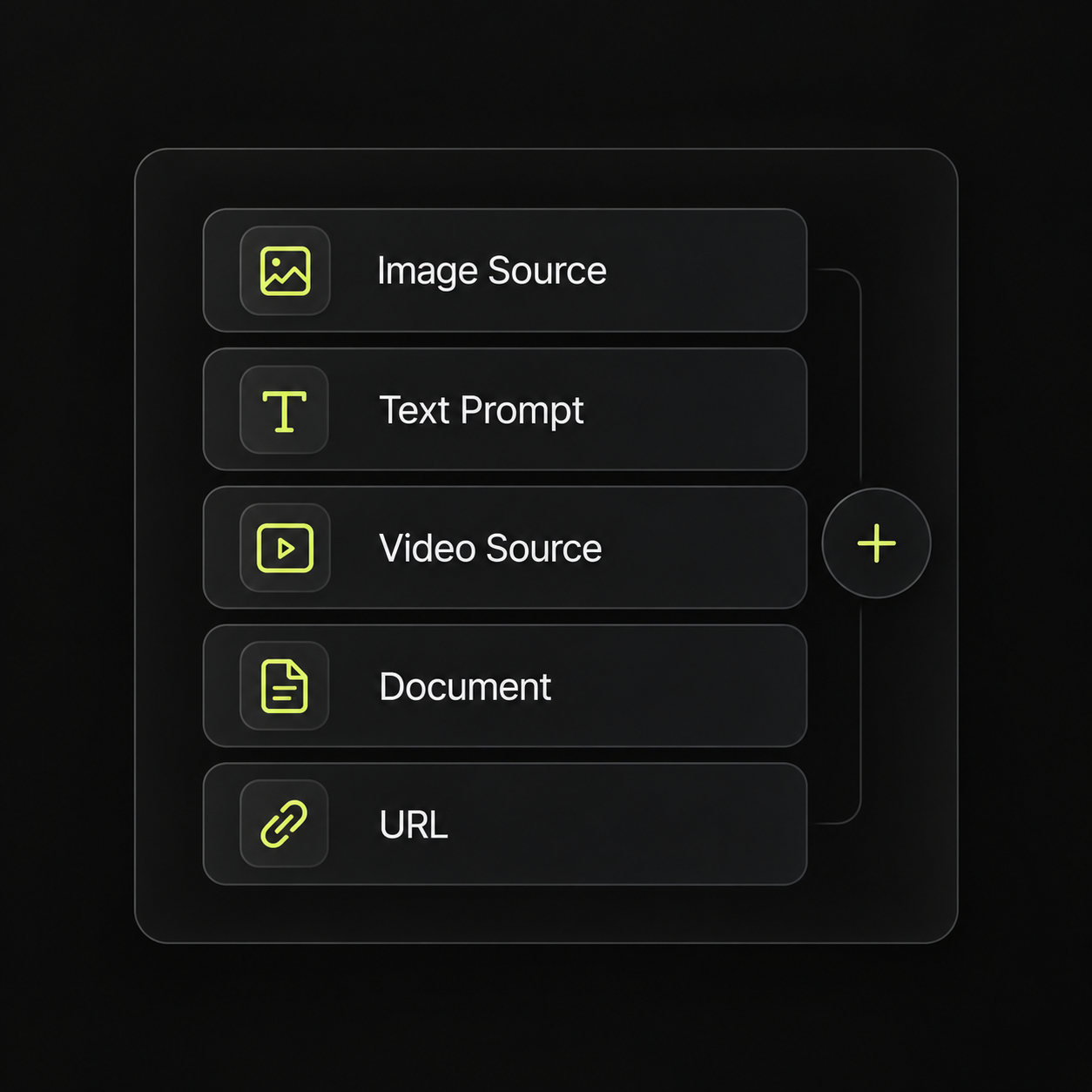
Bring images, video, text, documents, URLs and AI models into the same workflow.
Split one input into several creative directions, different models or different output formats.
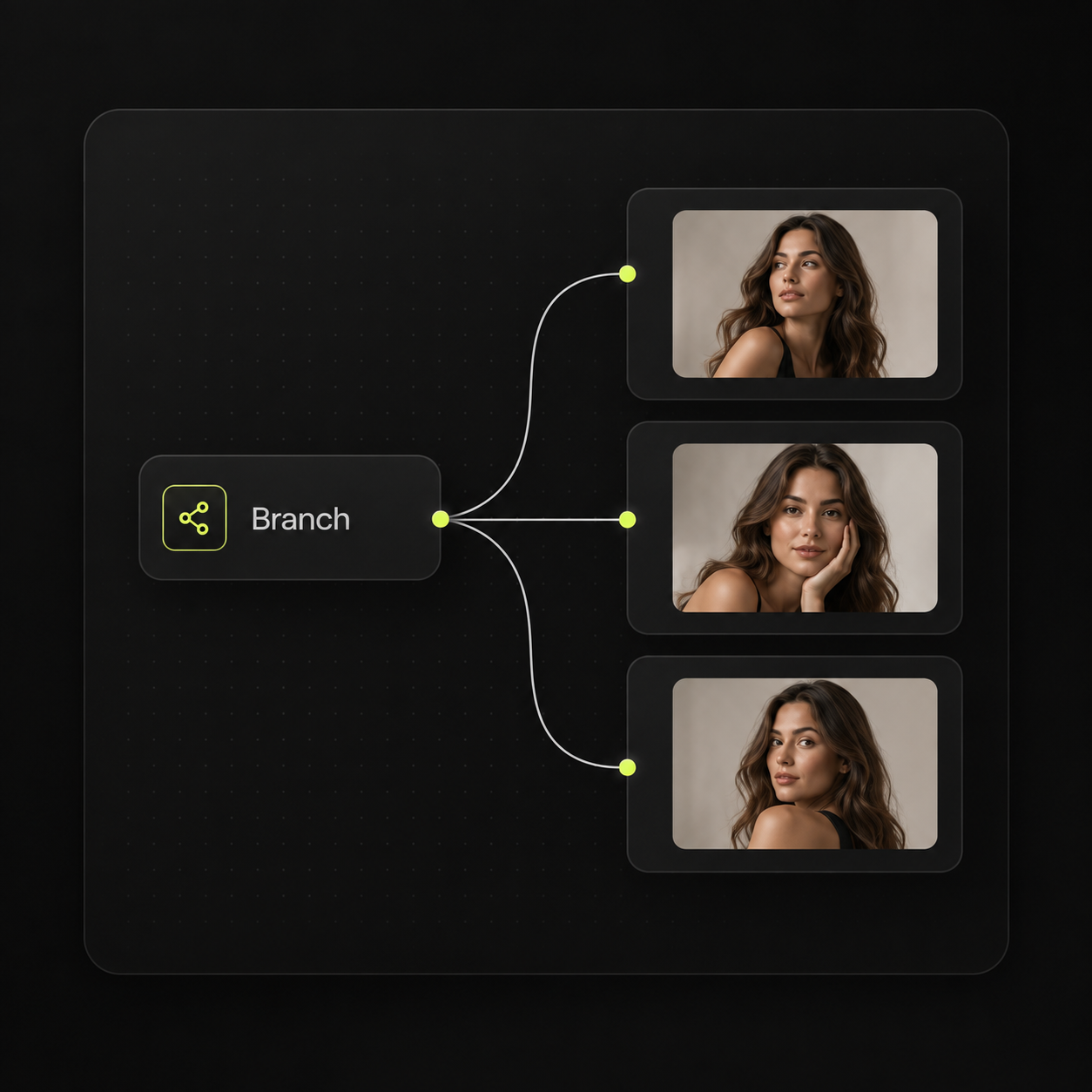
Send many assets through the same workflow using bulk inputs and iterator nodes.
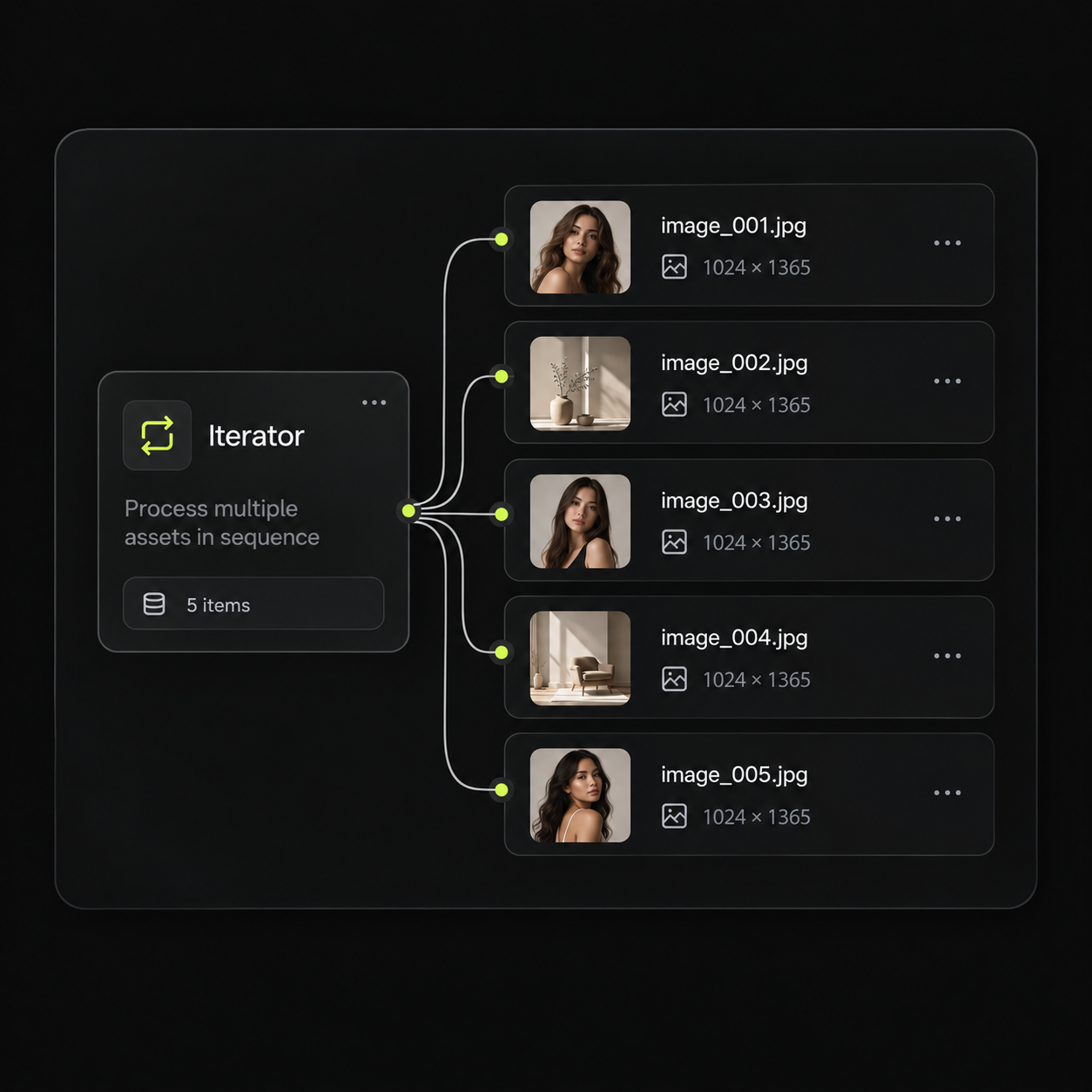
Store a finished workflow as a template instead of rebuilding the same steps each time.
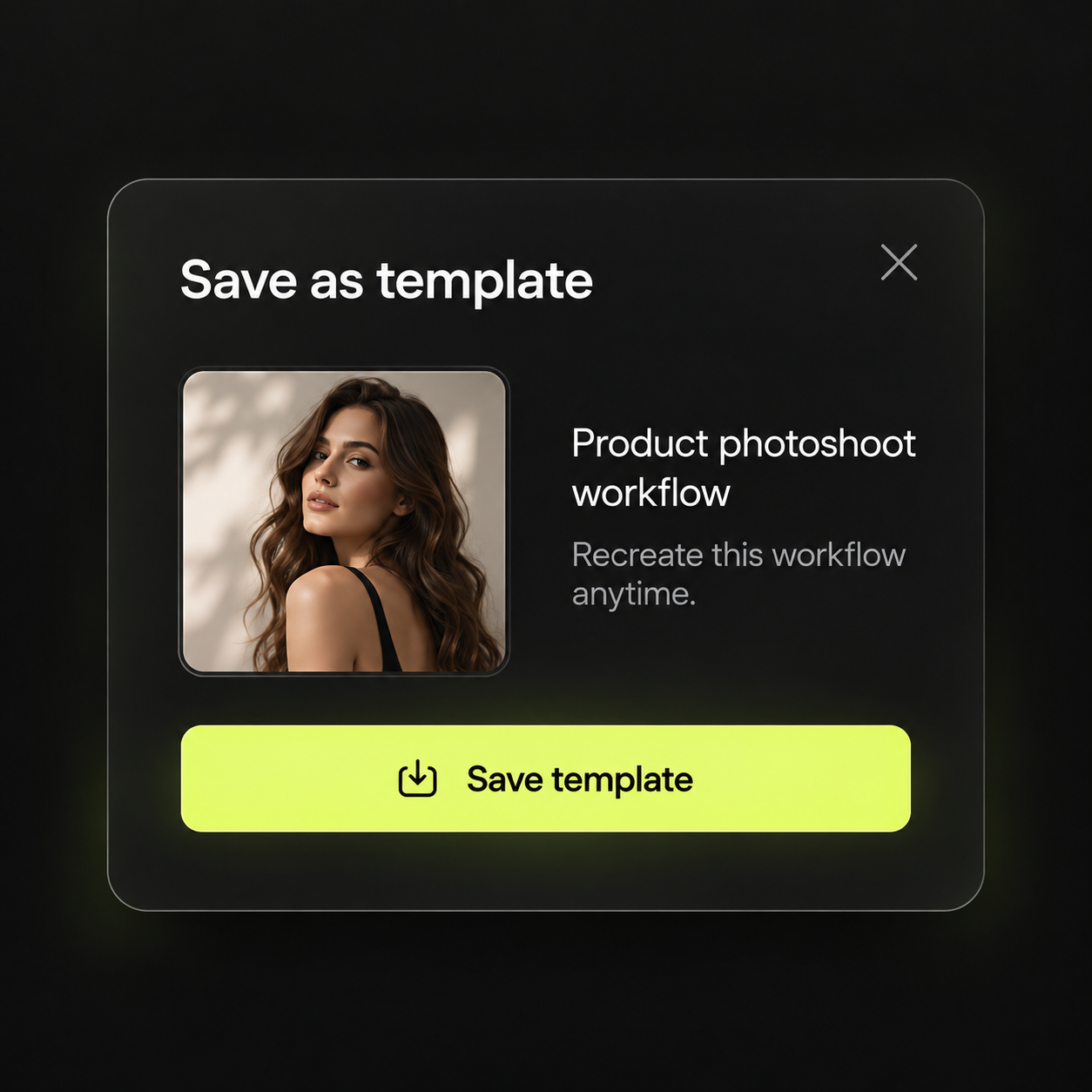
No code and no local setup. You add nodes on the canvas, connect them in the order the work happens, and save the result as a workflow anyone in the workspace can run.
Upload product photos, reference images, video or a written brief, or start from a prompt node.
Add generation, editing or text nodes and pick which AI model each one runs on.
Split the workflow into concepts, formats or model comparisons, then add upscaling, background removal or resizing where needed.
Store the finished graph, expose the variables your team should control, and run it again for the next brief.
Open a ready-made workflow for a complete production task, or add a single Branch node for a job you repeat often.
Browse workflow templatesPublish a workflow with a fixed set of variables — model, camera, lighting, style, aspect ratio, number of images — so the rest of the team can run it without touching the graph behind it.
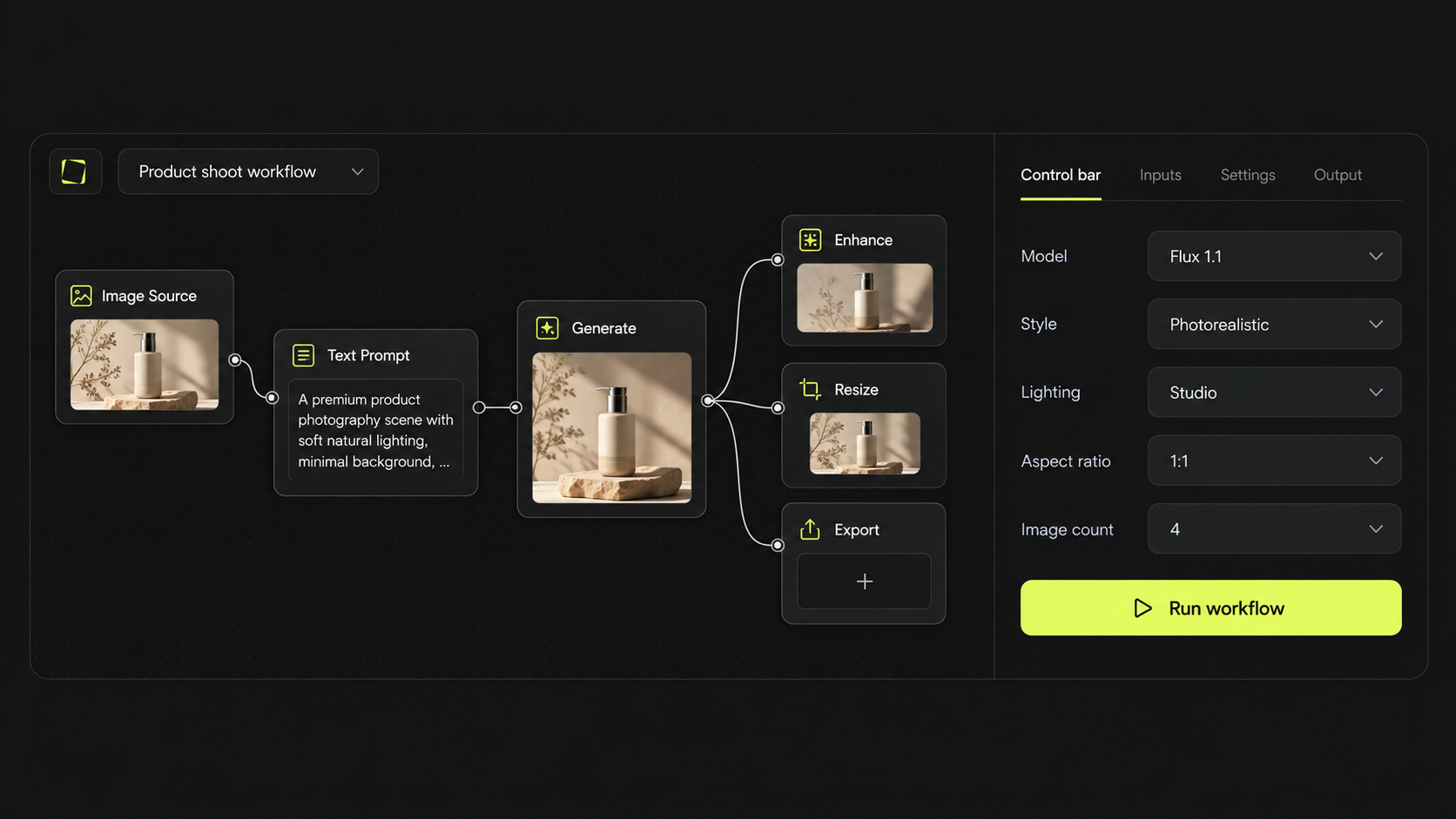
Branch a single brief into concepts, layouts, model choices and format variations, while the production logic behind them stays the same.
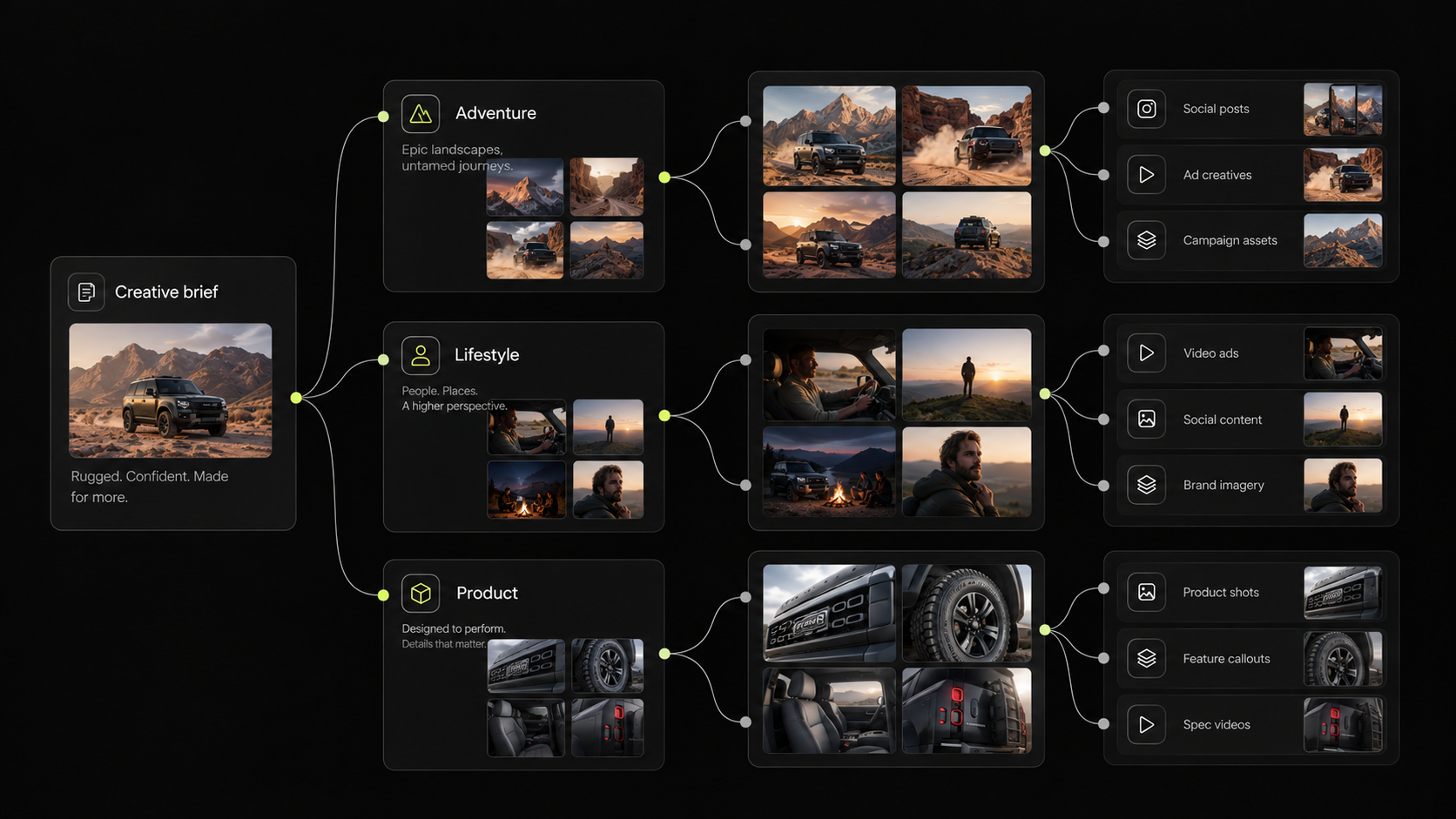
Most teams arrive at a node editor from one of three places. What they keep is the visual logic of nodes; what they gain is a hosted workspace, several AI models side by side and workflows their colleagues can actually run.
If you already work in ComfyUI or a similar graph, the logic will be familiar: nodes, connections, branches and batch runs. The difference is that Mujo is hosted — no local install, no GPU to manage, no custom nodes or model files to maintain — and workflows live in a shared workspace with roles and usage limits.
A chat gives you one result per prompt and no record of how you got there. A workflow keeps the steps: the same lighting, model, format and post-processing are applied every run, and only the inputs change.
Repetitive steps — resizing for each placement, removing backgrounds, producing format variants — run as nodes, while art direction and selection stay with your team.
Production stays inside one workspace, with control over who can build workflows, which models they can use and how much they can run.
Keep production workflows available to everyone in the workspace.
Decide which AI models and tools each member can use.
Separate builders, creators, reviewers and admins.
Set generation limits and manage credit use across the workspace.
See which workflows, models and credits are being used.
Concepts, variations and final assets from one brief.

Studio and lifestyle product images.

Model and look variations at scale.

Frame sequences built from a written idea.

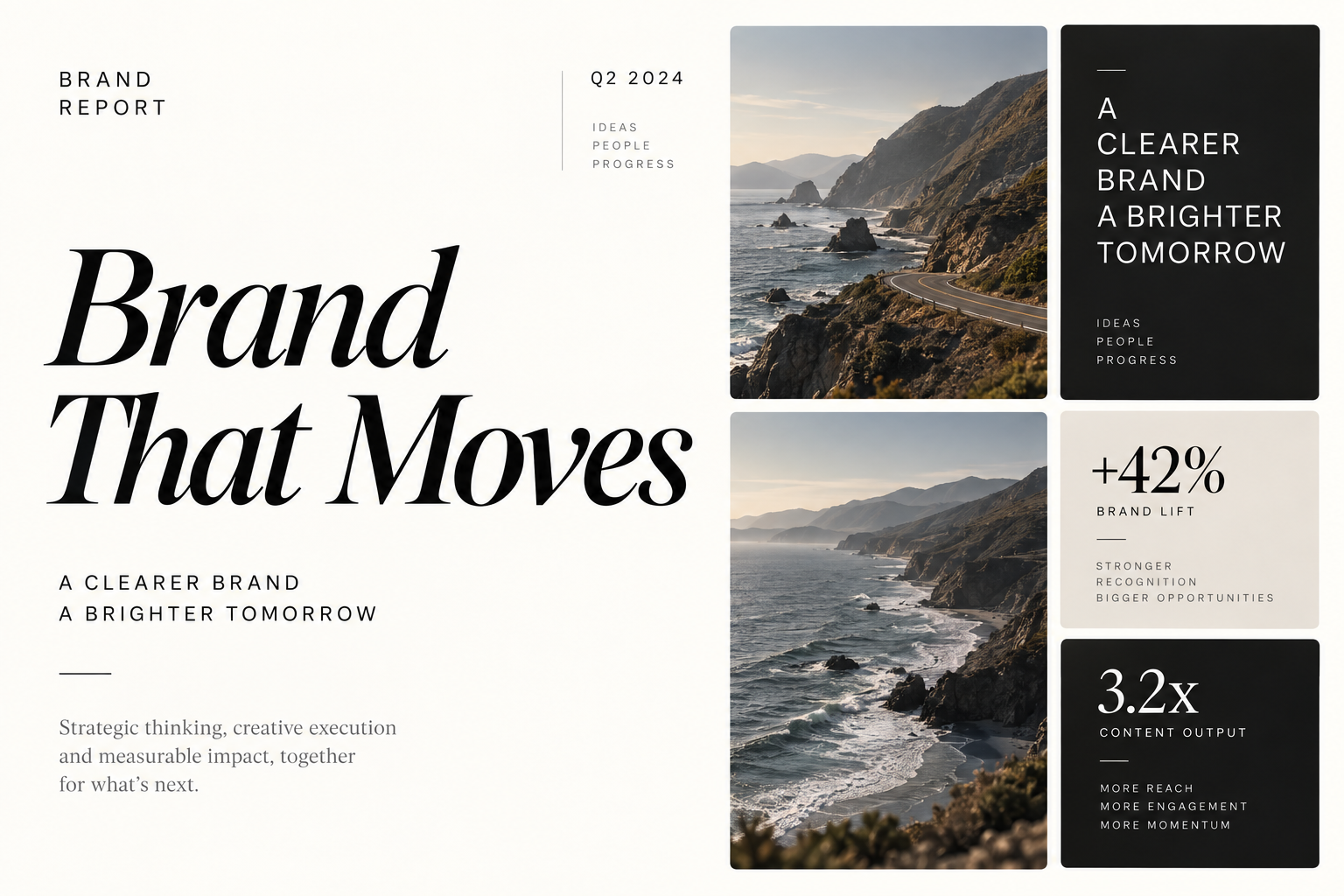
Presentations and documents in brand templates.
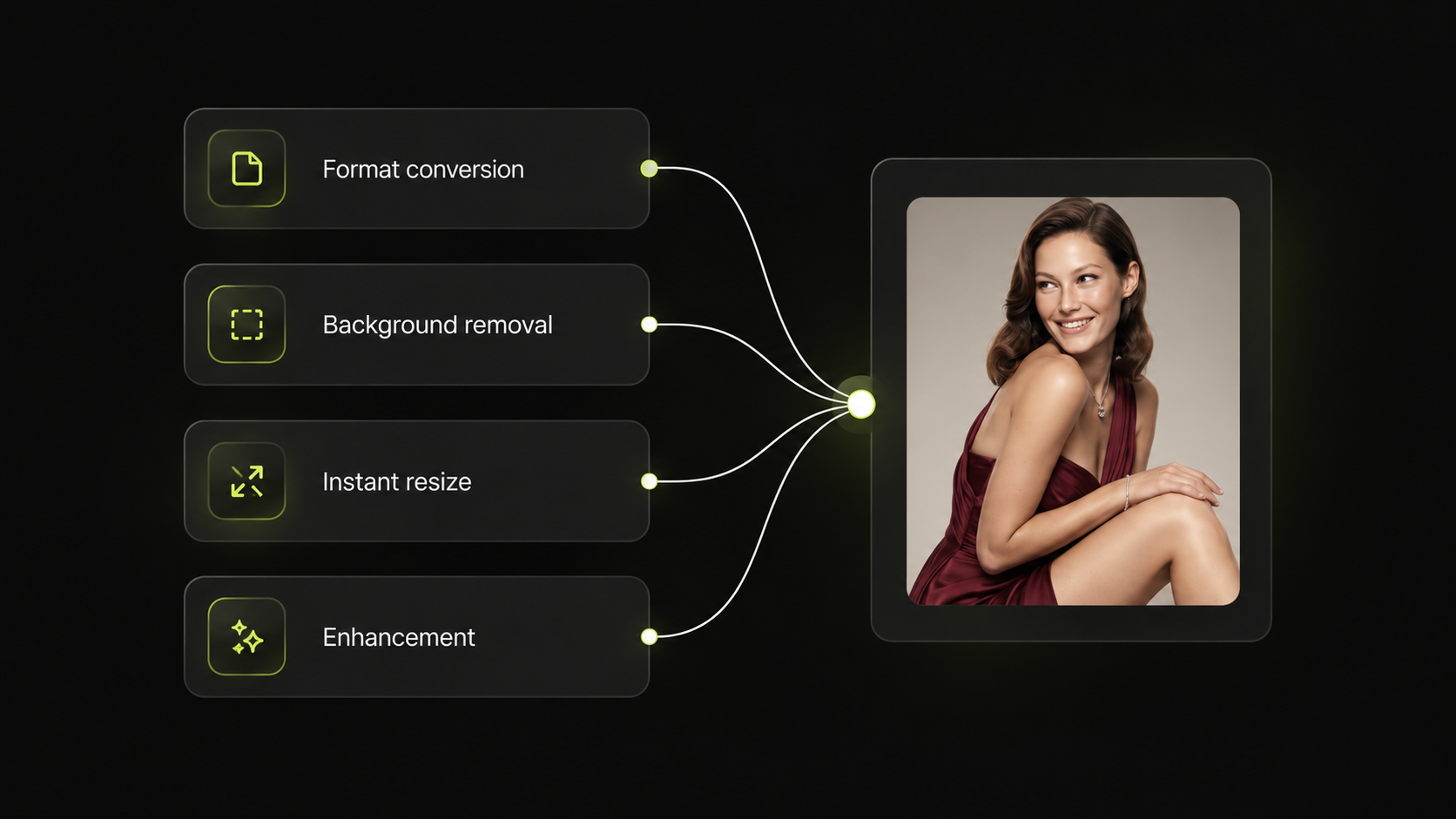
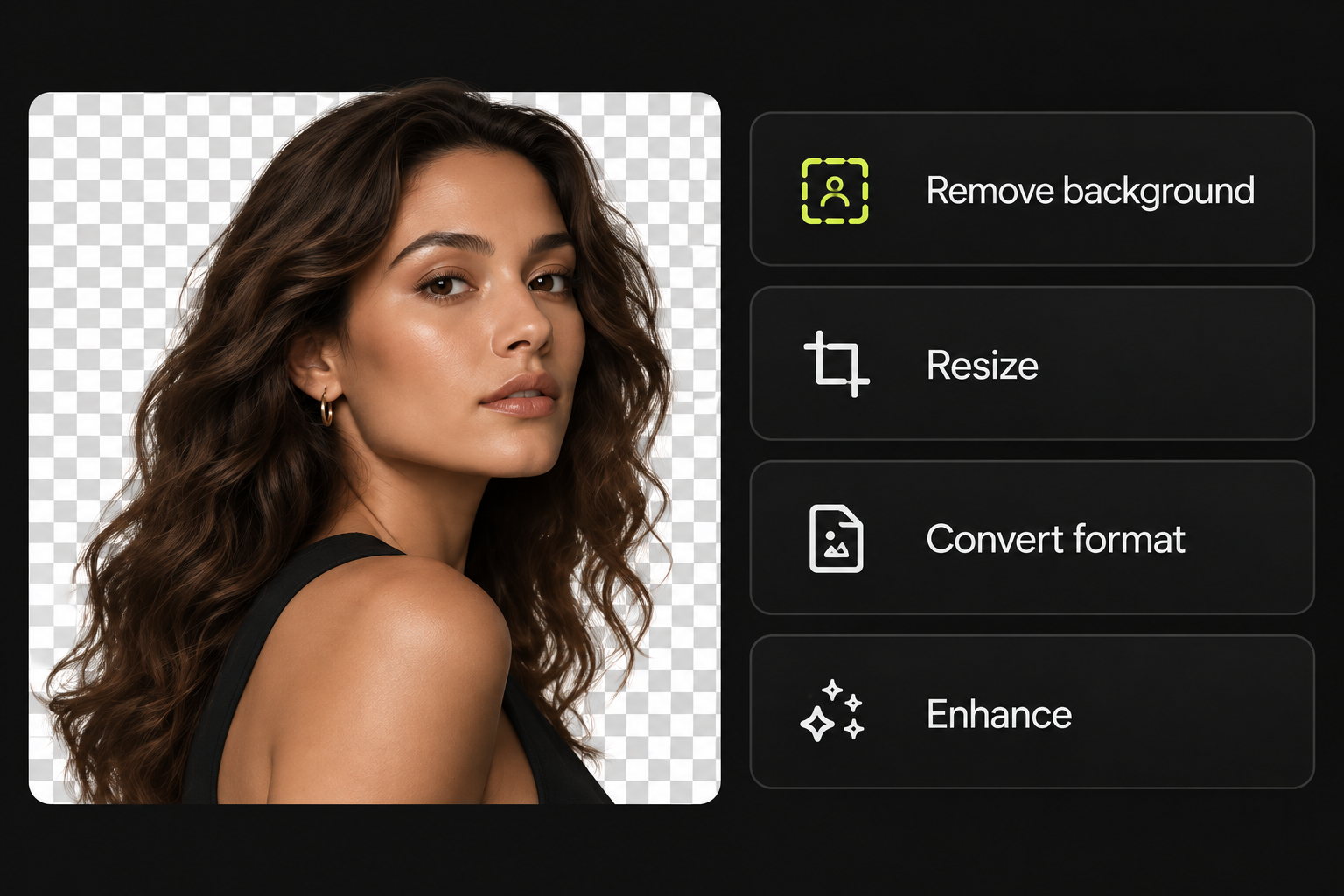
Background removal, resizing and format conversion.
Built for creative teams and enterprises that need access control, data security and consistent output at scale.
Projects, assets and workflows stay inside your workspace.
Assign permissions across the organisation.
Define which AI models and tools can be used.
Track usage, set limits and review activity.
It is used to turn a repeated creative process into a reusable workflow. Instead of running each step by hand — prompt, generate, select, edit, resize, export — you connect those steps as nodes once and run the whole sequence again with new inputs.
No. The node editor runs in the browser inside your Mujo workspace. There is nothing to install, no GPU to configure and no model files to download.
You can use several models in the same workflow and choose which one each node runs on — for example one model for generation, another for editing or upscaling. Workspace admins decide which models are available to which members.
Yes. Bulk inputs and iterator nodes send a list of assets or prompts through the same workflow, so a full catalogue or a set of product photos is processed in one run.
Yes. When you publish a workflow you choose which variables stay open — model, style, lighting, aspect ratio, number of images. Everyone else changes only those and runs it; the graph behind them is not touched.
A chat returns a single result and keeps no record of the steps behind it. A workflow stores the process, so the same lighting, format and post-processing are applied on every run and results stay consistent across a campaign or a catalogue.
Yes. Workflows are saved as templates and can be duplicated, shared with the team and reused with a different product, brief or brand.
Projects, assets and workflows stay in your team workspace. Access is set by role, and admins can review activity and set usage limits across the organisation.
Build your team's production process once in the node editor and run it whenever a new brief comes in.