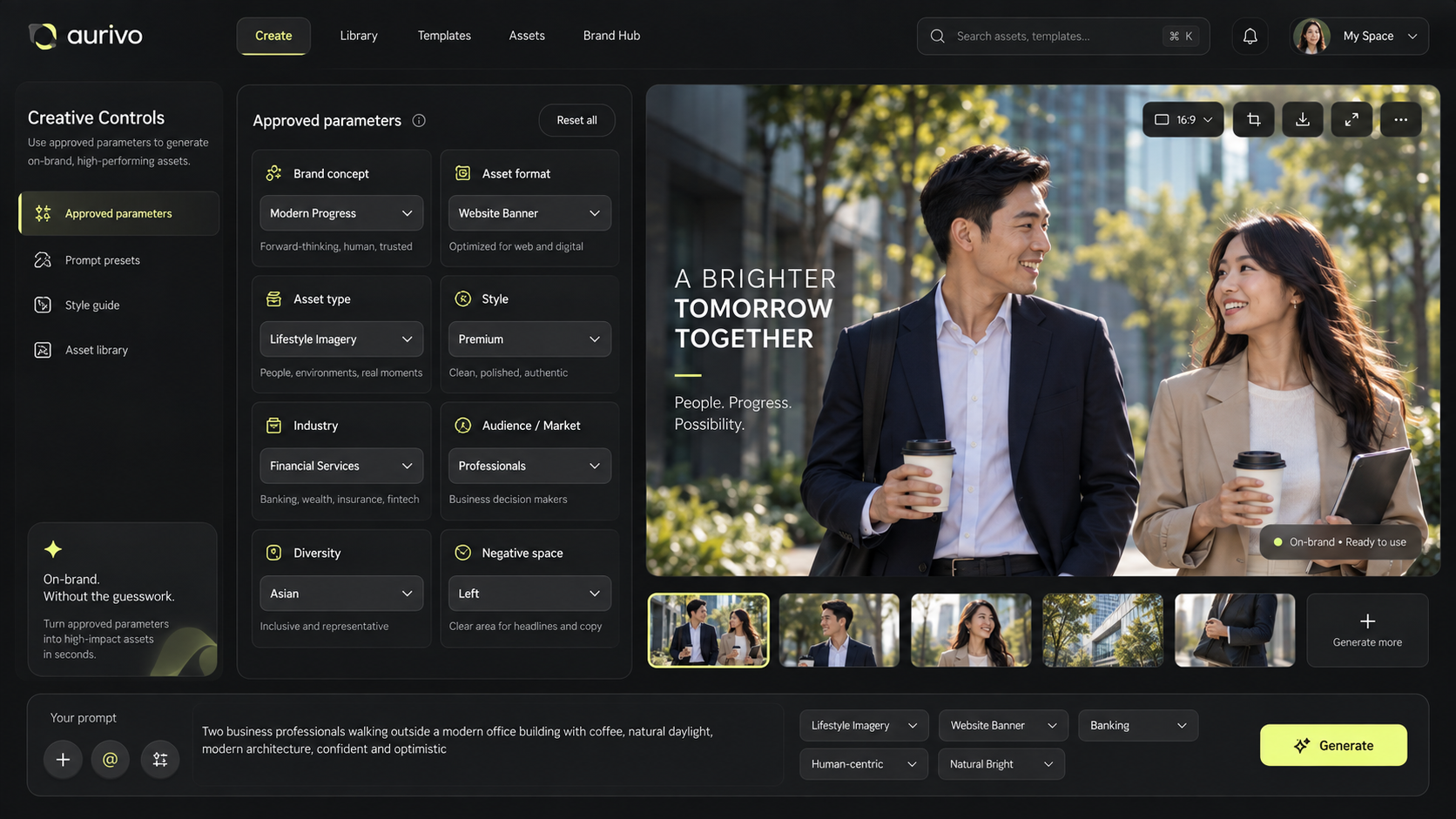
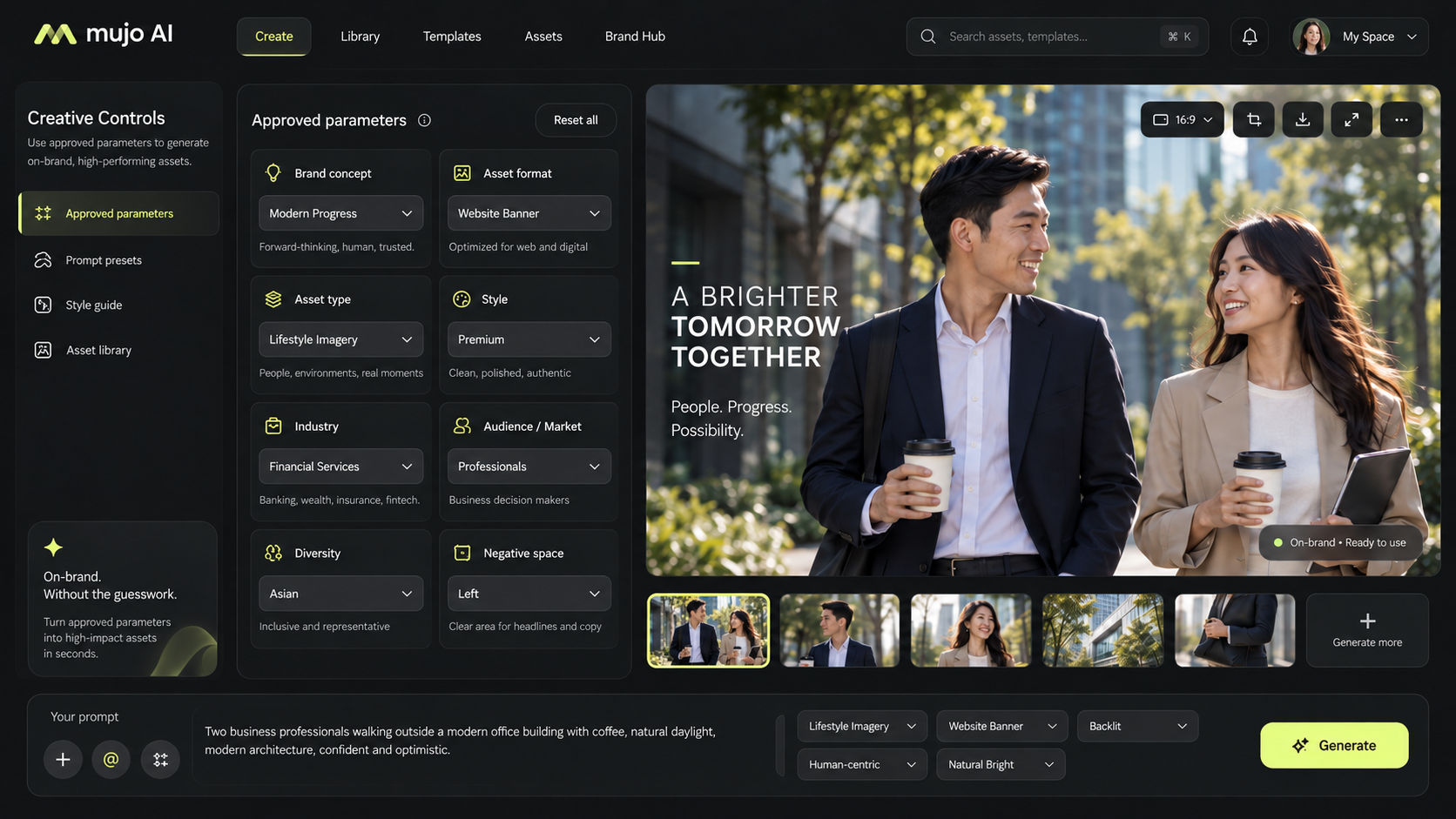
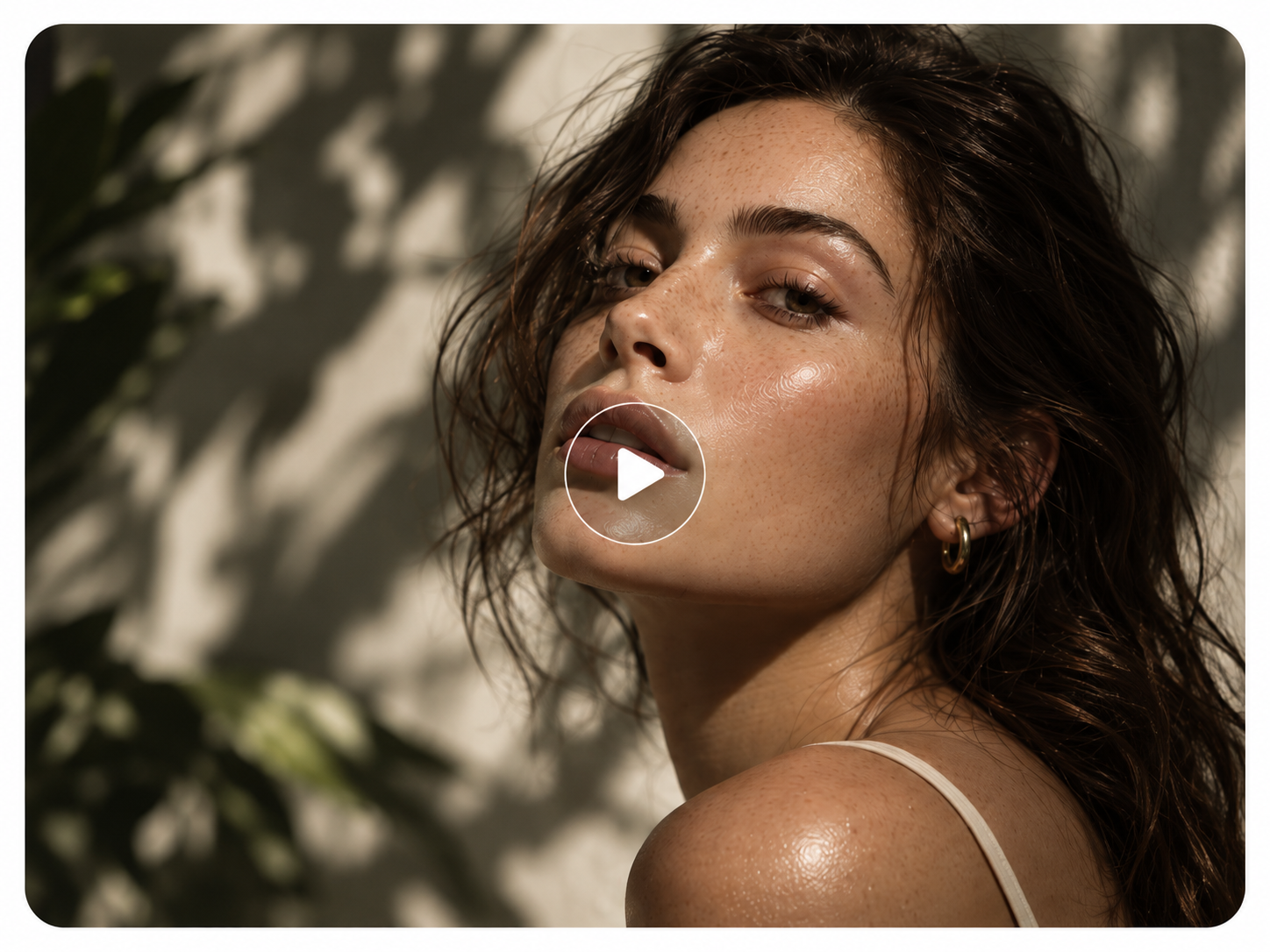
Set the angle, the light and the pose.Get the same look every time.
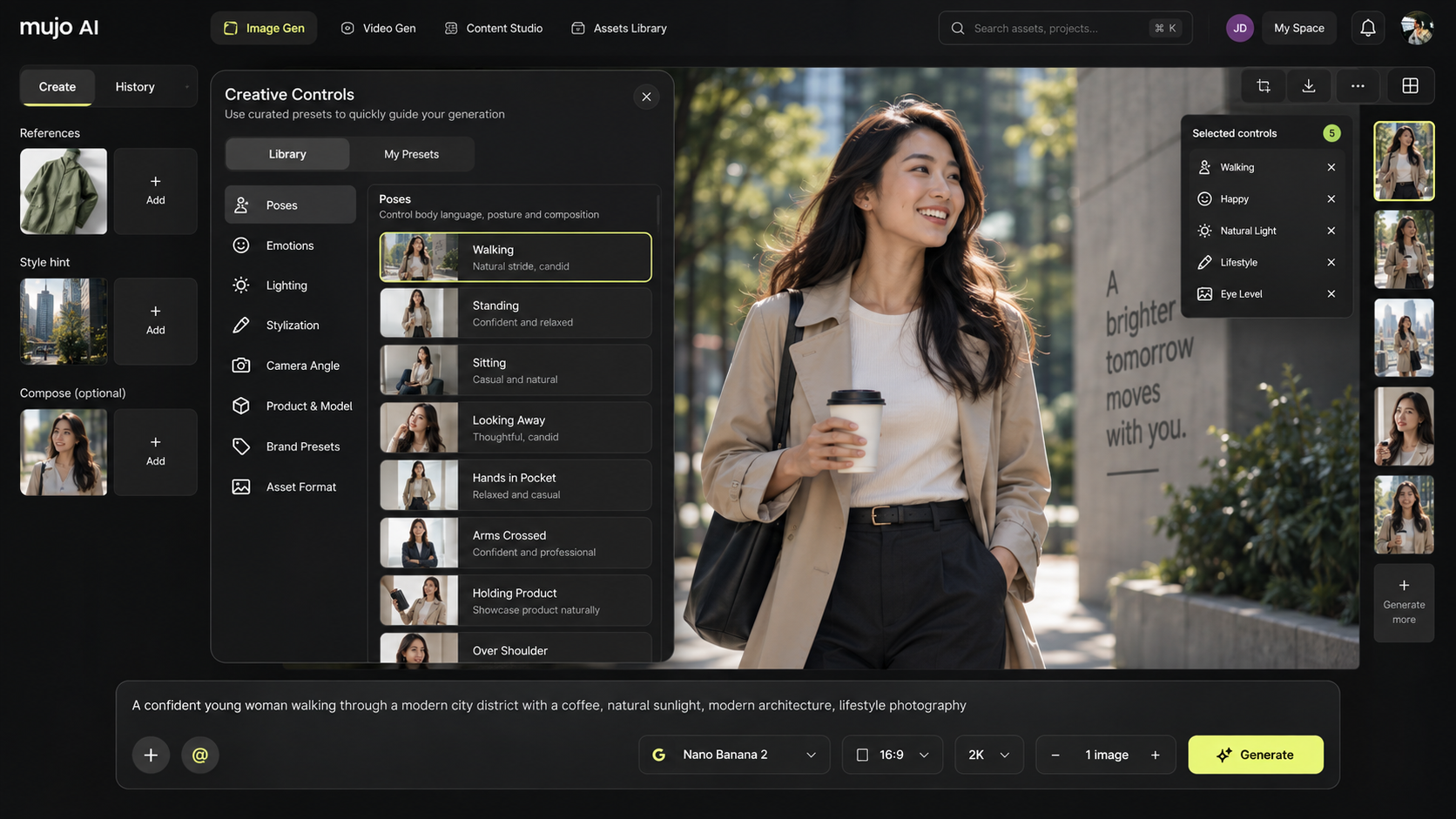
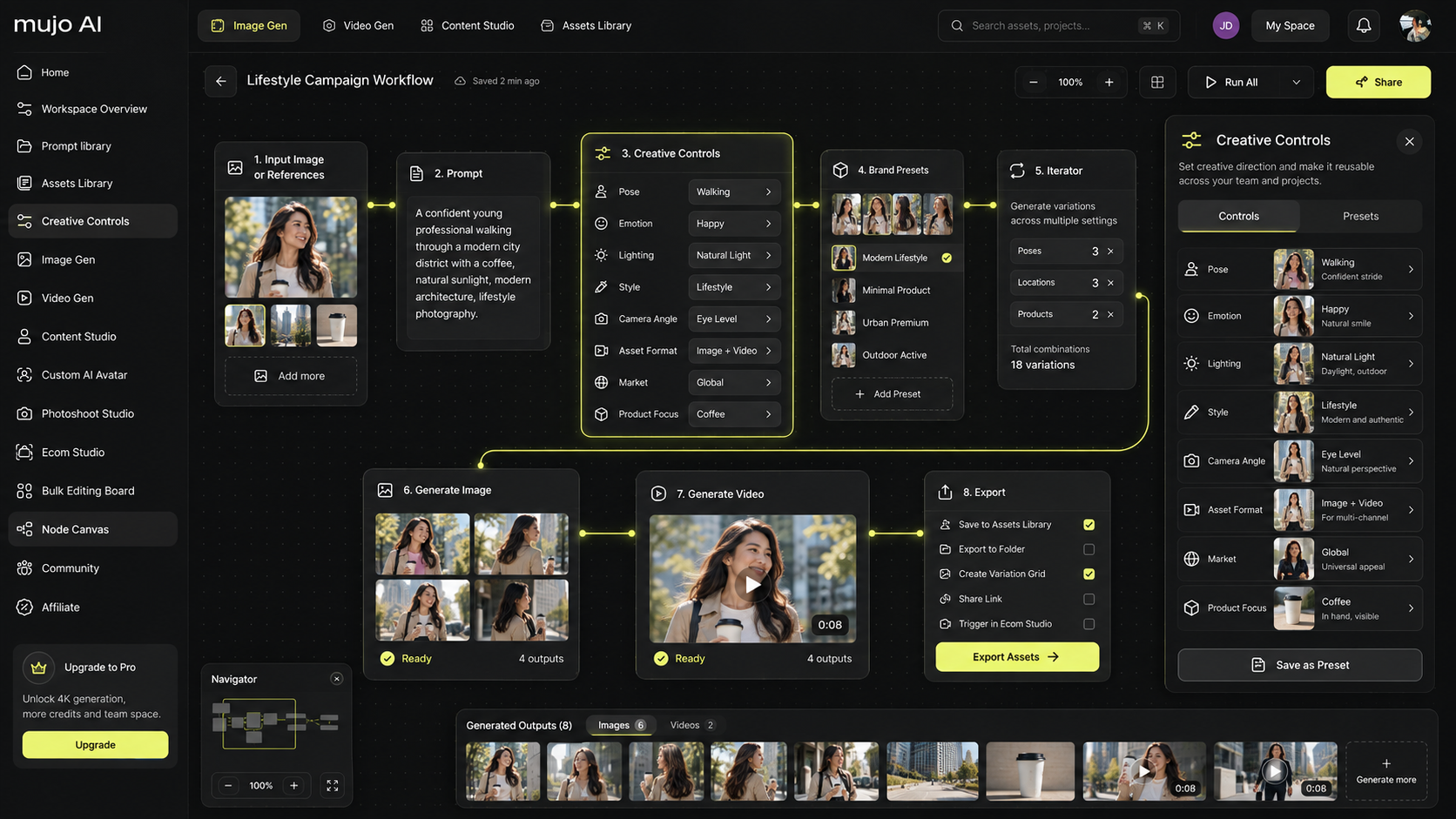
Creative Controls are settings you pick instead of sentences you write. Choose the camera angle, the lighting, the pose, the composition and the style from a list — the way you would set up a real shot — then save that setup and load it again on the next product, the next campaign or a different AI model. This is the part that decides whether your second image matches your first.
Around 100 ready-made settingsCamera, angle, light, pose, emotion, style, composition.
Saved setupsReload a look next month instead of rebuilding it.
Works across modelsChange the AI model, keep the same settings.
What a control actually is
Three words used on this page,in plain language.
AI images are normally made by writing a description and accepting whatever comes back. Controls change where the decision happens: the things a photographer would set on the day — lens, light, angle, pose — become settings you choose, keep and reuse, instead of adjectives you retype and re-interpret every run.
A control is one decision
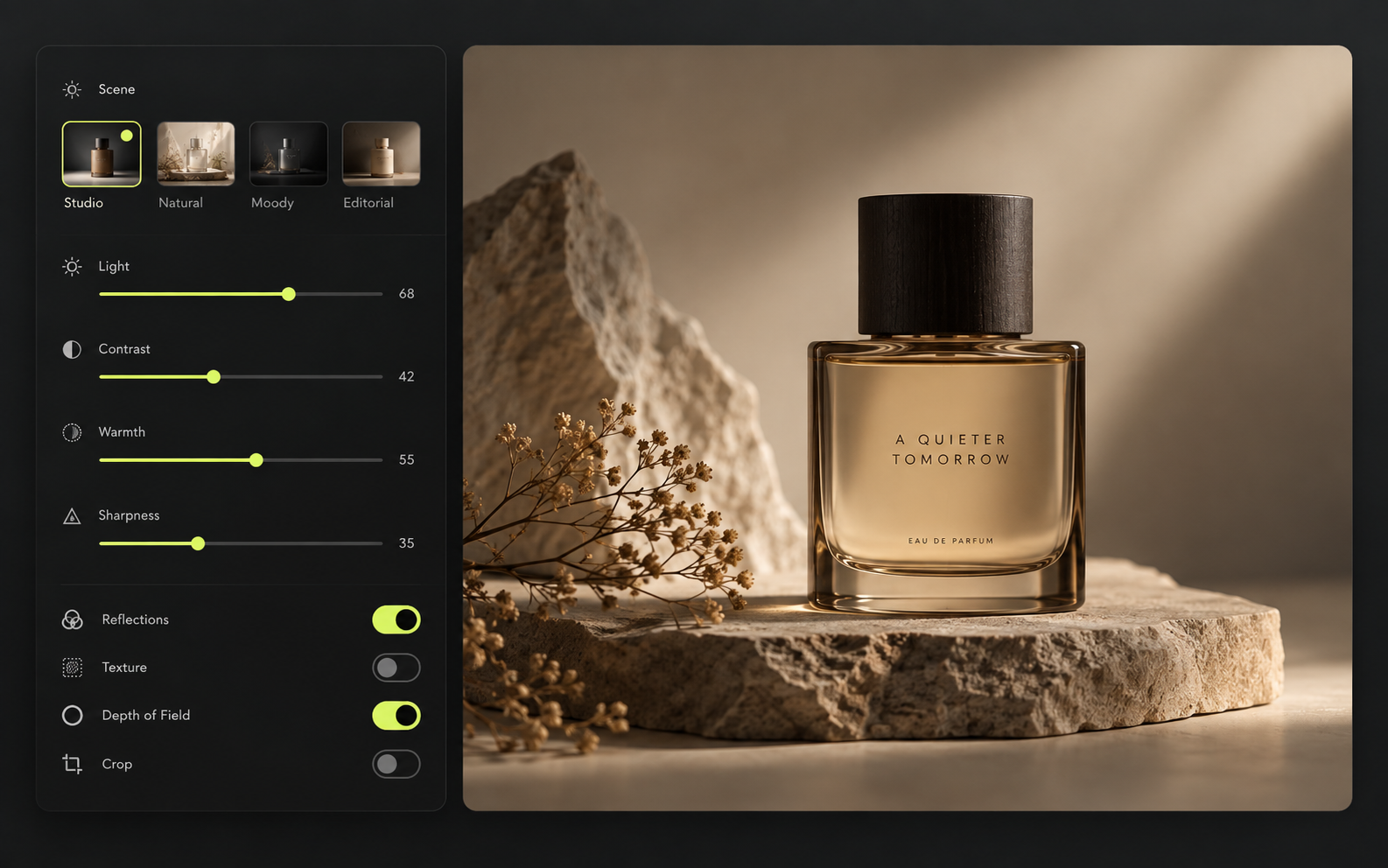
Camera angle. Key light. Pose. Instead of typing "low three-quarter angle, soft light from the left" into a prompt and hoping the model reads it your way, you pick those two things from a list. The model receives them as settings rather than as a sentence to interpret.
A control bar is the set you are using
The controls active on the current generation, sitting above the prompt: which model, what angle, what light, how strongly each one applies. Change one of them and everything else stays where you put it.
A saved setup is a look you can reload
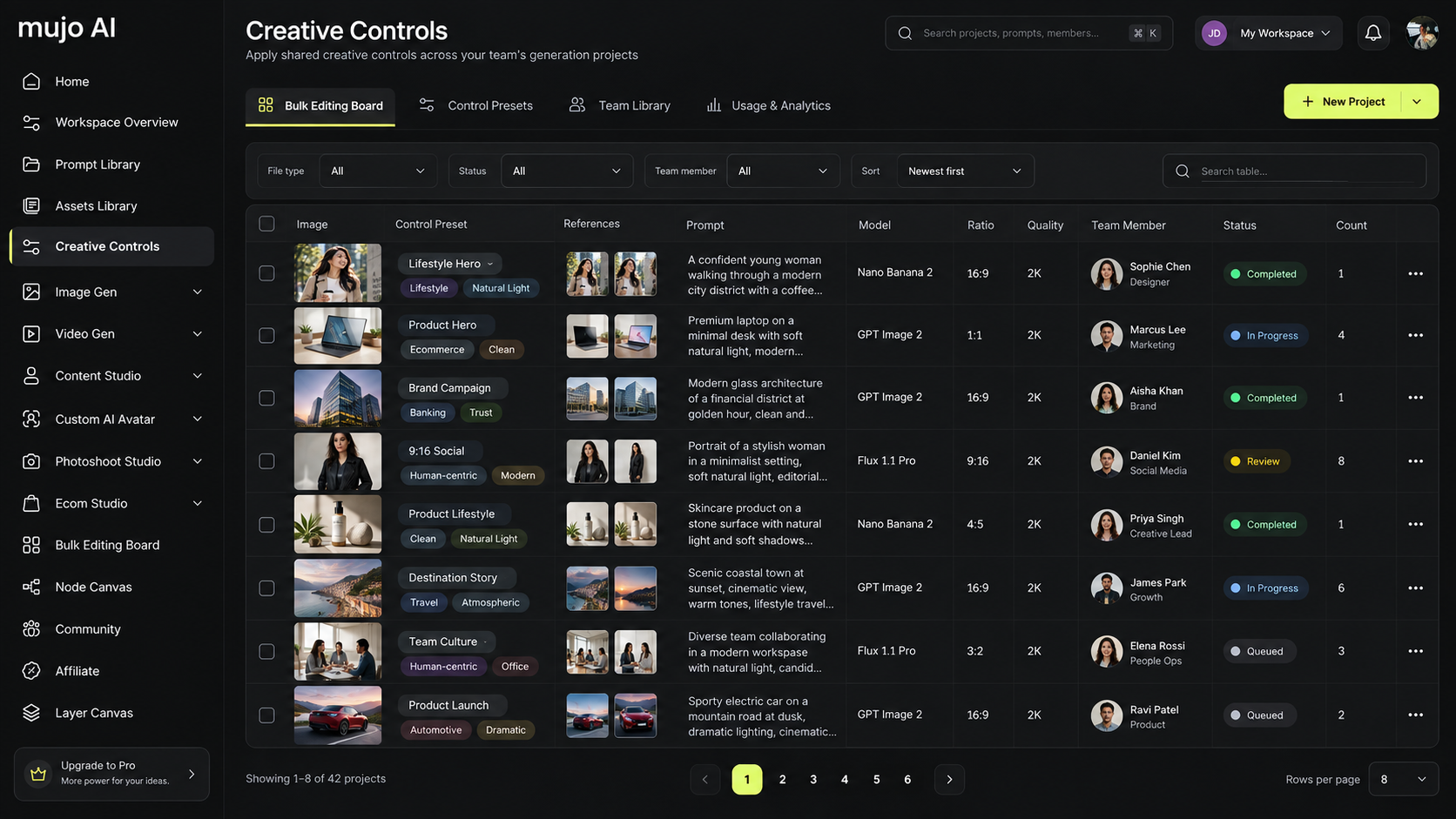
Keep the whole bar under a name. Open it next month on a different product and the shot comes back the same — same angle, same key light, same treatment. That is the difference between a good result and a repeatable one.
Why the same prompt gives a different result
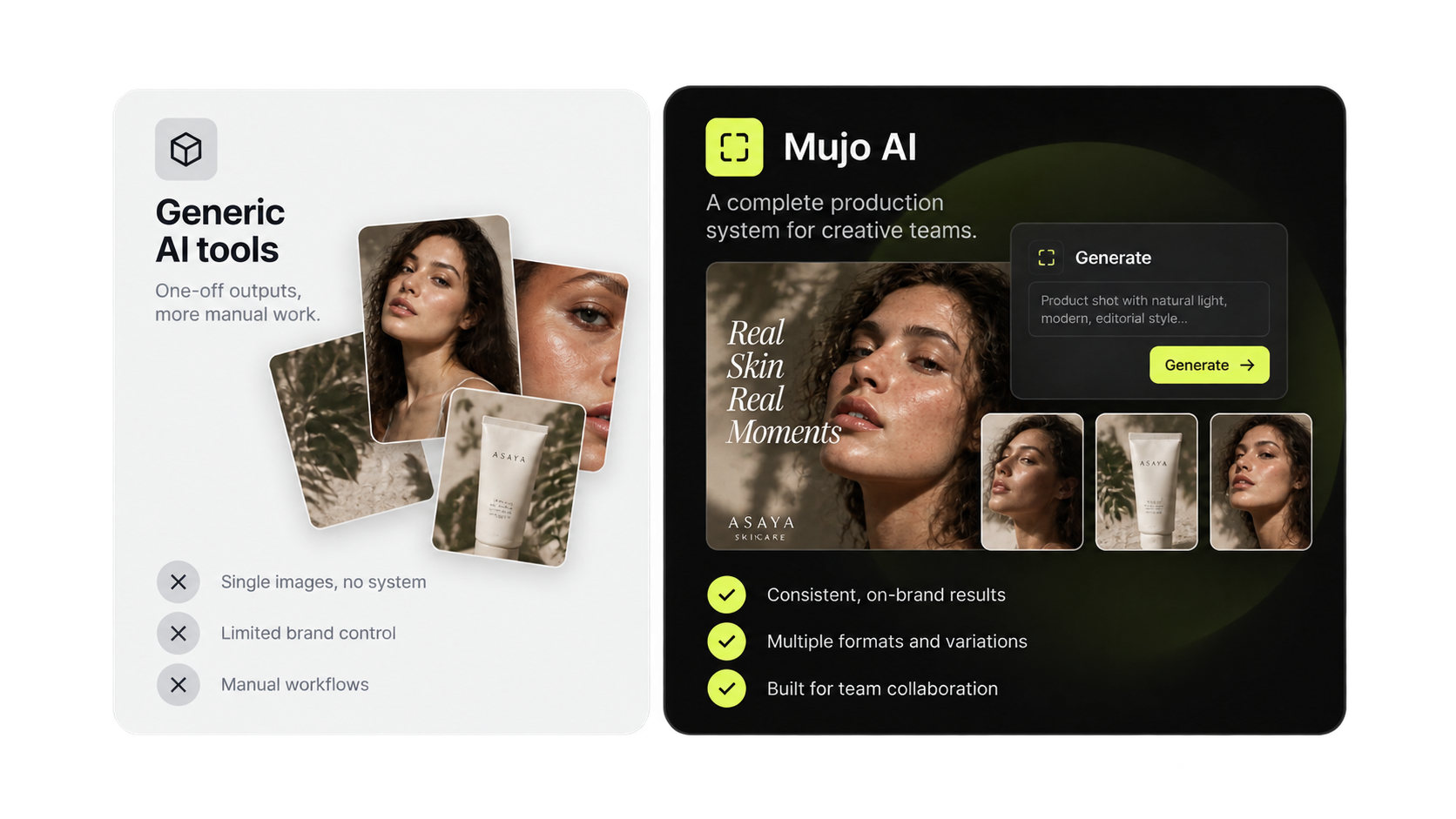
Prompts describe.Controls decide.
A prompt is a request written in words, and every run interprets those words again. Controls set the variables directly, so the parts you fixed stay fixed and only what you change, changes.
Working with prompts alone
×You describe a camera angle in words and hope the model reads it the way you meant
×Every rerun drifts — framing, light and style move on their own
×A result you liked lives in a history feed, not in a setup you can load again
×Switching to another model means rewriting the prompt from scratch
×Consistency depends on who wrote the prompt and how they phrased it that day
Working with Creative Controls
✓You set camera, lighting, composition, action and style as parameters
✓Change one variable and hold the rest — the way you'd bracket a real shot
✓Save the setup as a Control Bar and load it on the next project
✓The same controls carry over when you switch models
✓Shared controls keep a whole team on one visual language
What it actually looks like
One setup.Different subjects, same shoot.
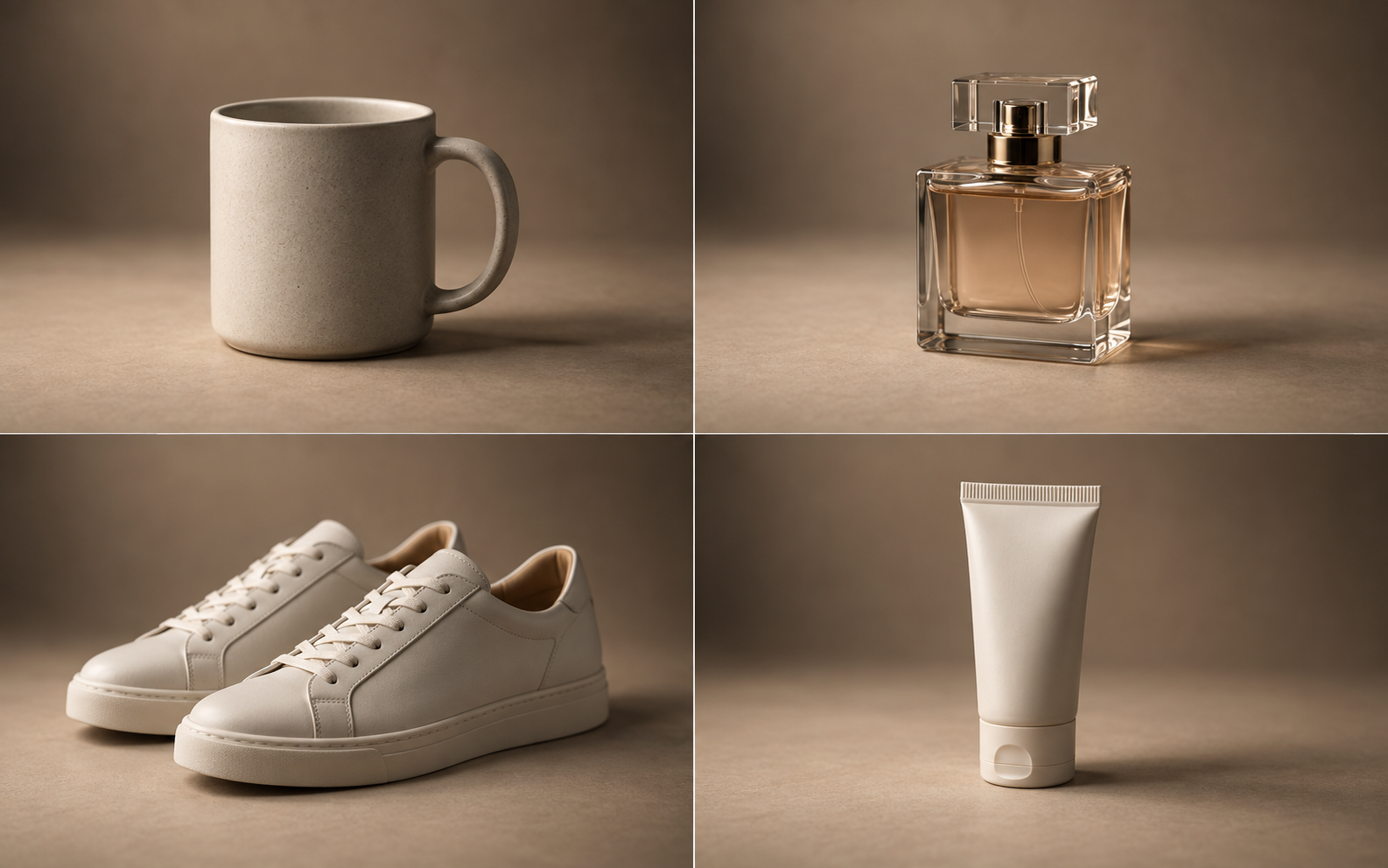
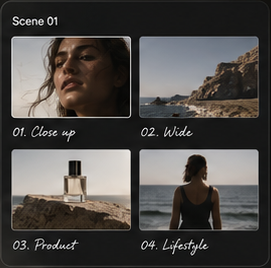
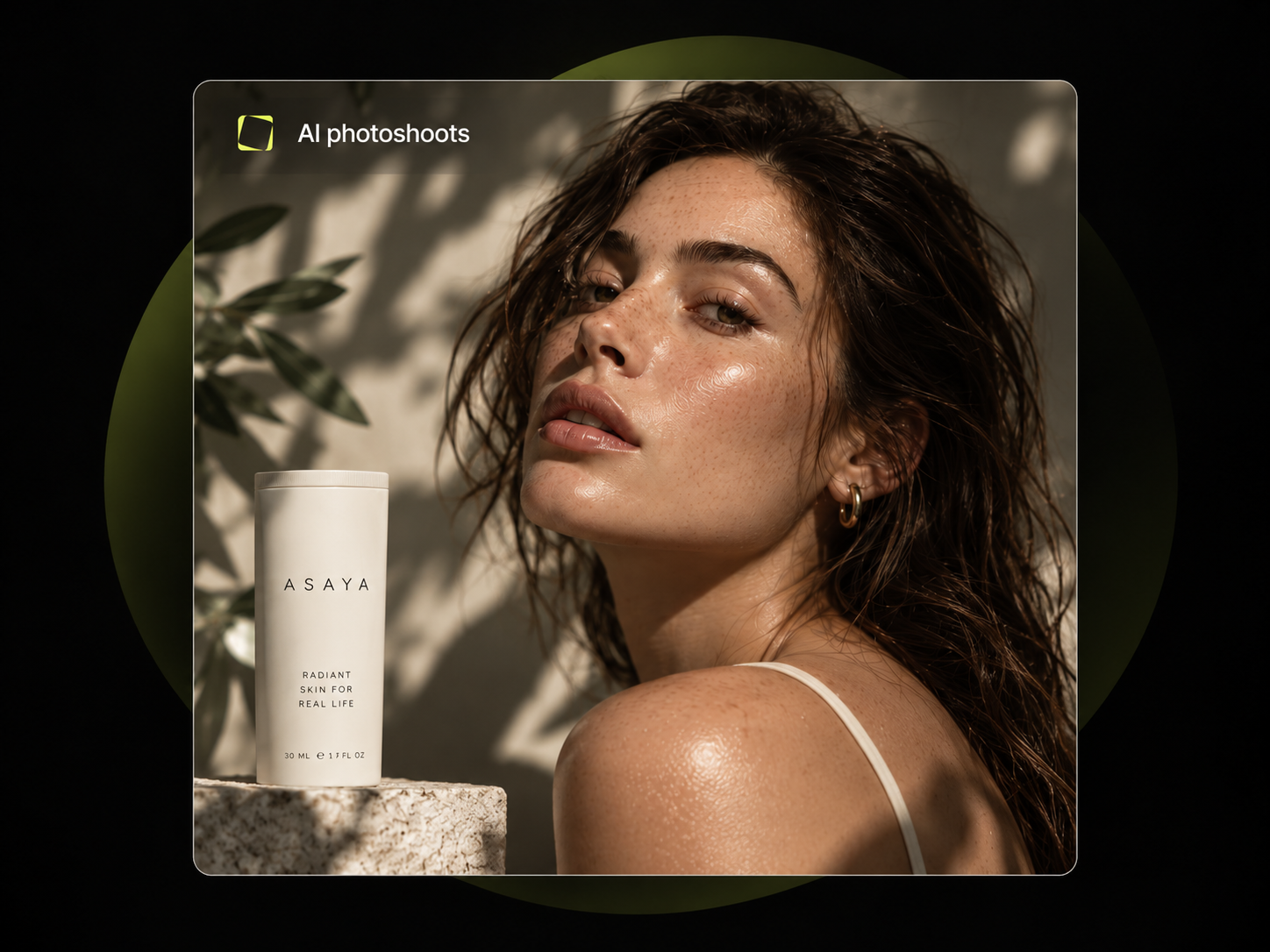
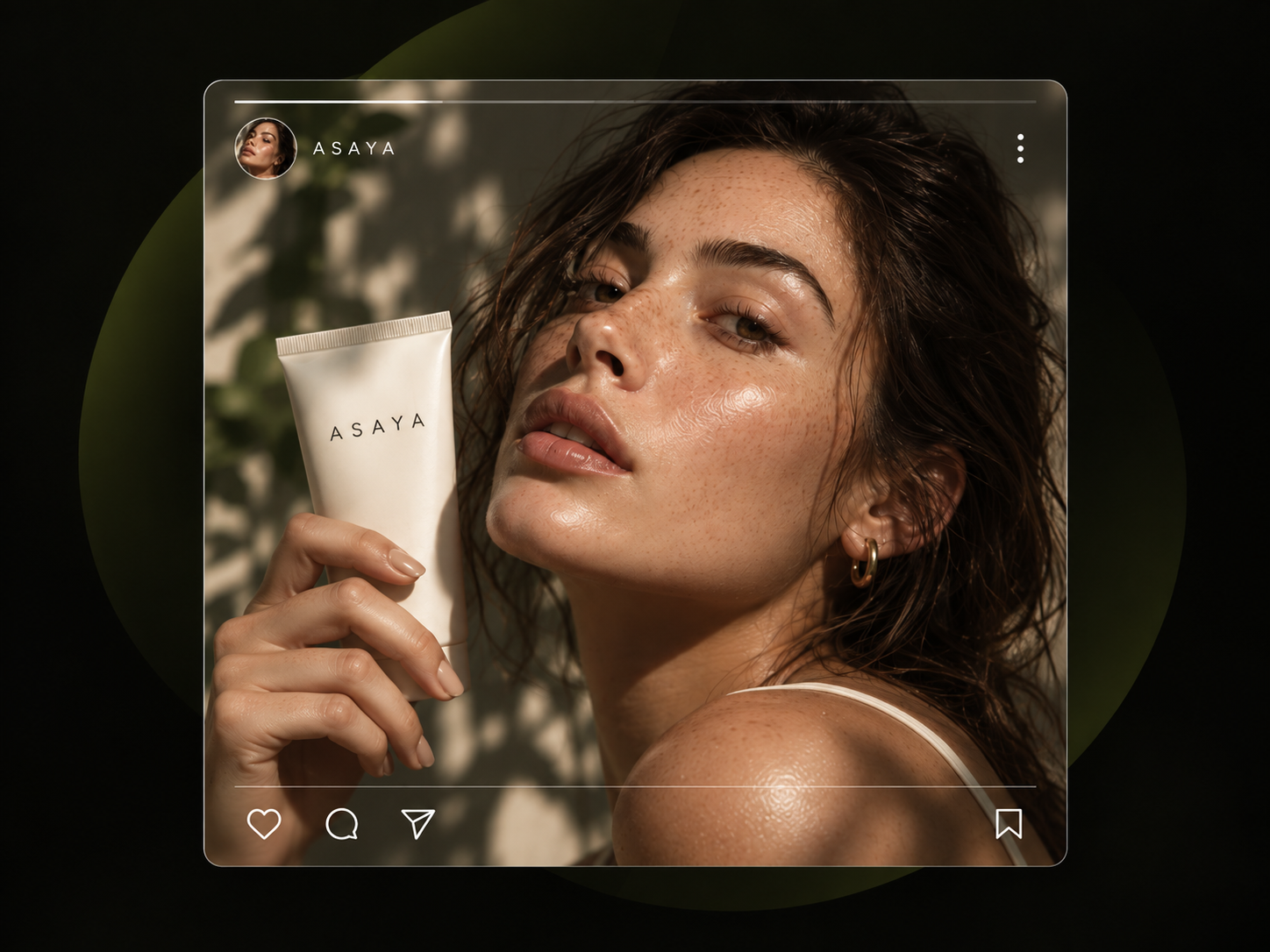
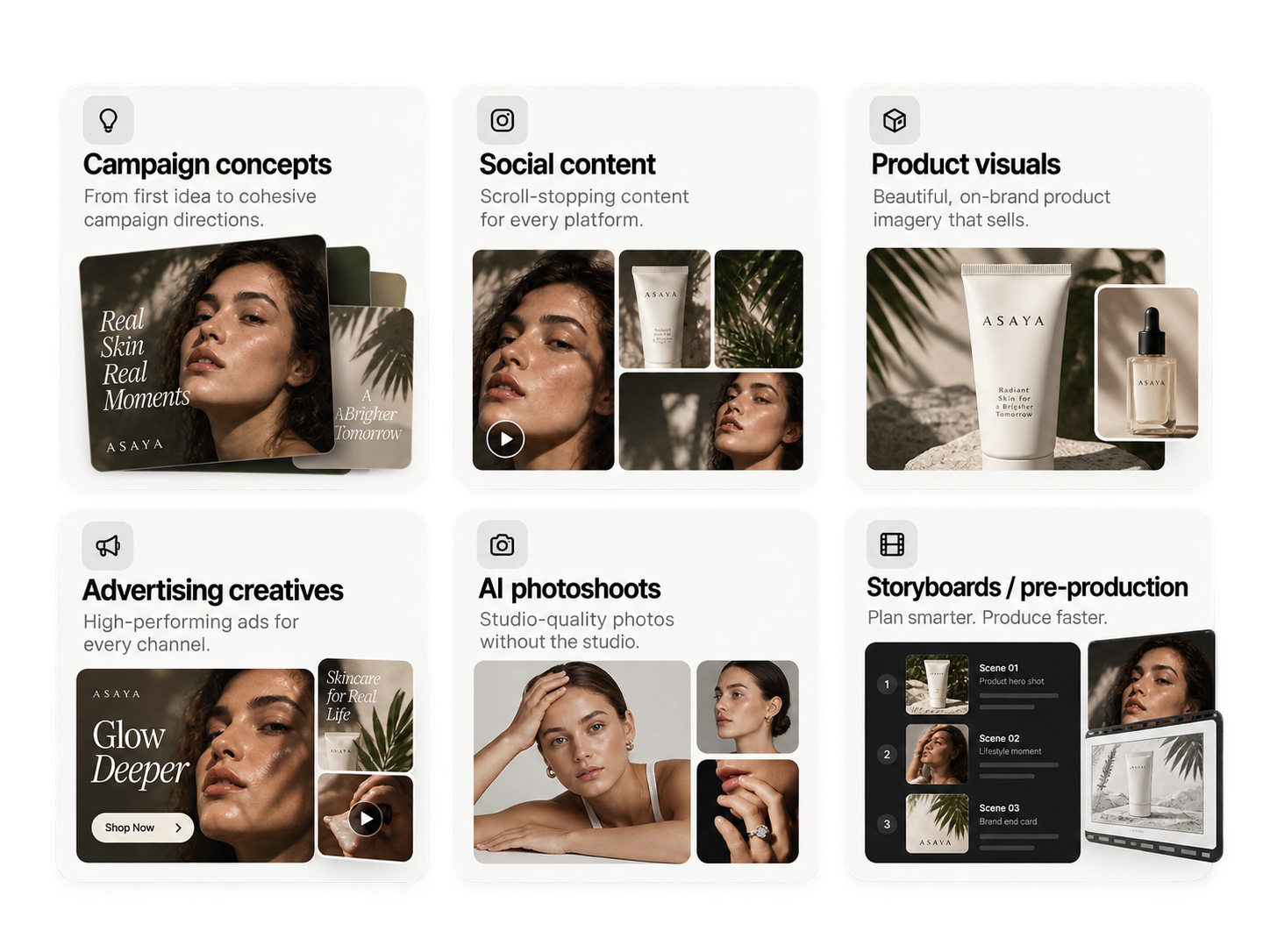
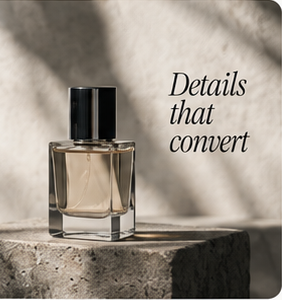
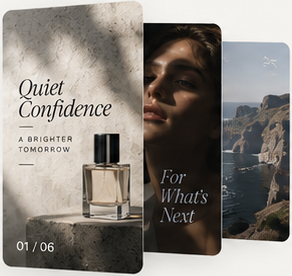
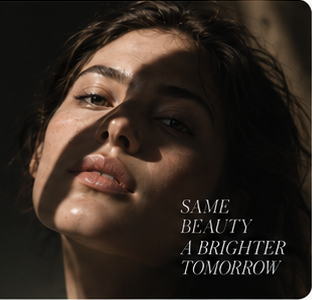
The claim on this page is repeatability, so here it is directly: one saved control setup, applied to unrelated subjects. Same camera position, same key light, same treatment — the products change, the shoot does not.
Four different products, one control setup. Nothing about the lighting or the angle was re-described between them.
✓Same angle
✓Same key light
✓Same treatment
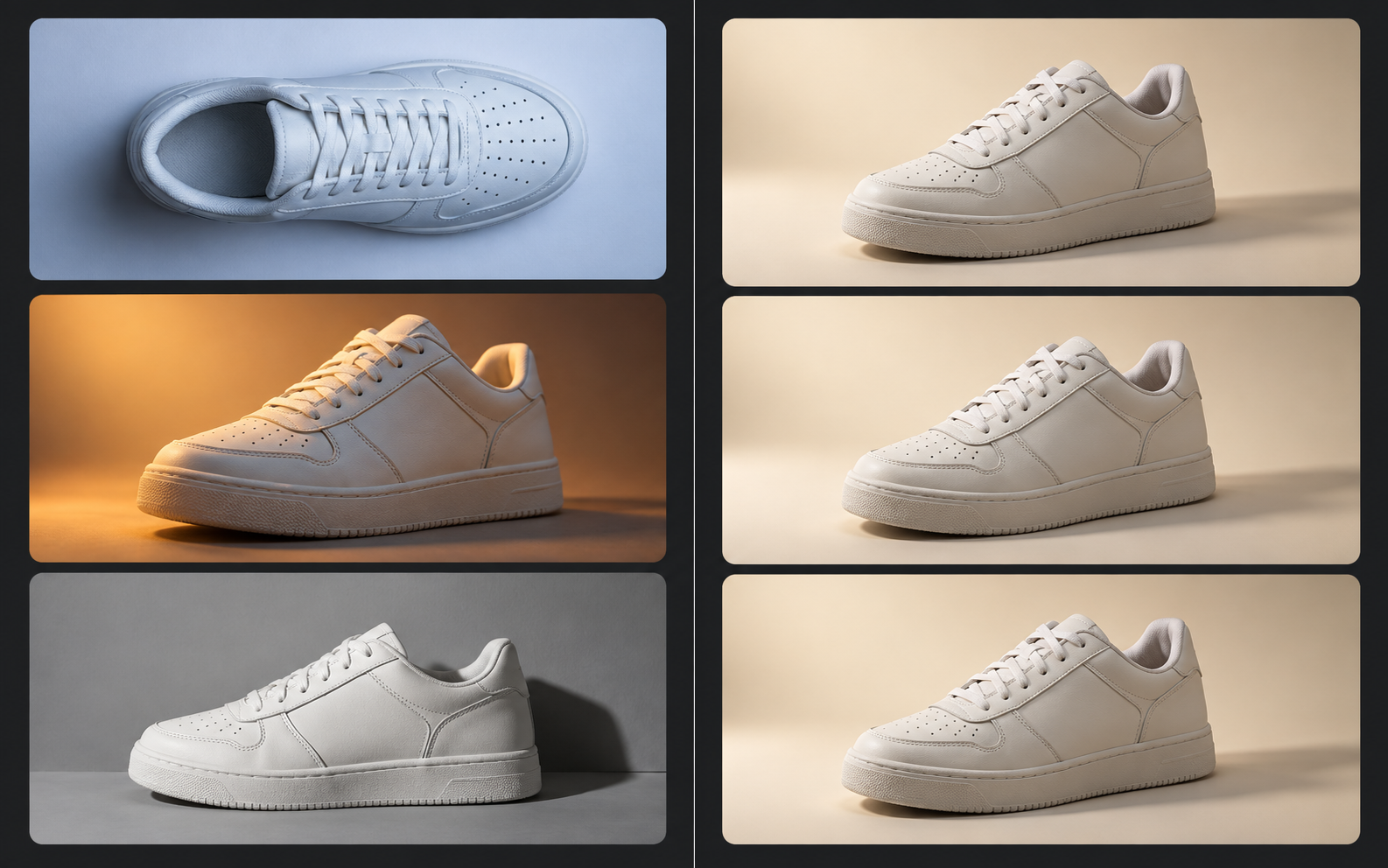
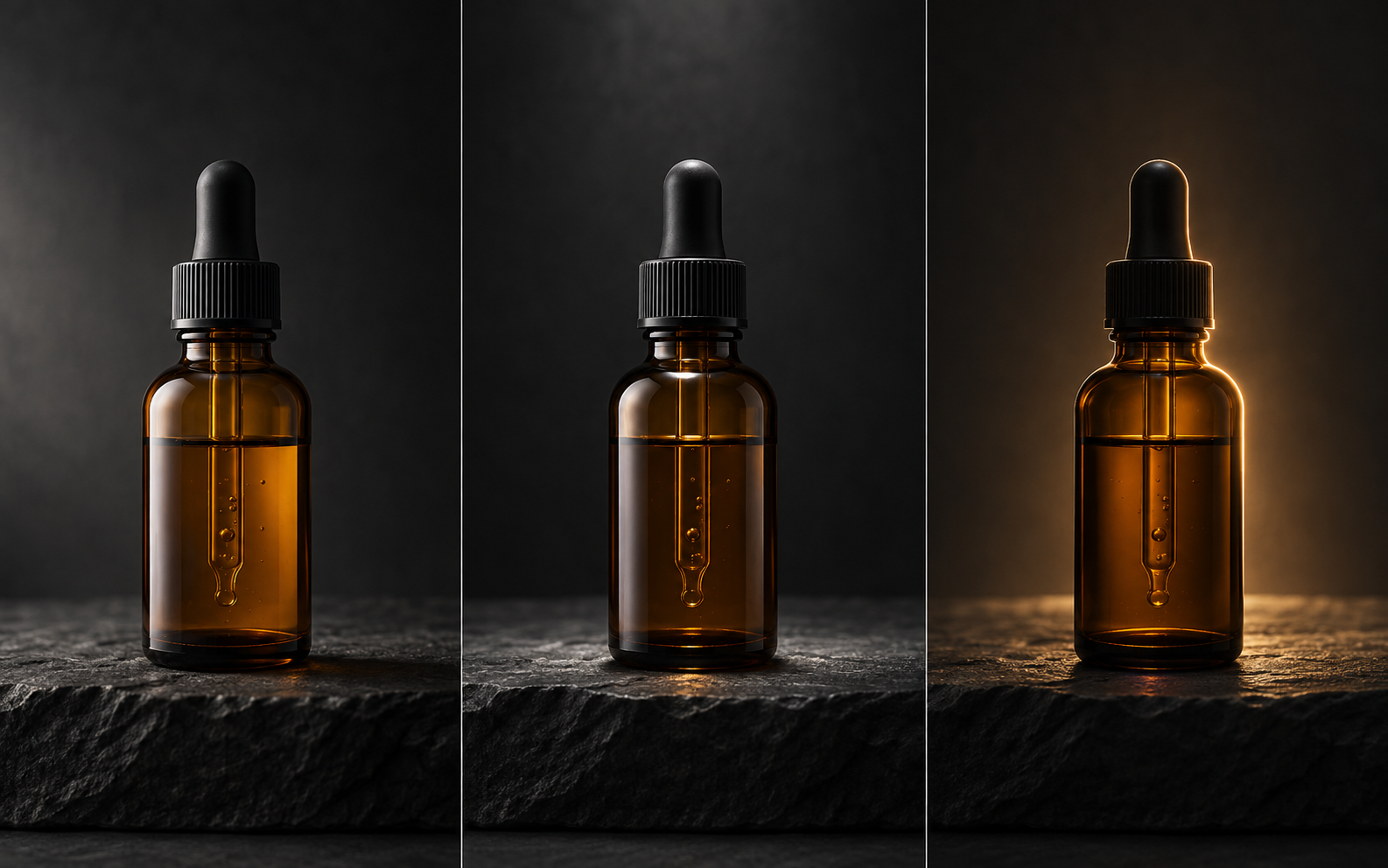
Prompt drift, side by sideLeft: the same prompt run three times. Right: one control setup run three times.One variable at a timeAngle, framing and subject held fixed; only the light changed between the three frames.The controls behind itThe setup that produced the frames above, saved and ready to load again.
What you can control
Pose, light, angle and styleas settings, not sentences.
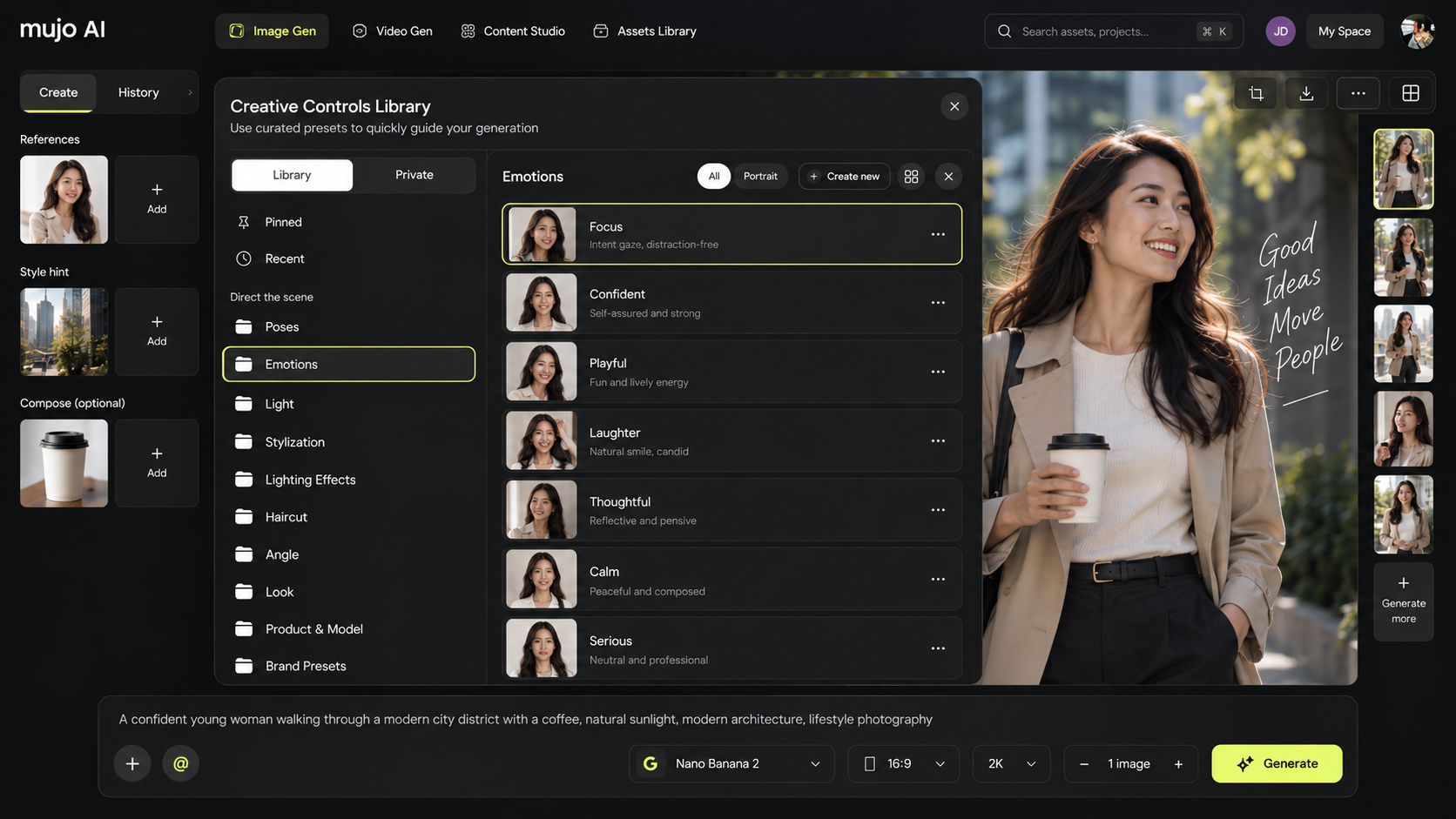
More than 100 ready-made controls, grouped the way the interface groups them. Combine them, adjust how strongly each applies, and leave everything else untouched.
Angle
Where the camera sits and how tight the frame is. Lock a low three-quarter shot or a tight crop and hold it across every generation in the set.
Light and lighting effects
Where the light comes from and how hard it is — golden hour, soft studio, hard side light. Match a campaign look without re-describing it in prose each time.
Poses and emotions
What the subject is doing and how they read — walking, mid-turn, hands occupied, adjusting a hem, and the expression that goes with it.
Your own controls
Upload reference images, attach them to a control and save it privately. When the library does not cover your case, you build the control you need.
Ten groups in the library.Plus the ones you build.
The library is organised by what each control changes in the frame, so you pick by outcome rather than by prompt wording.
Direct the scenePoses, Emotions, Angle, Look and Product & Model.
Direct the treatmentLight, Lighting Effects, Stylization, Cartoonify and Haircut.
Your private libraryCreate a control from your own references and keep it to yourself or share it.
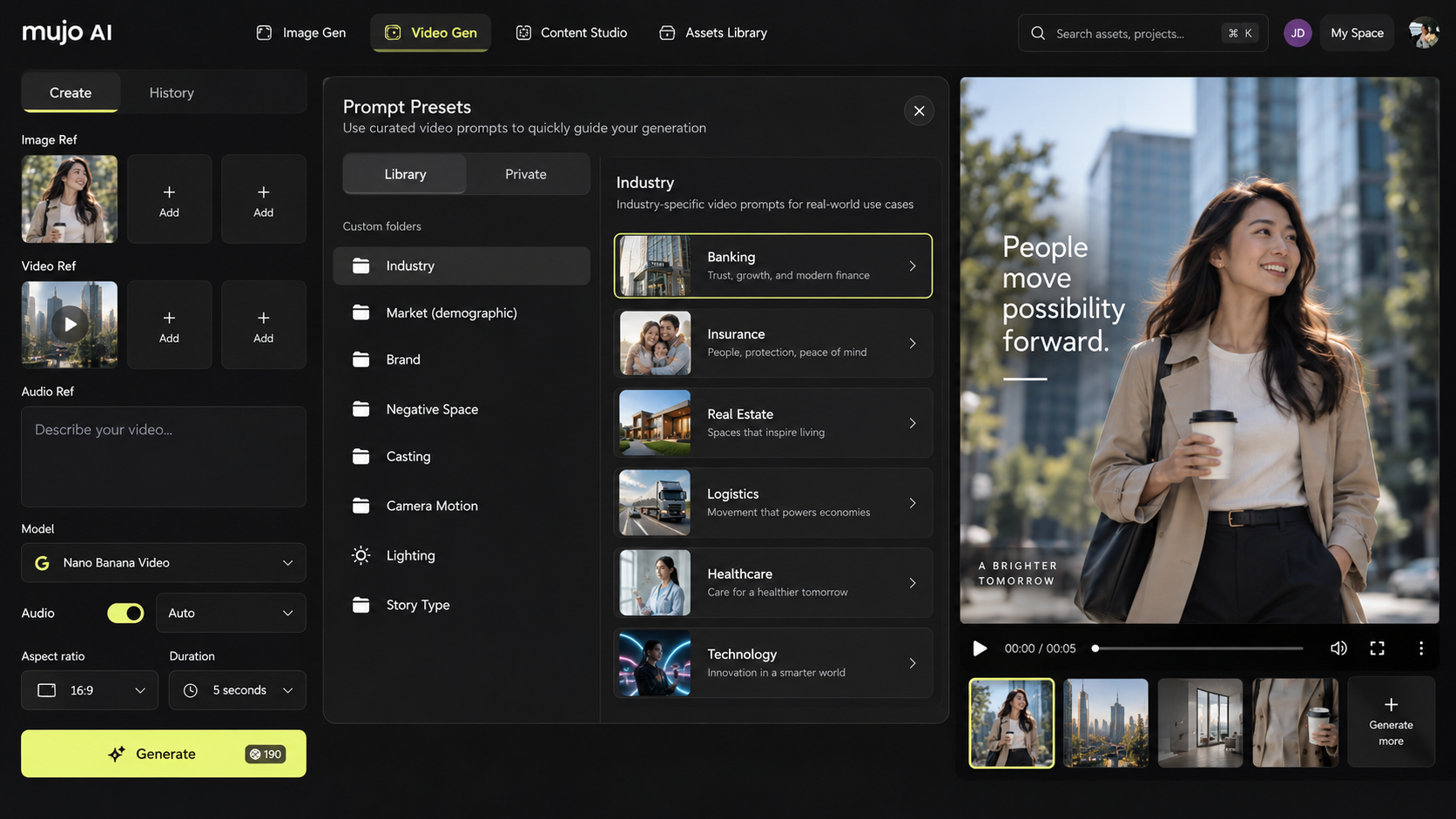
1500+ prompt presetsA starting point for every group, pinned and searchable.
One control layer across the platform
Set it once.Use it everywhere in Mujo.
Creative Controls are not a feature of one screen. The same setup follows the work from a single image to a batch of several hundred.
The models you'd actually want,all in one workspace.
Mujo AI connects the major providers rather than betting on one — OpenAI, Google, BytePlus, xAI, Midjourney and Kling — and new models are added as they launch. Creative Controls sit above all of them, so switching model does not mean rebuilding your setup.
Worth knowing before you build a process on top of them.
Two runs are not identical
Controls narrow the range, they do not freeze the pixels. What you get back is a family of results that belong together, not a duplicate.
Models respond with different strength
The same control reads harder on one model than another. That is a property of the model, and it is why comparing the same setup across models is useful rather than redundant.
A weak input still limits the output
Controls direct a generation. They do not rescue a badly lit reference photo, and a poor input will show through whatever you set.
Questions we get
Creative Controls,answered plainly.
What are Creative Controls?
Visual settings in Mujo AI that let you set camera, lighting, composition, action and style as parameters instead of describing them in a prompt. You can save any combination as a Control Bar and apply it again later.
What is a Control Bar?
The set of controls active on a generation — model, angle, light, style and how strongly each applies. Save it under a name and it becomes a setup you can load on any future project or share with your team.
Do I still write prompts?
Yes, for the idea — what the picture is of. Controls handle how it is shot and treated, which is the part that normally drifts between runs.
How do I get consistent AI images across a set?
Save the settings that produced the result you approved, then apply that saved setup to every other image in the set. Consistency comes from reusing the same parameters, not from rewriting the same prompt.
Do controls behave the same on every model?
The setup carries over when you switch models, but models differ in how strongly they respond to a given control. Running the same setup on two models and comparing is part of how people use it.
Can I reuse a setup on another project?
That is what the library is for. A saved Control Bar can be loaded into any project, shared with the workspace, or attached to a Node Editor workflow.
Do controls work for video as well as images?
Yes. The video set is tuned for motion — camera movement, action, pacing — but it is the same system and the same saved setups.
Can I try it without paying?
Yes. A free account comes with 20 credits for image generation; video generation needs a paid plan, as does sharing saved controls with a team.
How is this different from a prompt library?
A prompt library stores text you paste. A saved control stores the settings themselves, so it keeps working when you change model, subject or format. Mujo has both — 1500+ prompt presets sit alongside the controls.
Stop rewriting prompts.Start directing the result.
Open the control bar on your next generation and see how much of the guesswork it removes.