Leading AI models
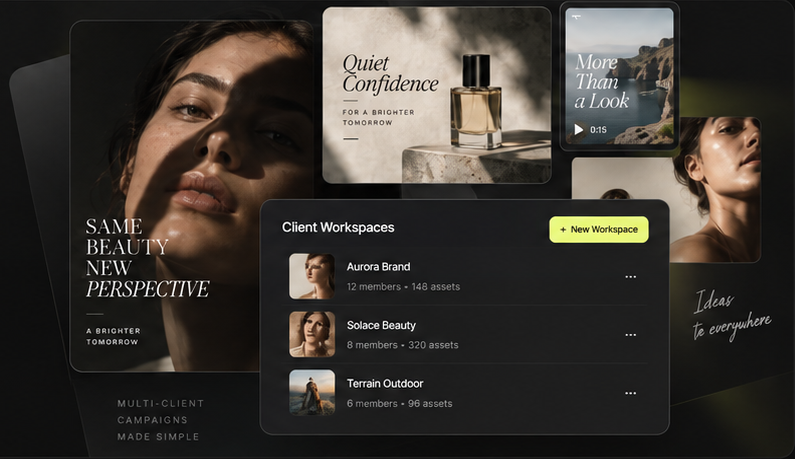
Generate with top image models from one interface and pick the right one for each job — product, portrait, campaign, illustration — without moving between tools or subscriptions.
The Mujo AI image generator runs the leading image models in one workspace and puts a control layer on top of them: reusable settings for camera, lighting, composition, pose and style, your own references and assets, and recommendations that come from how you actually work.
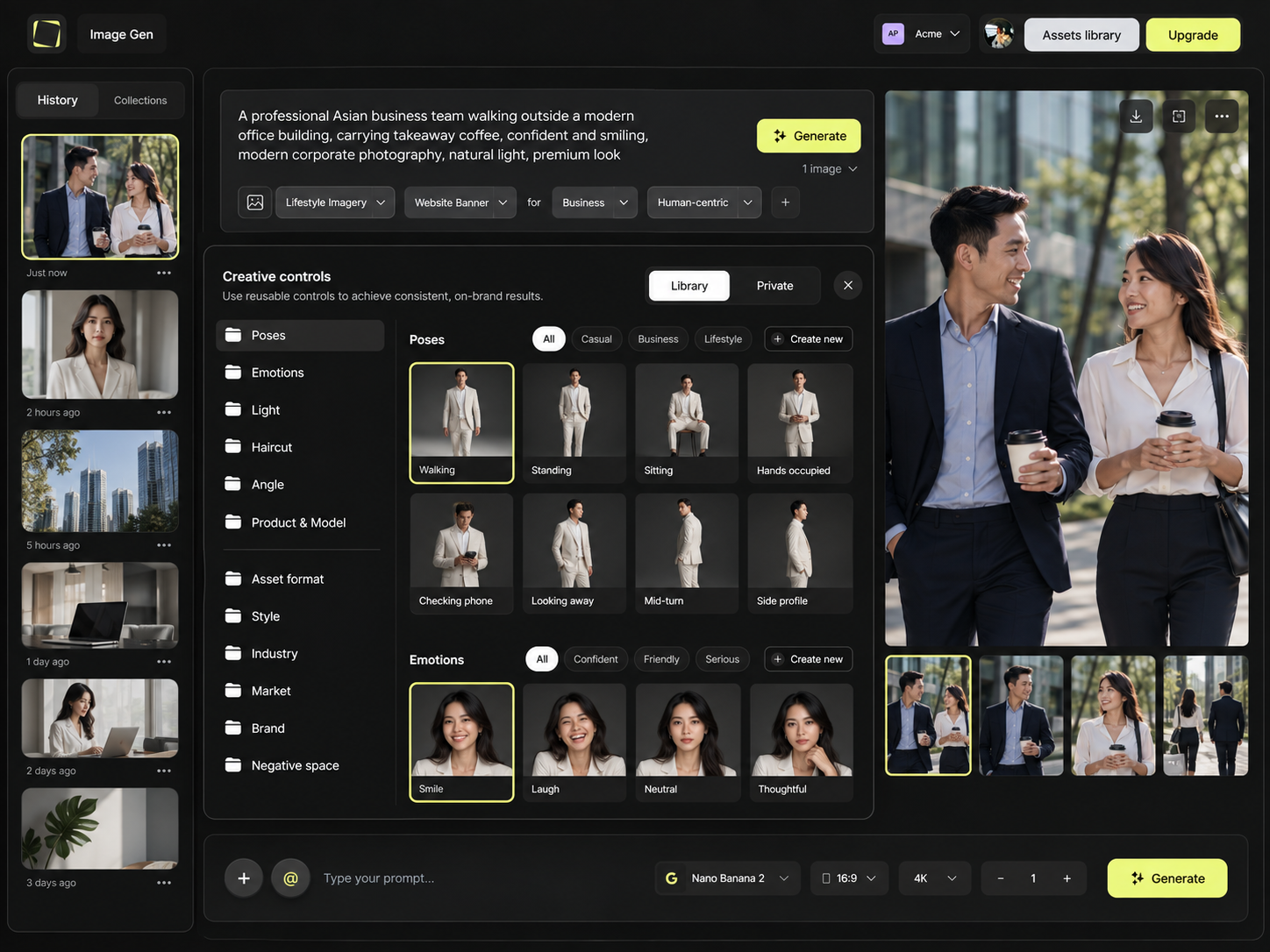
Most AI image tools give you a prompt box and a result. The work happens around that: choosing the model, directing the look, keeping references, finding last month's version and getting a second image to match the first. All of that lives here, in one place.
Generate with top image models from one interface and pick the right one for each job — product, portrait, campaign, illustration — without moving between tools or subscriptions.
Direct camera, lighting, composition, pose, style and more from a menu instead of rewriting the prompt and hoping the model reads it the same way twice.
Pull in people, products, styles and earlier generations straight from your asset library, so a new image starts from what you already have.
See relevant next steps based on what you create and how you work — which control to try, which model fits the task, what to change in the next pass.
No installation, no local GPU, no model files. The whole loop happens in the browser: describe or upload, set the parameters, choose the model, generate. The part most tools leave out is the fourth step — keeping what worked so the next image does not start from nothing.
Describe what you need, upload a product or a person as a reference, or pull an asset you already generated out of the library.
Choose camera, lighting, composition, pose, style and format as parameters. This is the step that decides whether the result is repeatable or a one-off.
Generate on the model that fits the job — or run the same creative direction across several and compare the results side by side.
Generate variations from the result you like, save the winning settings as a reusable control, and send the approved image on to video, bulk or a workflow.
Models are not interchangeable. One follows written instructions literally, another is built around a reference image, another renders skin and fabric better than it renders text. Mujo gives you the leading image models behind one interface, so choosing the right one is a dropdown rather than a new subscription and a new workflow.
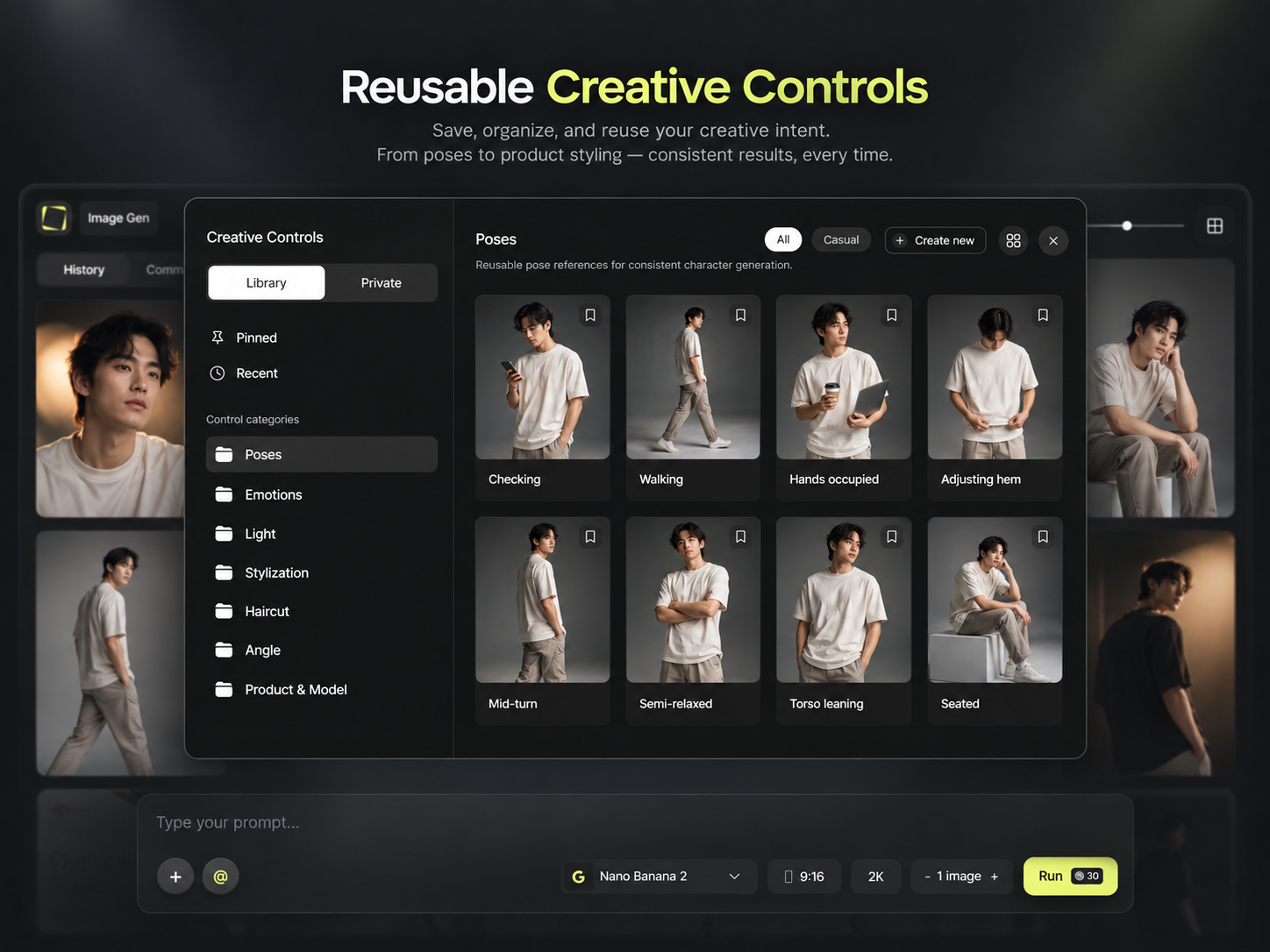
Writing a longer prompt is not the same as having control. The variables that decide how an image looks — focal length, light direction, camera height, negative space, pose, styling — are set as parameters here, which means two people briefing the same shot get comparable results, and the same shot can be reproduced next month.

The difference between a good generation and a repeatable one is whether the settings survive. Save the creative decisions you repeat most and bring them back into future work in one click — the look stops living in someone's prompt history.
The same instruction keeps appearing in your prompts — a 135mm lens, a soft side light, a specific on-brand framing.
Turn that combination into a named control with its own tags, instead of retyping it and hoping the wording matches last time.
The control is available in the next generation, in the next project, and to anyone on the team you share it with.
Every generation leaves a trace: which model, which controls, which version got downloaded and which got ignored. Mujo reads those signals and surfaces the moves that are actually worth trying next — for you, and for the kind of work you are doing.
Mujo learns from the prompts, controls and creative decisions you use repeatedly, and brings them back when they fit what you are making now.
See the creative variables that get used on work like yours — for example, that product shots of this kind often pair an 85mm lens with soft side lighting and a low camera angle.
Suggestions for the control, the model or the creative change worth trying in the next pass, rather than starting the brief again from a blank prompt.
The hardest moment in AI image generation is not the first result — it is the fourth one, when it is close but not right and you have run out of ideas about which word to change. The copilot reads your current image, prompt, model and history, and proposes the specific next move.
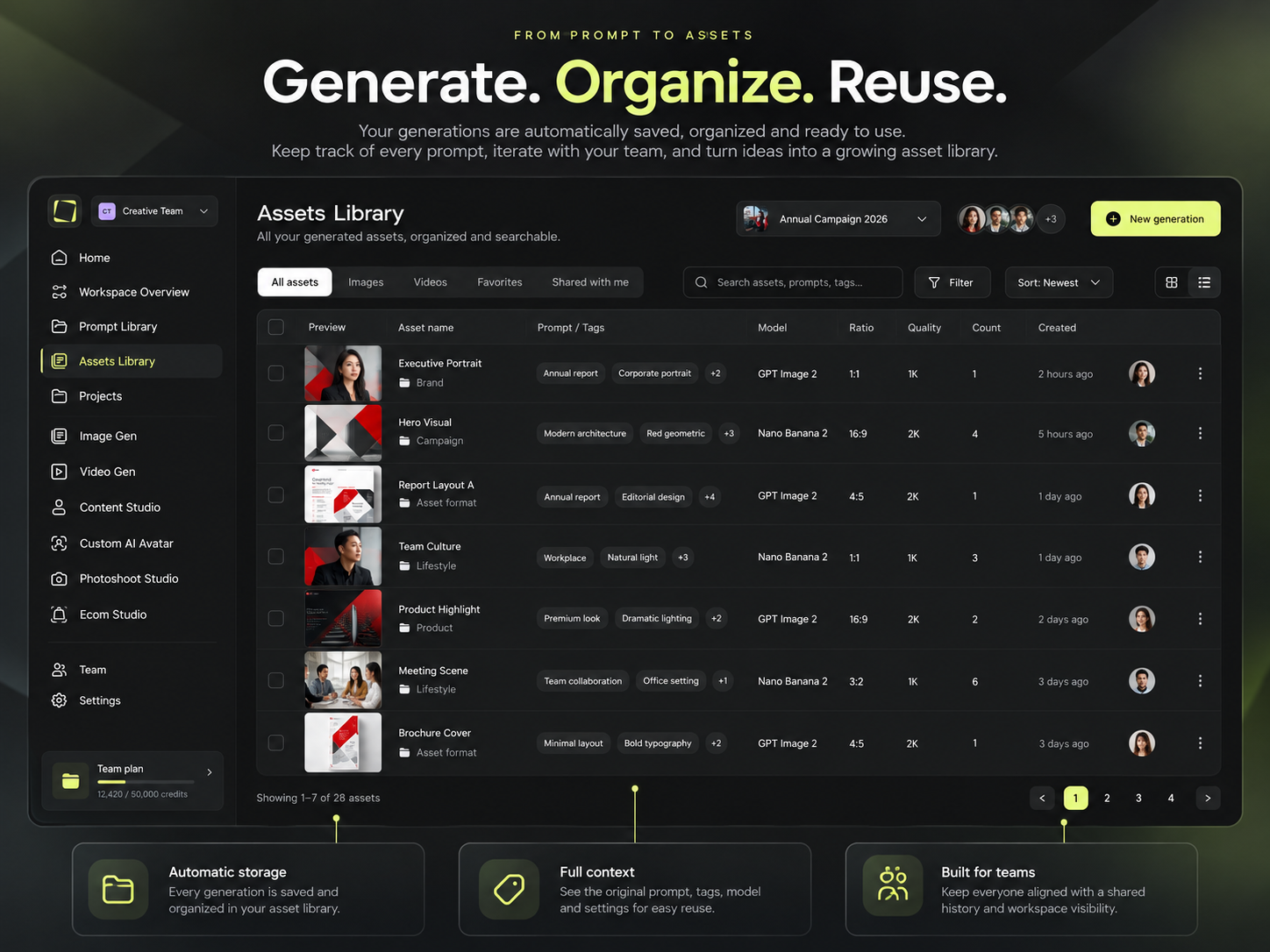
In most tools a generation is a file you download and then lose. Here every image, reference and reusable element stays in the workspace with its context attached, which is what makes the second month of work faster than the first.
Every generation stays available with the prompt, model and settings that produced it.
Organise work by project, client, product or campaign.
Find an asset by what it is, not by remembering which day you made it.
Send earlier work back into image, video, bulk or node workflows.
Exploration dies when every idea costs a wait. Launch several generations at once, keep opening new directions while earlier ones finish, and come back to results as they land — with everything still attached to the project you were working in.
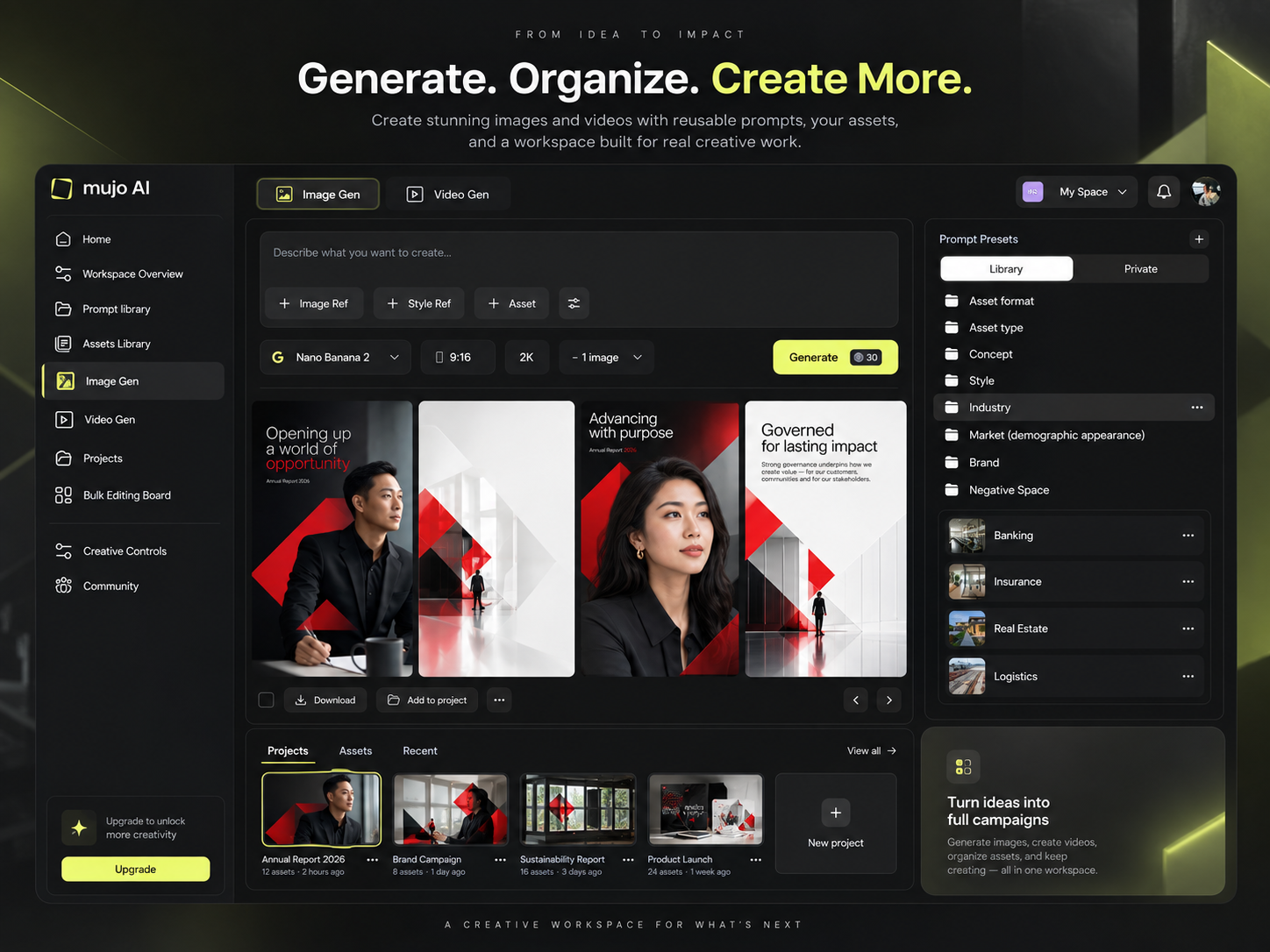
The moment more than one person generates for the same brand, the questions change: who can use which model, whose version was approved, and why two people producing the same asset got two different looks. Those answers live in the workspace.
Explore EnterpriseOne set of projects, assets and creative resources for everyone on the team.
Keep personal setups to yourself, or publish approved controls to the whole workspace.
Decide which AI models each workspace and role can use.
Set generation limits and manage credits across members.
Download rate is the honest metric in AI image generation: it separates the images a team liked from the images a team actually shipped. Mujo tracks which models, controls and setups get used, reused and taken forward — and those same signals make the recommendations above more relevant over time.
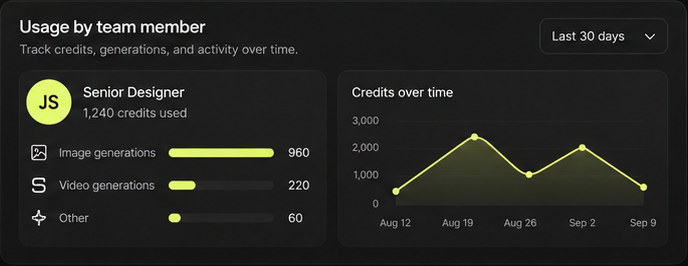
A generated image is rarely the deliverable. It becomes a video, a set of market variants, a listing gallery or a campaign pack — and in Mujo it does that without being exported, re-uploaded and re-described somewhere else.
Turn a finished still into motion, keeping the product and the face consistent.
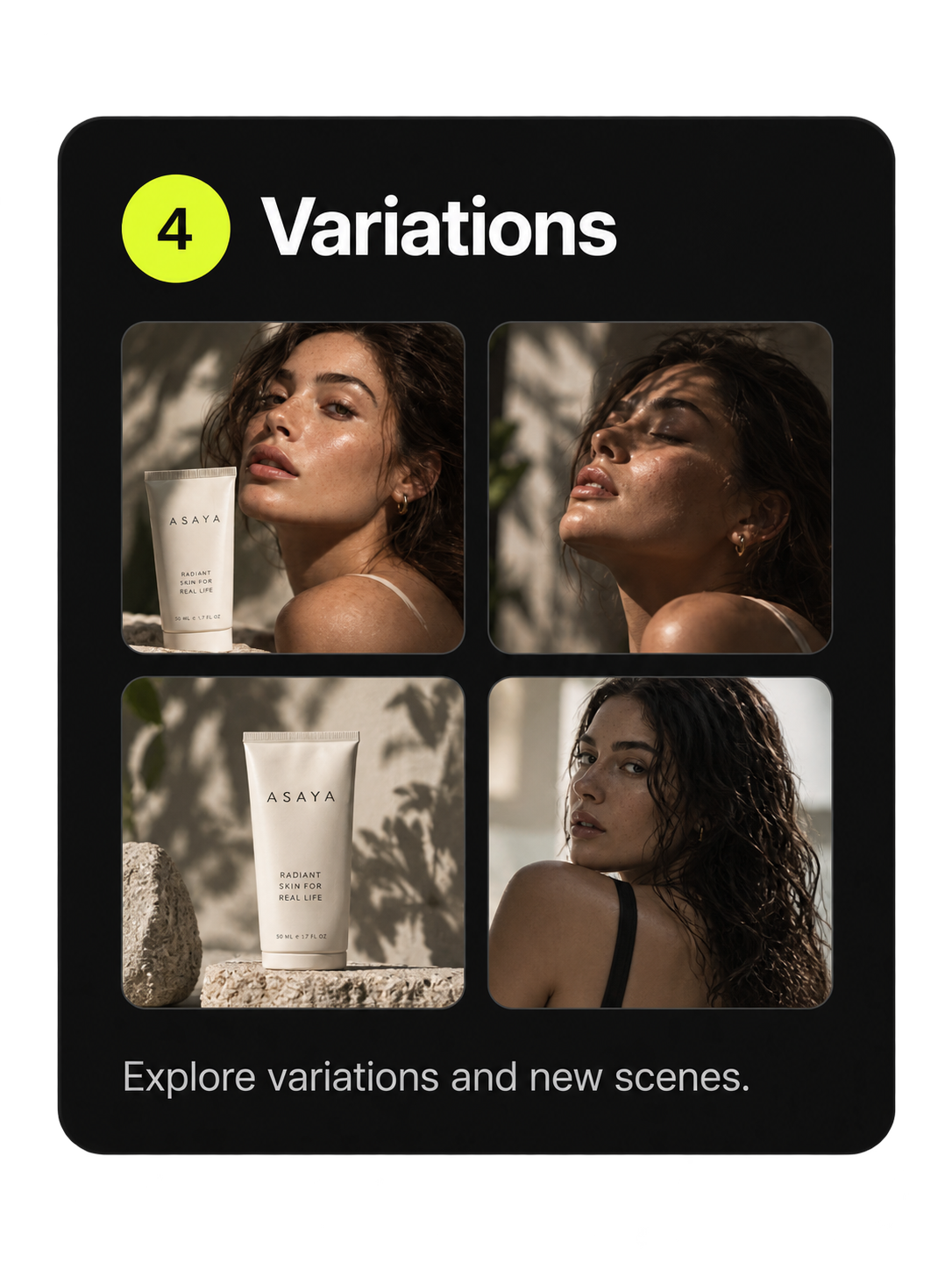
Put the image into a reusable workflow when the job repeats every week.
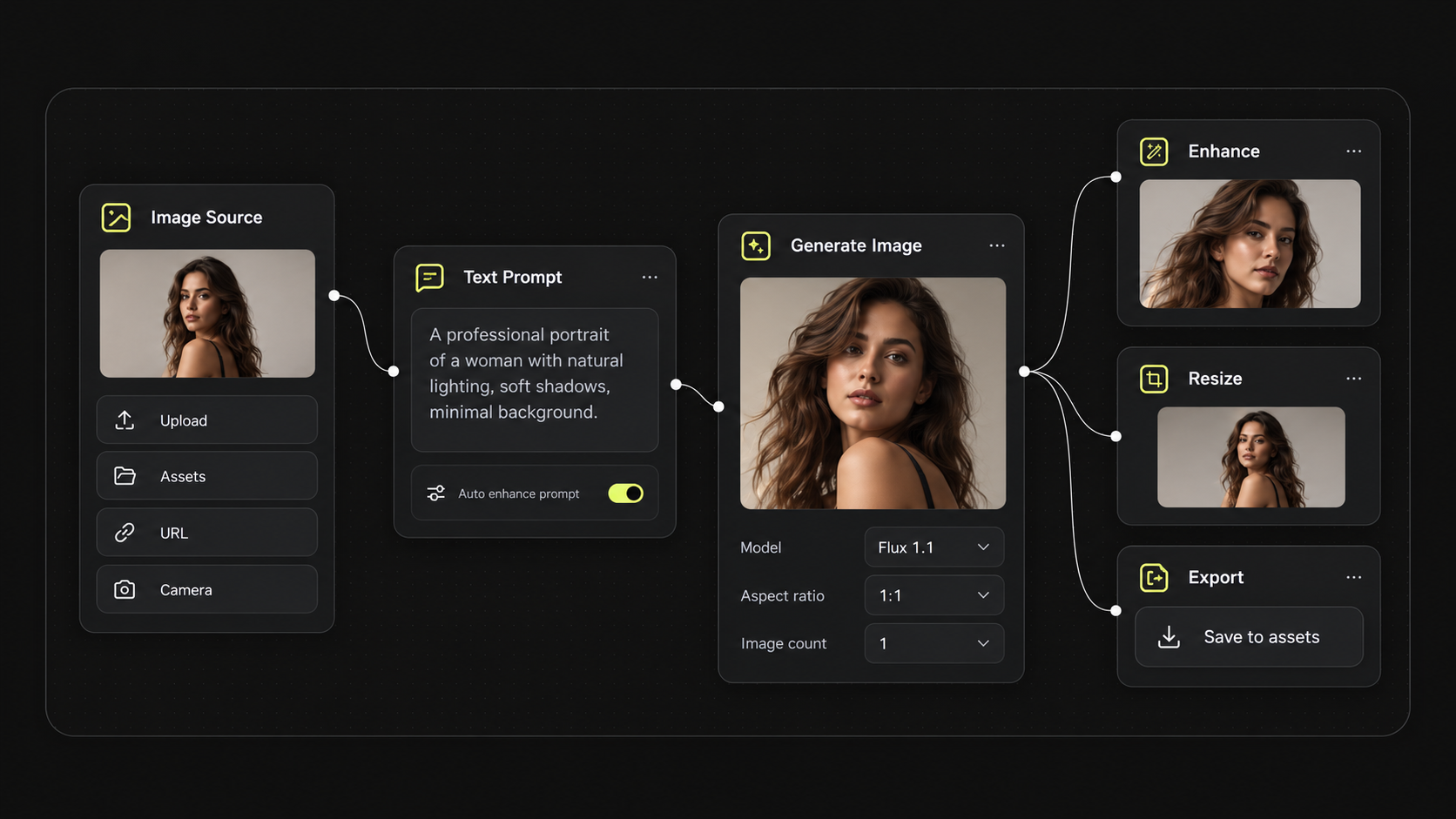
Run the same approved setup across products, markets and formats.
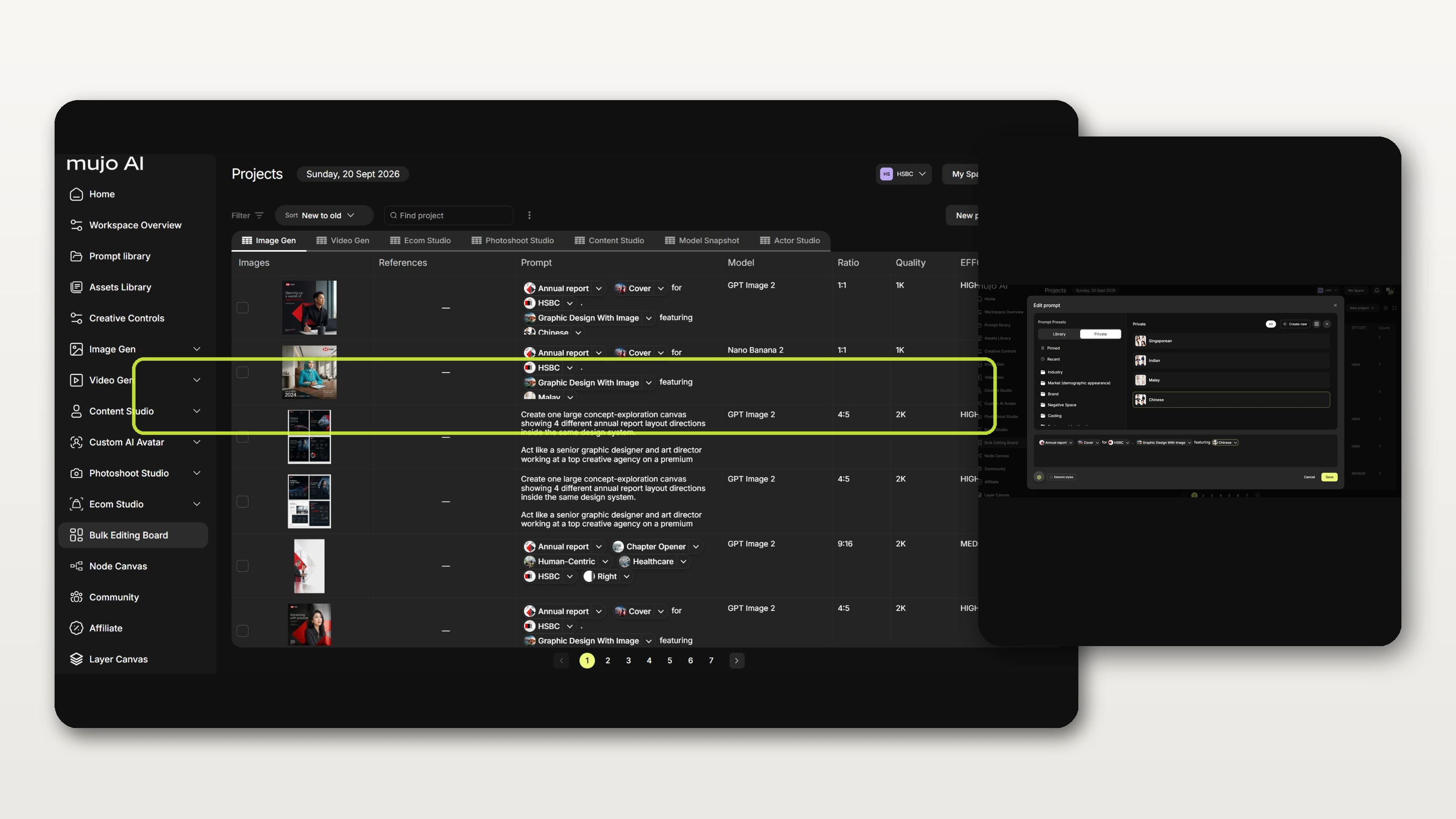
Take the asset into social, product, avatar or campaign production.
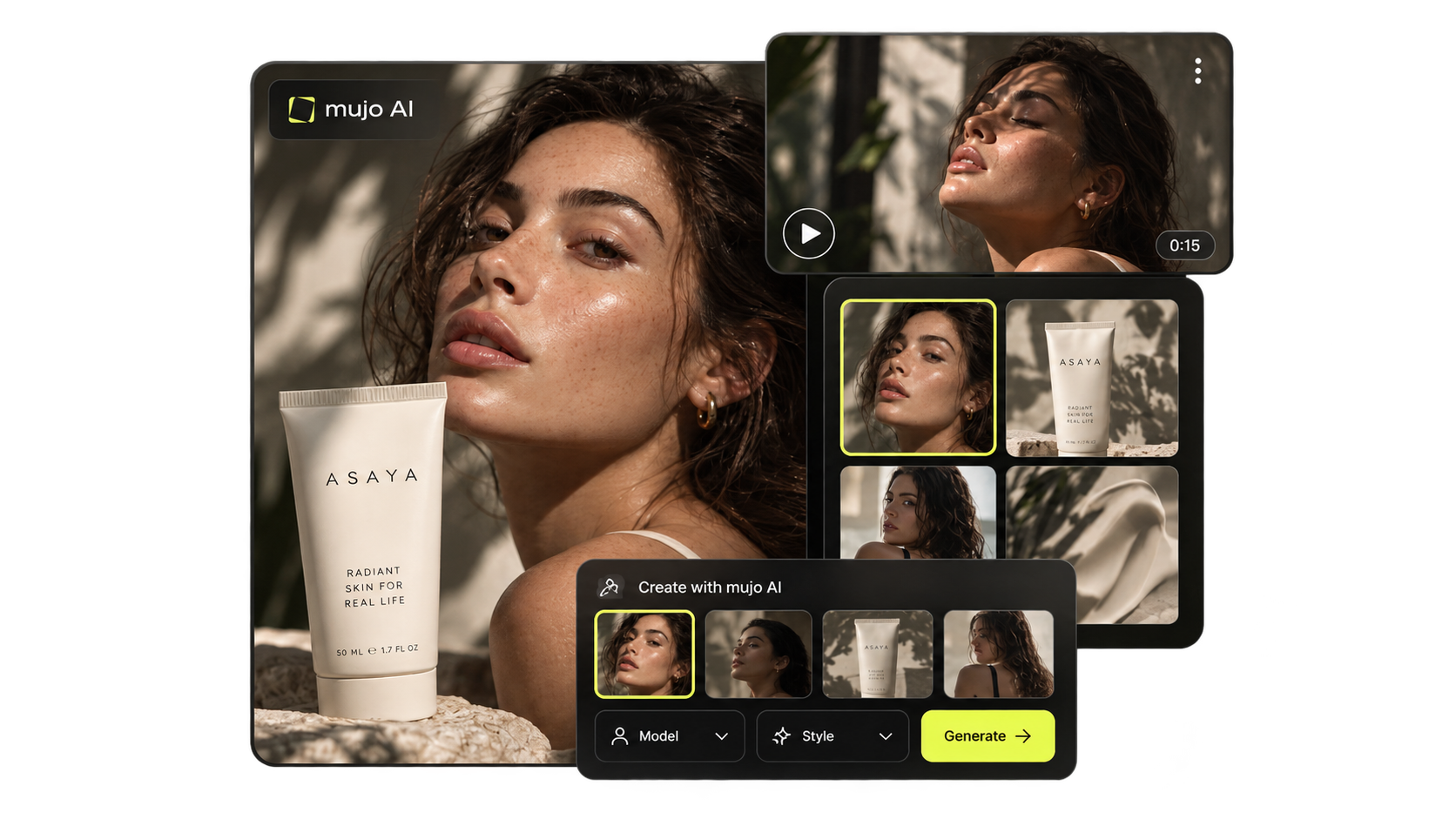
The same generator, the same controls and the same asset library behind every one of these — which is why the look carries across a product shot, its ad and its listing image.
See all use casesStudio packshots, lifestyle scenes and campaign-ready product images, consistent across a whole range.
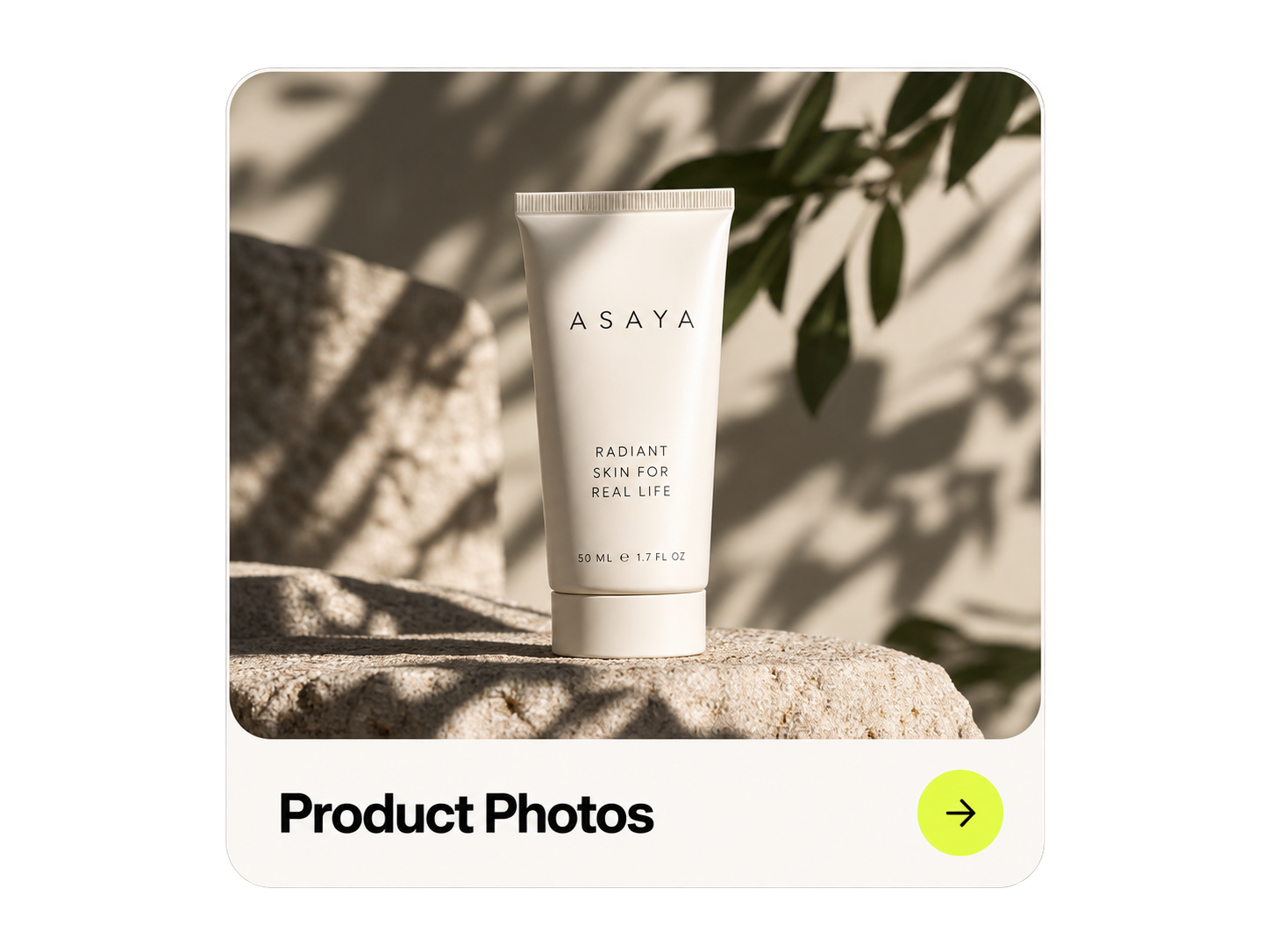
Concept routes, key visuals, posters and the creative variations a campaign needs.
Images and variations sized and art-directed per platform, from one direction.
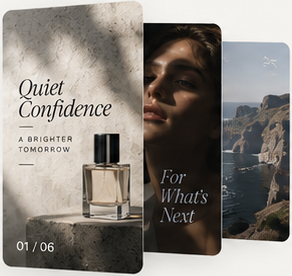
Controlled portraits with reusable camera, lighting and styling settings.
Listing images, marketplace galleries and product variations at catalogue scale.

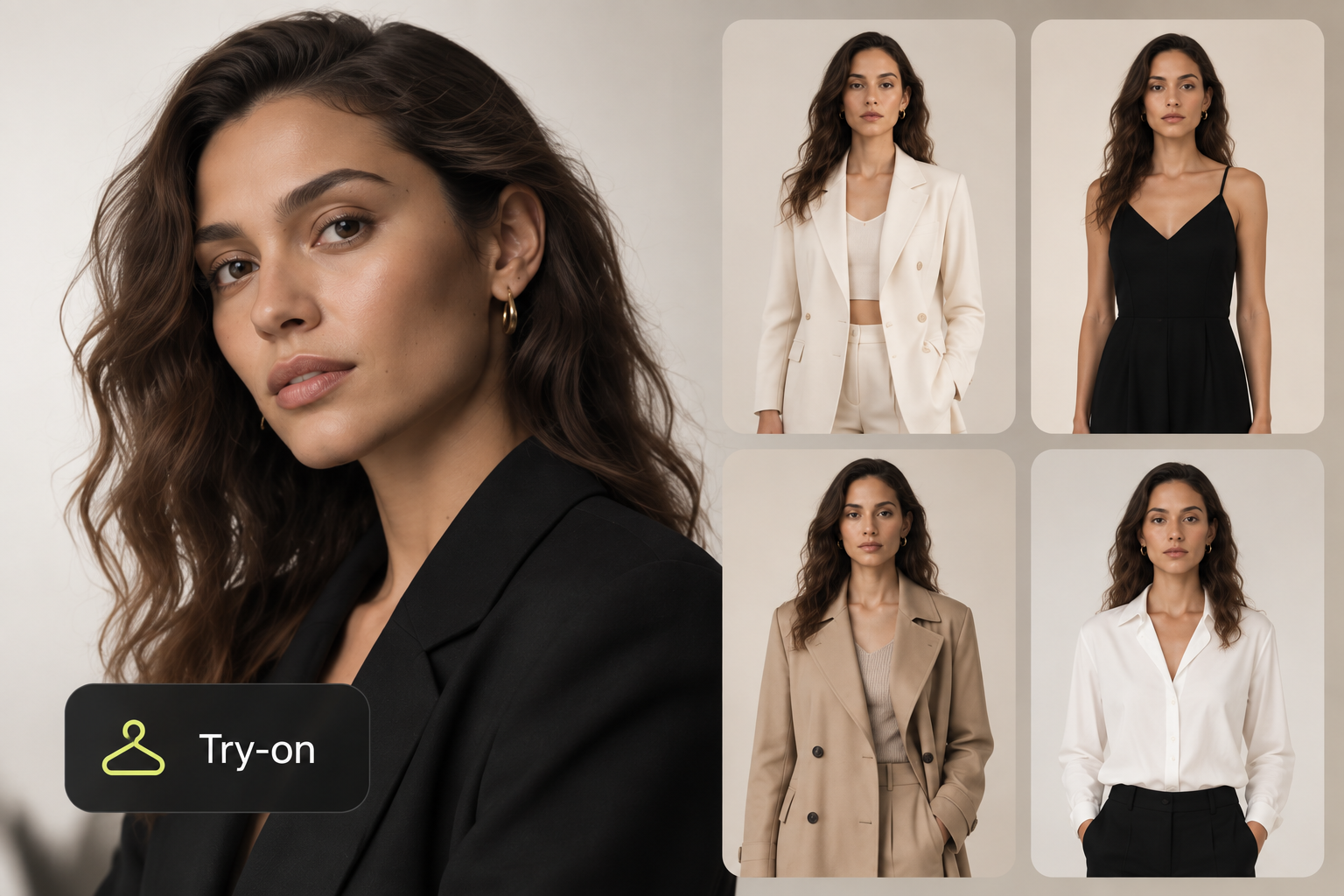
Editorial, lookbook and catalogue imagery with consistent models and styling.
Most people arrive here from one of three places. What changes is rarely the quality of a single image — it is whether you can get the second, the tenth and the hundredth to match it.
Tools built on one model have one aesthetic and one set of strengths. When the job needs text in the frame, a reference-based edit and a clean packshot, that is three different models. Mujo runs them behind one interface, with the same controls and the same asset library across all of them.
A chat returns one result per prompt and keeps no record of how it was made, so the second image in a set rarely matches the first. Here the settings behind a result are saved as controls and applied again.
Stock gives you an image that is not your product; a shoot gives you the right one at a cost and a lead time per asset. Generating in-house changes both, and the look stays reproducible for the next product and the next season.
The Mujo AI image generator brings leading AI image models into one creative workspace. It is built for the part of the job that happens after the first result: directing the output with structured controls, keeping references and assets connected, reusing what worked, and carrying an approved image into the rest of the production.
Generate from text prompts, reference images and saved assets, then refine the result with reusable controls for camera, lighting, composition, pose, style and other creative variables — instead of managing separate AI tools, prompt files and generation histories.
Frequently used setups are saved as controls, previous generations stay searchable in the asset library, and any image can continue into video, bulk production or a node workflow without leaving the workspace.
Teams share approved creative resources, control which AI models each workspace can use, manage generation usage, and see how AI image production is actually being used across the organisation.
Most AI image tools are one model behind a prompt box: you get a result, and the settings that produced it disappear. Mujo is a creative production system built around the generation. Four differences. Multi-model — several leading image models run behind one interface, so the model is a choice per job, not a separate subscription. Creative controls — camera, lighting, composition, pose and style are set as parameters, 100+ ready-made plus your own, instead of being written into the prompt. Reusable setups — the settings behind an approved image are saved as a control and applied again, which is how the tenth image matches the first. Continuity — references, assets and generation history stay in one workspace, and an approved image continues into video, bulk production or a node workflow without being exported and re-described.
An AI image generator creates images from text prompts, reference images or other visual inputs using generative AI models. The differences between tools are mostly in what surrounds the generation: which models are available, how much control you have over the result, and whether the work is kept and reusable afterwards.
Mujo provides access to several leading image-generation models from one interface, and you choose the model per generation. The available models change as new ones are released and added to the workspace.
Creative controls are reusable settings for the variables that shape an image — camera and focal length, lighting, composition, pose, emotion, style, product and brand parameters. They replace long prompt wording with parameters you can set, save and apply again.
Yes. References and existing assets can be added directly to supported image-generation workflows, so a new image can start from a product, a person or an approved earlier result rather than from description alone.
Save the settings that produced the result you approved as a control, then apply that control to the next generation. Consistency comes from reusing the same parameters, not from rewriting the same prompt.
Yes. Team workspaces share assets and controls while managing access, usage limits and which AI models are available to each member.
Yes. Generated assets continue into the video generator, node editor, bulk production and Mujo's content studios without being exported and re-uploaded.
Generate, direct, organise and improve your image production from one workspace.