Text to video
Describe the shot and generate it. The usual way in, and the one that benefits most from controls once you use them.
Mujo's AI video generator turns a prompt, a product photo, an existing asset or a saved AI character into video on Veo 3.0, Kling 3.0, Seedance and Grok — then keeps the controls, references and results connected to the rest of your workspace.
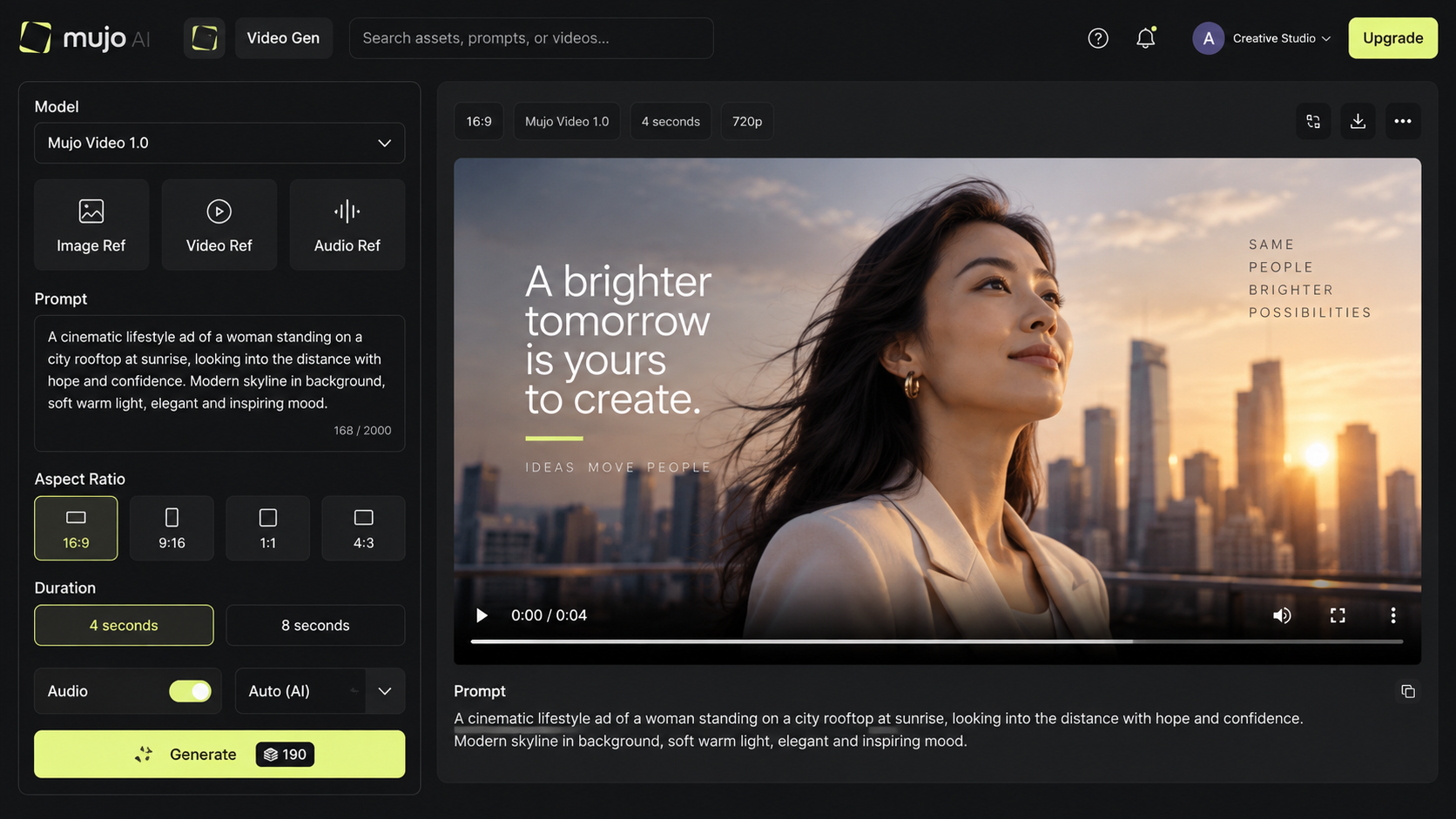
Most video tools start at a blank prompt box. Here the starting point can be something you already made — a generated image, a product shot, a saved character or a file already sitting in your asset library. Nothing gets downloaded and re-uploaded to get there.
Describe the shot and generate it. The usual way in, and the one that benefits most from controls once you use them.
Take a still you already approved — a product shot, a campaign visual, a generated frame — and give it motion instead of regenerating the whole idea.
Use a saved AI avatar as the reference so the same person appears across scenes rather than a new face each time.
Pull anything from your asset library — references, prompts, past generations — without leaving the workspace.
Mujo runs Veo 3.0, Kling 3.0, Seedance 2.5, Seedance 2.0, Seedance 2.0 Fast, Seedance 2.0 Mini and Grok in one workspace. Models differ in how they handle movement, realism and direction, so the useful thing is not picking the best one — it is running the same setup on two of them and looking at what comes back.
See what's includedRun the same input on different models and see the results beside each other instead of in separate tabs and separate histories.
Change model and your prompt, references and saved controls come with you. Nothing has to be reassembled by hand.
Use one model for a hero shot and a faster one for variations, inside a single production run.
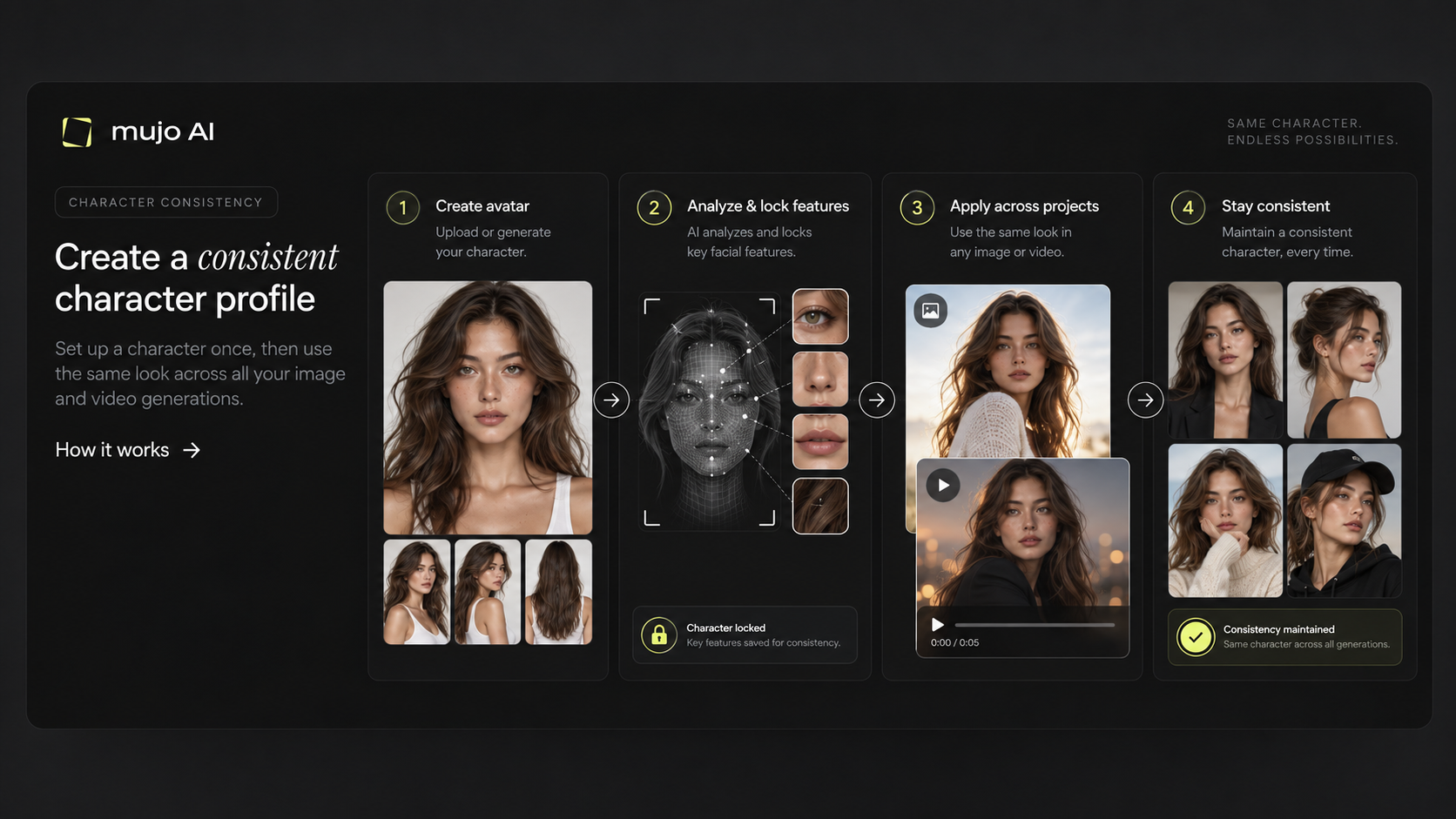
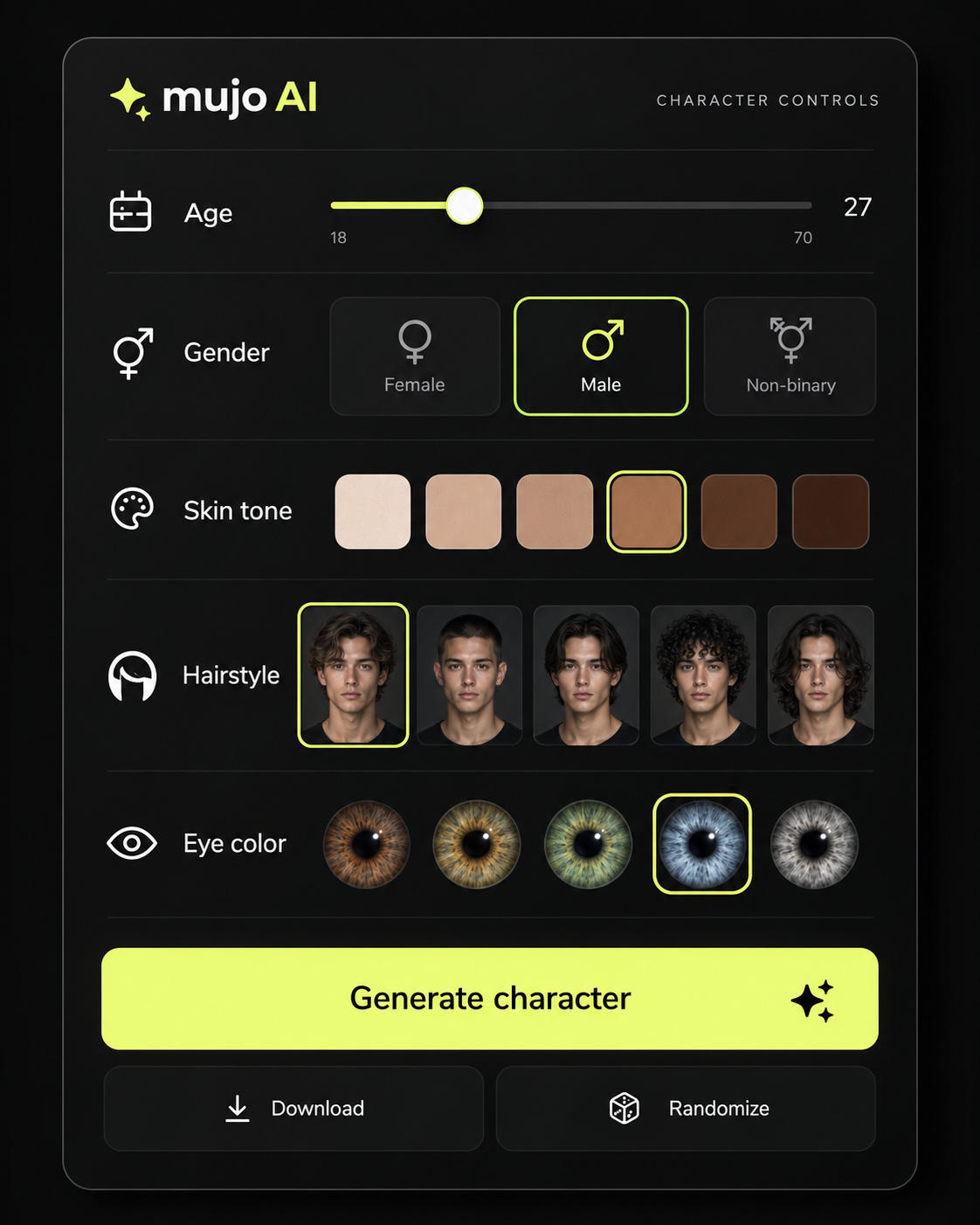
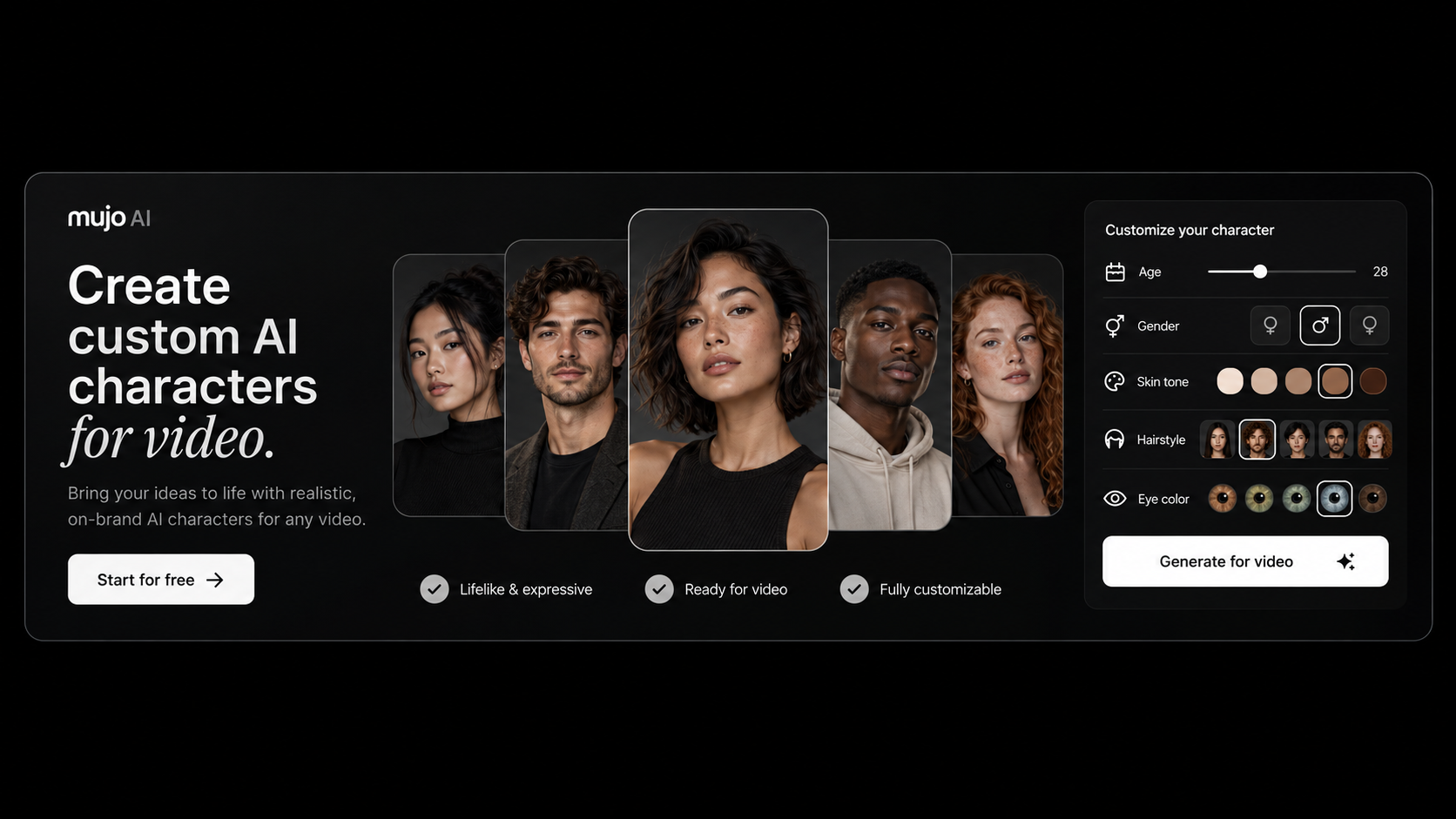
The hardest thing about AI video is not one good clip — it is the second clip having the same person in it. Create a reusable avatar in Mujo, generate the looks you need, then use that character as a reference for new video.
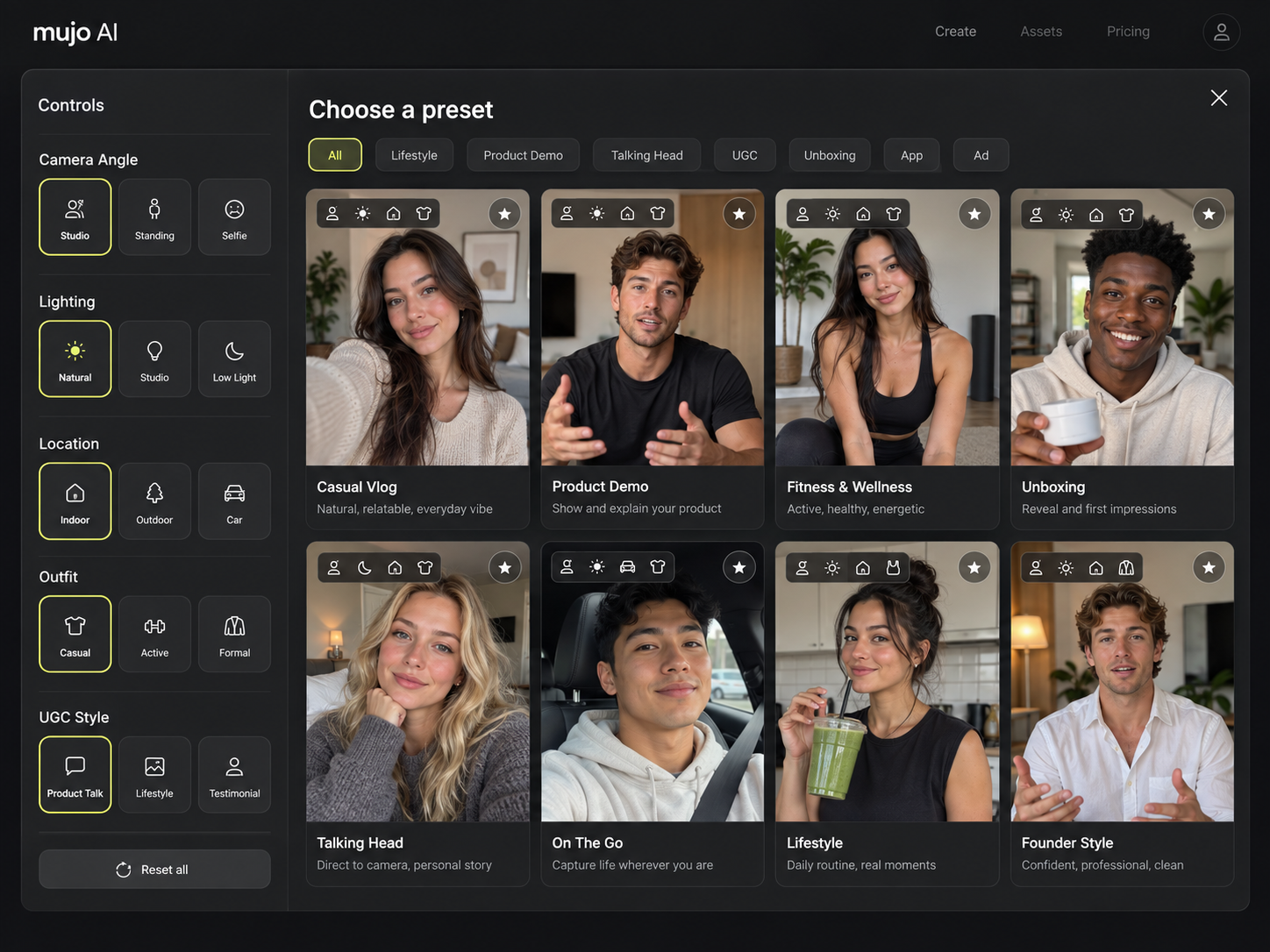
Video has more variables than a still, which is exactly why describing them in a sentence works badly. These are settings instead — set them, save the combination, and load it on the next shot.
Eight control groups shape a generation before it runs, and any combination can be saved as a setup you reuse.
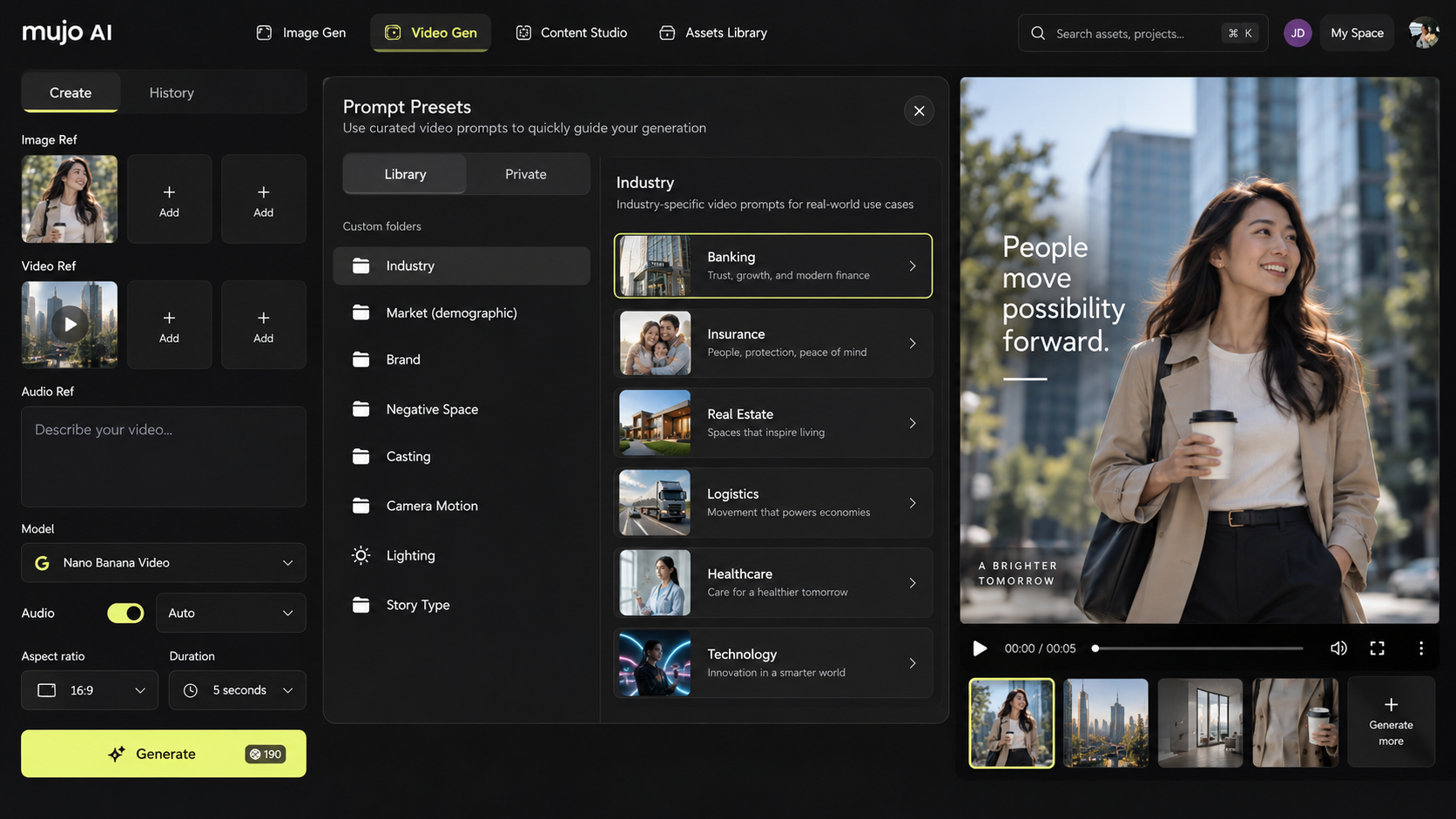
Walk, pan, orbit and the rest of the movement vocabulary, set rather than described.
Wide, close-up, rule of thirds — the composition decisions that normally get lost between runs.
What the subject is doing, and the treatment the clip is finished in.
Length and format set up front, so a clip arrives ready for where it is going.
A generation that is almost right is the most common outcome and the worst one to act on blind. Mujo reads the context of the current run — model, references, controls, history — and suggests the next move rather than a blank box.
See how another model reads the same input.
Use a key image to anchor the motion.
New angles and compositions from the same idea.
Apply a setup that already worked.
Turn this run into more variants that match.
Video generation is a step, not a destination. Drop it into a Node Editor workflow to connect prompts, images, models, logic and several generations into a process you can run again with new inputs.
Build it once, then run it again whenever the brief changes but the process does not.
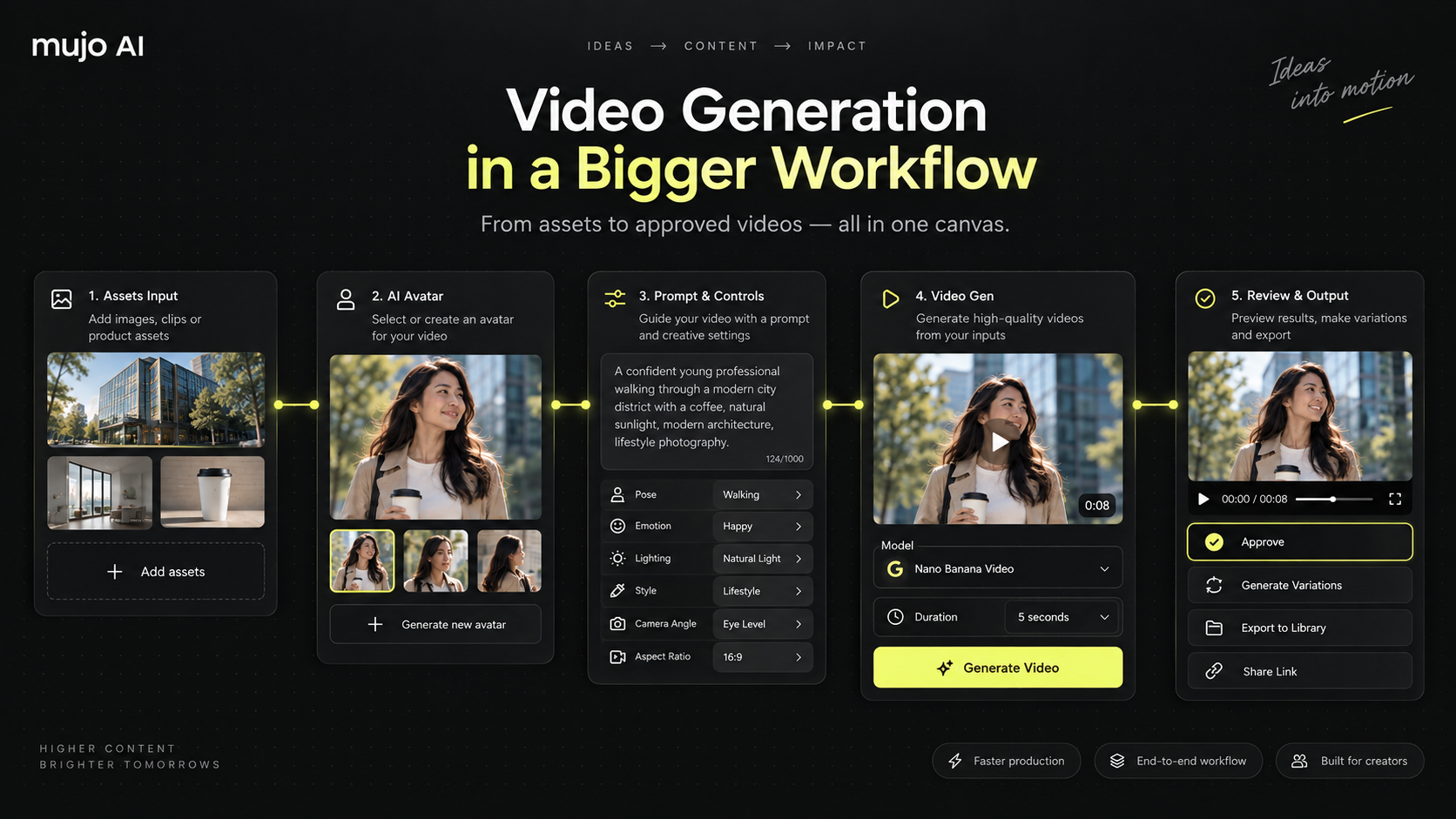
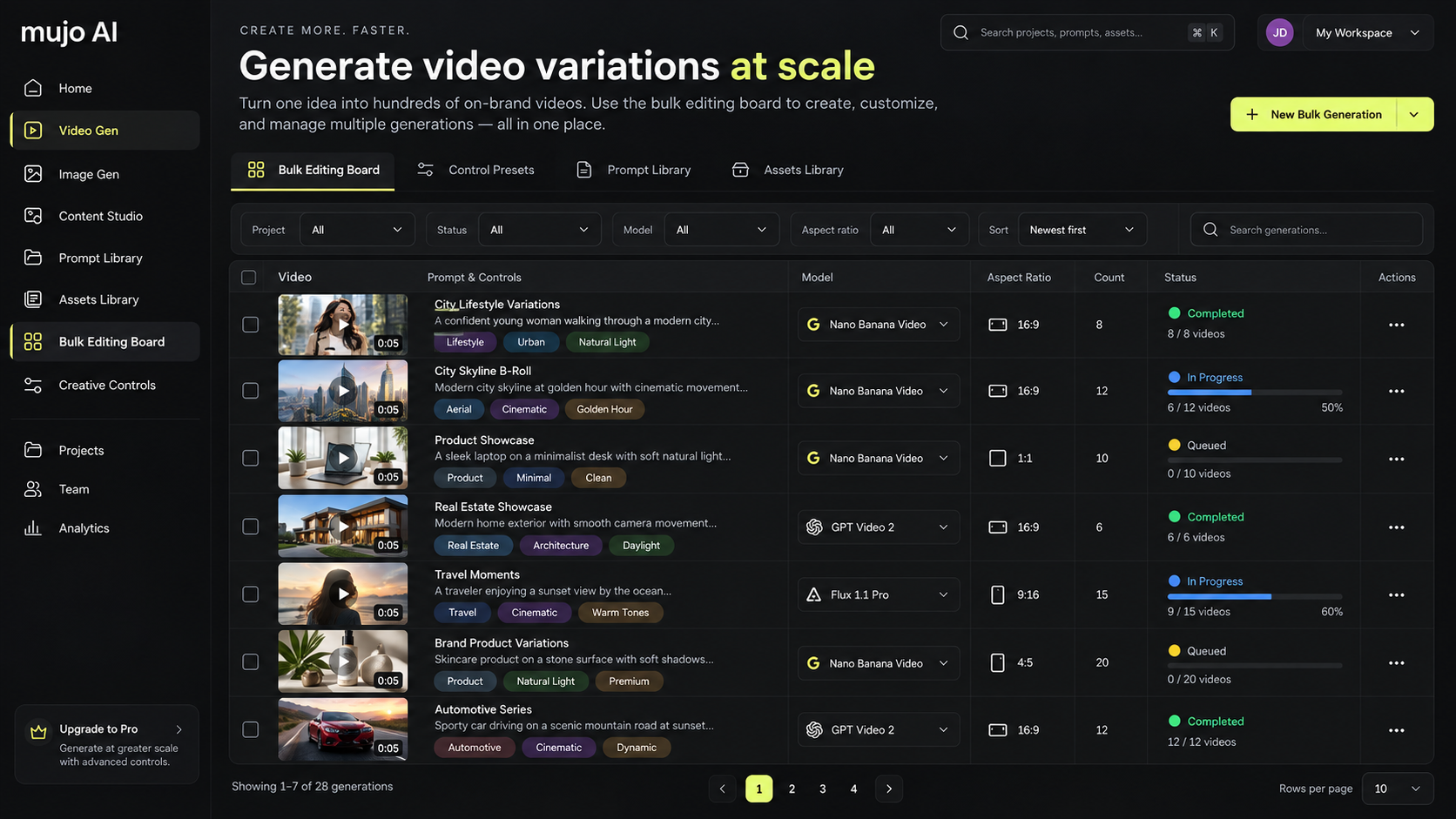
When the work is a list rather than a single idea, move it into a table: assets, prompts, models, formats and variations processed together under one set of settings.
A raw clip is not a post. Move video assets into Content Studio and cut them into ready-to-publish short form for Reels, TikTok and Shorts without exporting to another tool first.
Trim a generated clip into Reels, TikTok and Shorts lengths without exporting to another tool.
Add the text and timing that short form needs to hold attention past the first second.
Vertical, square and wide versions of the same cut, made once.
Every generation, reference and project asset stays in the workspace, so next month's version of this job starts from what worked rather than from memory.
Projects, generations and references stay grouped where the work happens.
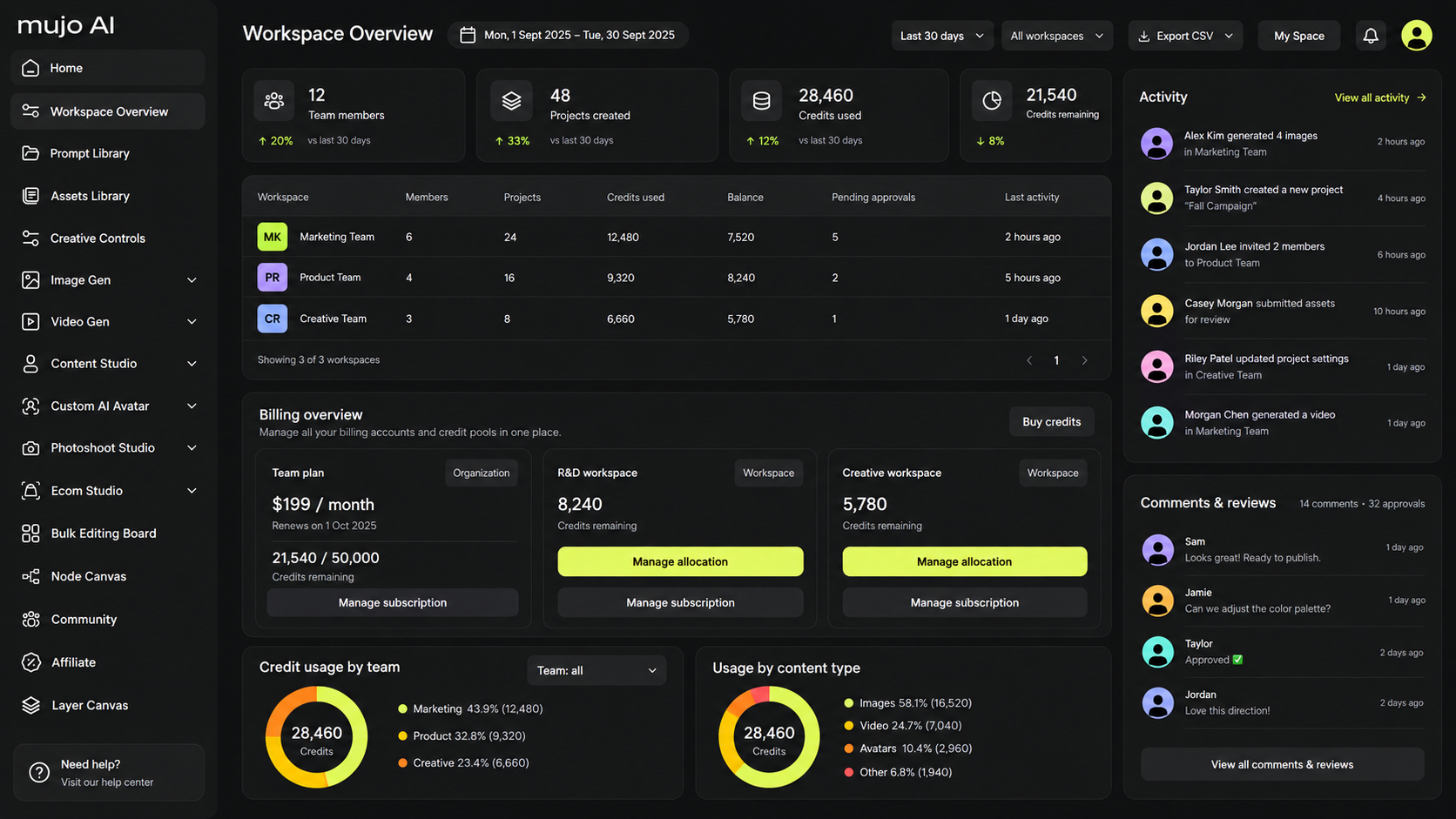
Every generation is kept, with the settings that produced it.
Assets stay grouped by the work they belong to.
Images, characters and prompts stay attached where you used them.
The same assets are available everywhere else in Mujo.
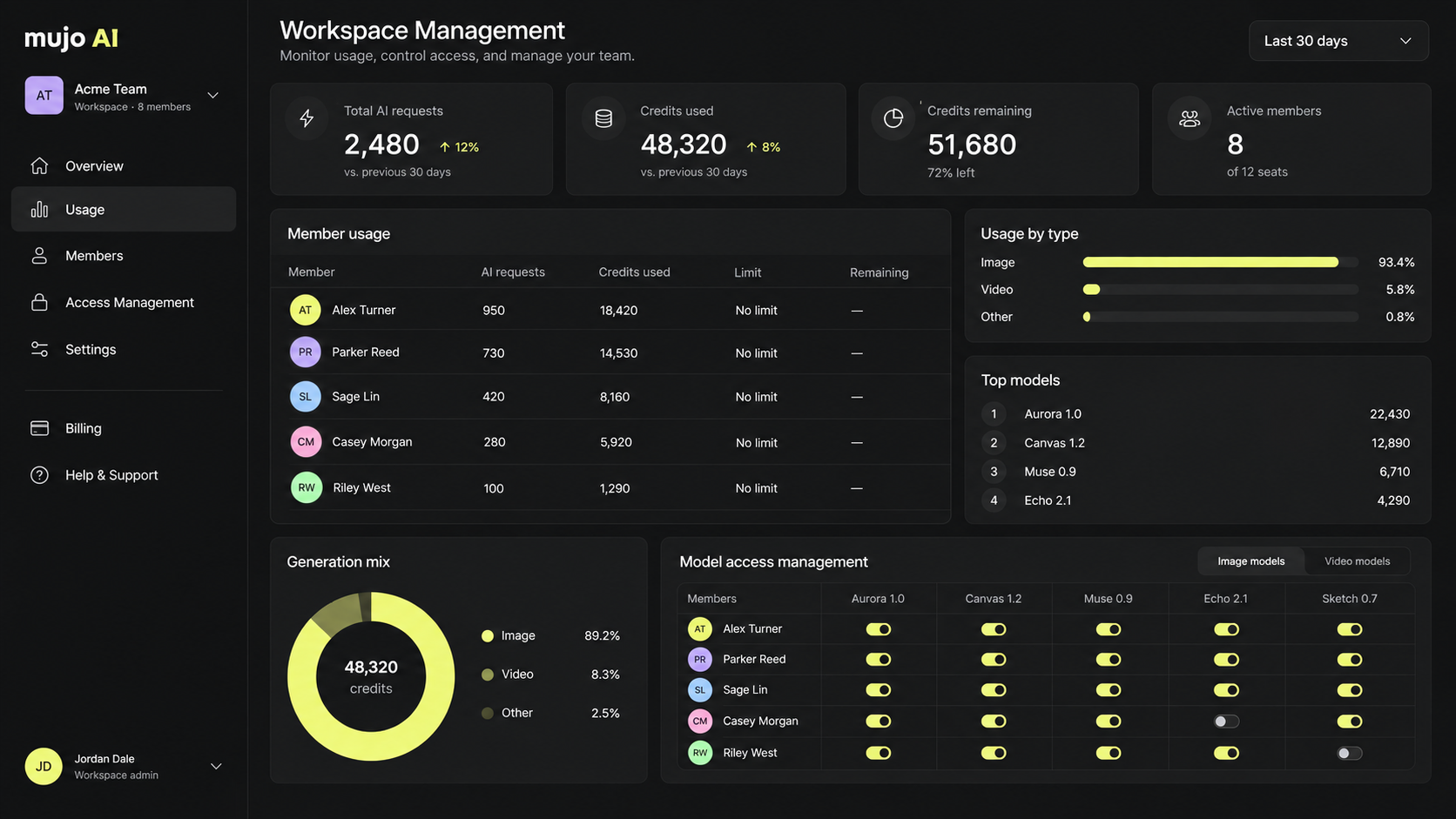
Let a team create with the same models, assets and approved setup while access and spend stay manageable. Shared controls are available from the first paid plan.
The same generator, pointed at very different jobs.
Authentic, scroll-stopping short form for the platforms your audience is already on.
Showcase a product in motion without booking a set or a shoot day.
Bring a campaign idea to life across the formats a rollout needs.
A consistent presenter across a whole series, not a new person per clip.
Show an idea moving before anyone commits budget to shooting it.
Explore visual direction, pacing and camera language early.
Many cuts of one idea for testing, channels and markets.
Motion for product pages, where a still has stopped being enough.
Generate the clip, then keep going with the tools it connects to.
A tool that produces video from an input rather than from footage. In Mujo that input can be a text prompt, an image, an asset from your library or a saved AI character, and the generation runs on the video model you pick.
Yes. Any image — generated in Mujo or uploaded — can be used as the starting frame or reference, which is usually a better route than describing the same idea again in words.
Yes. Save an avatar once and use it as a reference so the same character appears across clips instead of being regenerated each time.
Veo 3.0, Kling 3.0, Seedance 2.5, Seedance 2.0, Seedance 2.0 Fast, Seedance 2.0 Mini and Grok. New models are added as providers release them.
Yes. Bulk Editing turns video production into a table of rows — assets, prompts, models and formats processed together under one set of settings.
Yes. Video generation works as a step in a workflow, so prompts, images, models and several generations can be wired into a process you re-run with new inputs.
Yes. A free account covers image generation; video generation requires a paid plan, as does sharing saved controls with a team.
Yes. Camera motion, shot type, framing, action, lighting, style, duration and aspect ratio are all settings rather than prompt wording, and any combination can be saved and reused.
Generate video with leading models, then keep going into workflows, bulk runs and finished content.