How to Choose the Right AI Model in Mujo
Pick the best AI model for images, videos, product visuals, ads, and creative workflows
How to Choose the Right AI Model in Mujo
Match each model to the right image, video, product, ad, or creative workflow
Choosing the right AI model is one of the fastest ways to improve output quality and reduce unnecessary iterations. Different models are better at different tasks: some are stronger for realistic images, some are better for cinematic video, some work well for product visuals, and others are useful for fast creative exploration. Mujo brings multiple AI models into one workspace so creators can test, compare, and reuse outputs without switching tools. Instead of guessing which model to use, you can choose based on the job: image generation, image editing, product photography, text-to-video, image-to-video, social video ads, campaign concepts, or visual style testing. This guide explains how to choose the right AI model in Mujo, what factors matter most, and how to build a multi-model workflow that saves time while improving consistency.
Choose a Model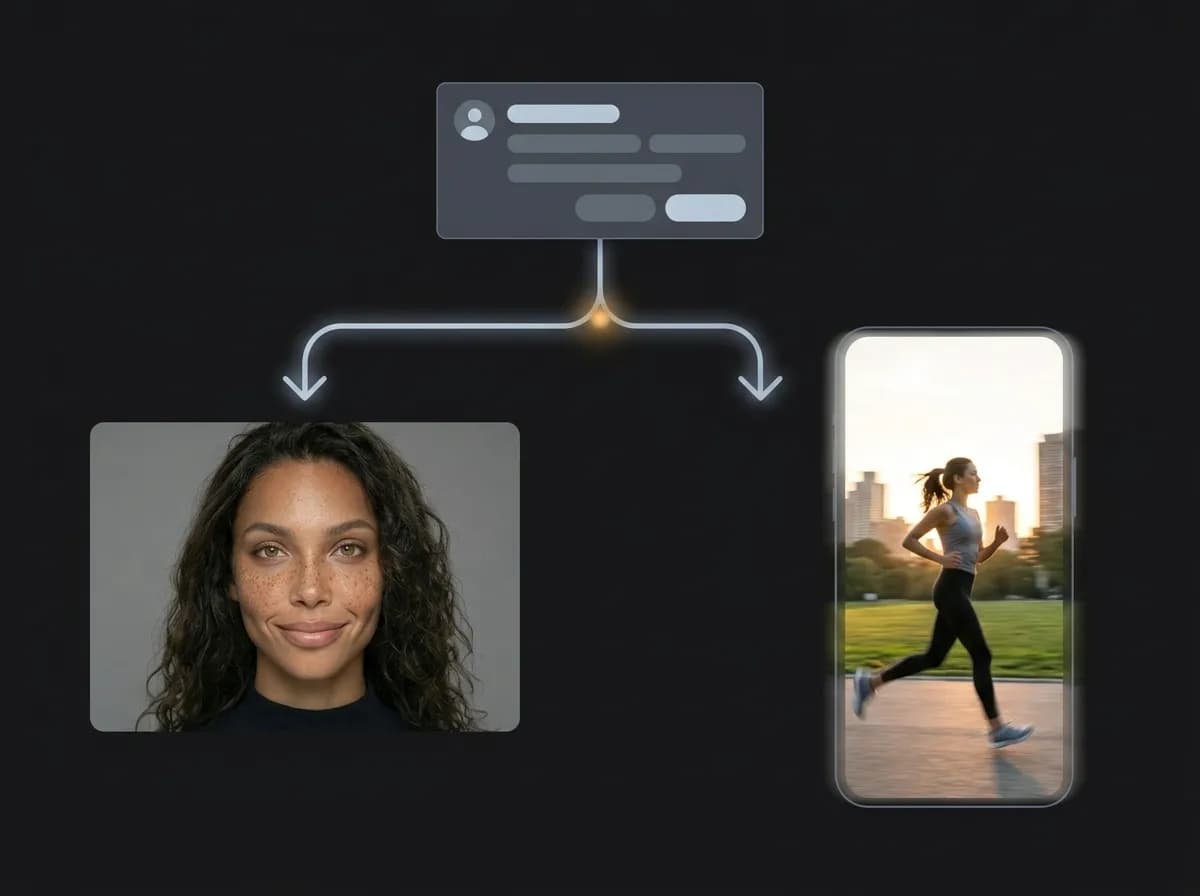
Why choosing the right AI model matters
The model affects realism, motion, text accuracy, style, speed, and consistency
AI models do not behave the same way. Even when you use the same prompt, different models can produce different results in realism, detail, style, composition, text handling, motion quality, editing accuracy, and consistency. Choosing the wrong model usually creates extra work. You may spend more time rewriting prompts, regenerating outputs, fixing composition, or trying to force the model into a workflow it is not best suited for. Choosing the right model gives you a better starting point. For example, an image model may be better for product photos and polished visuals, while a video model may be better for motion, camera movement, cinematic scenes, or social video ads. A multi-model workflow lets you test different outputs and pick the one that best fits the creative goal. In Mujo, model choice becomes part of the workflow rather than a separate decision. You can compare models, keep prompts organized, and build repeatable systems around the outputs that work best.
Explore Multi-Model WorkflowsWhat to consider when choosing an AI model
Start with the workflow, not the model name
Explore AI Image GeneratorOutput type
Choose based on whether you need a still image, image edit, video clip, product visual, or campaign concept.
Realism level
Some models are better for realistic portraits, products, and commercial visuals, while others lean more stylized.
Prompt accuracy
If the prompt includes layout, text, product details, or complex instructions, use a model with stronger instruction following.
Iteration speed
For exploration, choose a faster model. For final assets, choose the model with the strongest output quality for that task.
How to choose the right AI model in Mujo
A practical workflow for matching model choice to creative intent
Define the final output
Decide whether you need an image, video, edit, product visual, social creative, ad concept, or reusable visual system.
Identify the most important quality
Choose what matters most: realism, motion, product accuracy, text rendering, style, speed, consistency, or cinematic look.
Start with the best-fit model
Pick the model that matches the task instead of trying to force one model to do everything.
Generate a small test set
Run a few variations to check whether the model understands the prompt, preserves details, and produces usable outputs.
Compare outputs inside the workflow
Evaluate the result by clarity, consistency, style fit, product accuracy, motion quality, and platform use.
Save the model choice for reuse
When a model works well for a specific workflow, save that setup as part of your repeatable process.
Choose an AI model by workflow
Different creative tasks need different model strengths
The best model depends on what you are trying to create. Start from the job-to-be-done, then choose the model that gives you the strongest first result.
Explore AI Video GeneratorAI image generation
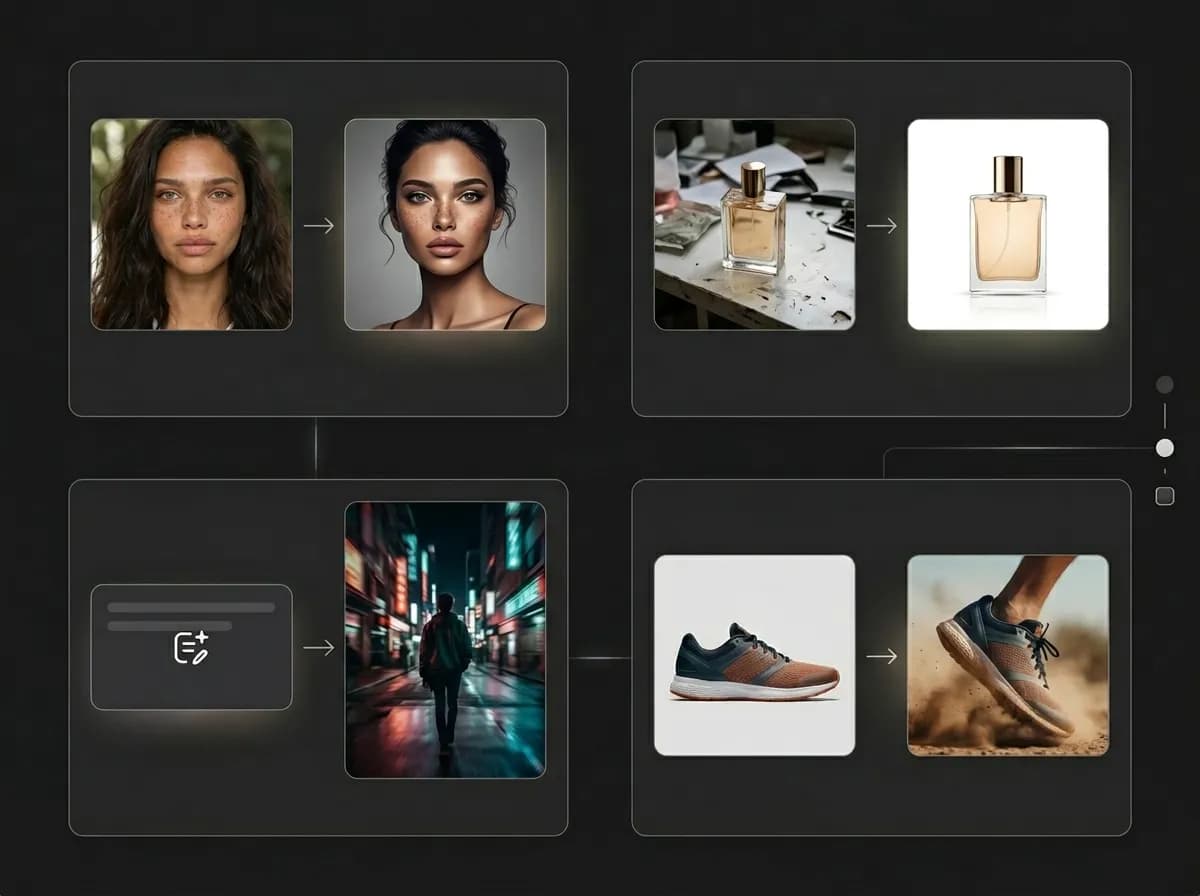
Use image models for portraits, product visuals, social creatives, campaign images, concept art, and polished still assets.
AI image editing
Use editing-capable models when you need to modify existing visuals, preserve structure, or refine details without starting over.
Product photography
Choose models that preserve product shape, packaging, color, material, and commercial presentation.
Text-to-video
Use video models when you want to generate a new scene, concept, motion idea, or cinematic clip from a written prompt.
Image-to-video
Use image-to-video models when you already have a product photo, campaign visual, character image, or reference that should stay connected to the output.
Social video ads
Choose video models that support short-form motion, fast hooks, product visibility, and platform-native pacing.
Image models vs video models
Use image models for still assets and video models for motion-driven outputs
A common mistake is using the same model mindset for every workflow. Still image generation and video generation solve different problems, so the model choice should reflect the final format.
Explore Text to VideoUse image models when you need
Product photos and ecommerce visuals
AI portraits, headshots, and photoshoots
Social media images and brand creatives
Image editing and visual refinement
High-detail still compositions
Repeatable visual style across image sets
Use video models when you need
Camera movement and motion
Product demos and reveals
TikTok, Reels, Shorts, and paid social video ads
UGC-style video creatives
Cinematic scenes and story moments
Image-to-video or text-to-video workflows
AI model selection guide
Creative goal | Best model type | What to check |
|---|---|---|
Generate product photos | Image generation or image editing model | Product shape, material, packaging, shadows, and commercial clarity |
Create social media creatives | Image generation model | Visual hook, composition, readability, brand style, and platform fit |
Edit an existing image | Image editing model | Structure preservation, detail control, and clean local changes |
Create a video from a prompt | Text-to-video model | Motion logic, scene clarity, camera movement, and pacing |
Animate a product image | Image-to-video model | Product identity, motion, framing, and reference consistency |
Build a campaign workflow | Multi-model workflow | Consistency across outputs, speed, reuse, and quality fit |
When to compare multiple models
You are building a campaign and need to know which model gives the strongest visual direction.
You are not sure whether the output needs stronger realism, motion, editing, or style.
You want to save the best model choice as part of a reusable workflow.
Use this table as a simple decision framework when choosing a model inside Mujo.
Why multi-model workflows are useful
Compare outputs without switching tools or losing prompt context
A multi-model workflow lets you test different models against the same creative idea. This is useful because no single model is best for every task. For example, one model may create a stronger product image, while another may produce a better cinematic video. One may follow complex prompts more closely, while another may create a more interesting visual style. Comparing models helps you find the strongest output for the job rather than accepting the first result. Mujo makes this process easier by keeping prompts, references, outputs, and model tests in one workspace. This helps creators build more reliable workflows and reuse the model choices that perform best for each type of content.
Explore Multi-Model GeneratorTips for testing AI models in Mujo
How to compare models without making the test messy
Model testing works best when you keep the creative brief stable and only change the model. This helps you understand what each model is actually doing differently.
Explore ControlBarBest testing approach
Use the same prompt across models for the first comparison
Keep references, aspect ratio, and output goal consistent
Compare realism, structure, motion, and prompt accuracy separately
Run a small batch before committing to a full workflow
Save the model that works best for each use case
Use ControlBar settings when you need more consistent image outputs
What to avoid
Changing the prompt and model at the same time
Judging only by the first output
Using one model for every workflow by default
Ignoring product accuracy or reference consistency
Choosing style over usability for commercial assets
Skipping workflow notes after finding a strong model