AI Pose Control
Guide body position and subject orientation in GPT Image 2 — structured controls, no prompt guesswork
AI Pose Control for
Stop fighting your prompts for body position. Set stance, orientation, and framing once — then reuse it across every generation
Pose Control is part of Mujo's ControlBar — a structured control layer built on top of GPT Image 2. Instead of writing and rewriting body position logic inside long prompt strings, you set it directly: how the subject stands, which direction they face, how much of the body appears in frame. The result is more consistent, more predictable, and significantly faster to repeat.
Start Free with 50 Credits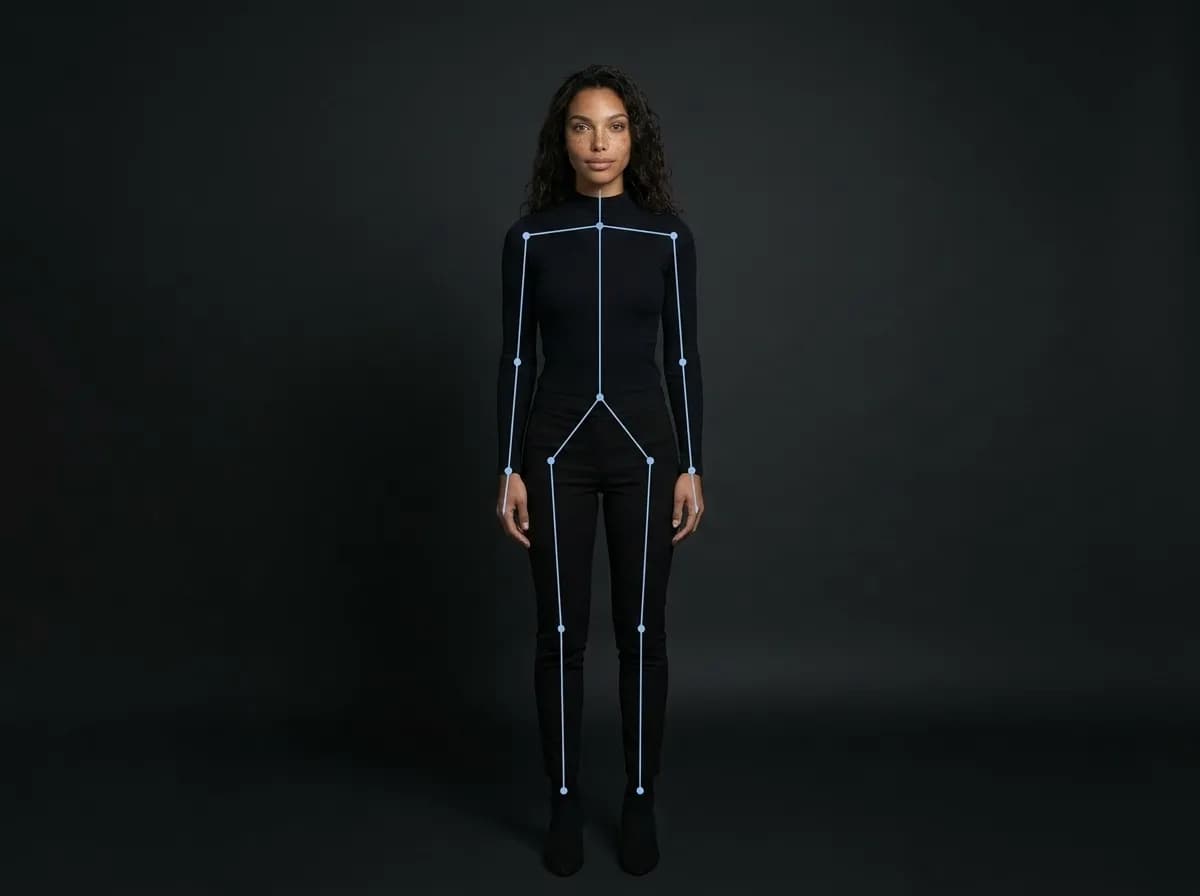
Why pose consistency matters in AI image workflows
The numbers behind structured control
See All ControlBar FeaturesLess iteration time
Creators using structured pose controls report spending significantly less time re-prompting body position across generations.
More repeatable outputs
Pose Control reduces orientation drift between similar generations — same subject, same framing, same stance every time.
Faster series production
Building a headshot series, campaign gallery, or model lineup becomes a systematic workflow instead of trial and error.
Works with GPT Image 2
Pose Control is tuned for GPT Image 2's instruction-following architecture — the most capable image generation model available in 2025.
What is AI Pose Control?
A direct control layer for body positioning in GPT Image 2 — not a workaround, not prompt engineering
Pose Control is a feature inside Mujo's ControlBar that lets you set body position and subject orientation as a structured input, separate from your creative prompt. When generating AI images with GPT Image 2, describing how a subject should be positioned inside the prompt — standing straight, facing left, torso visible, arms at rest — is possible but inconsistent. Slight wording changes produce different results. Long prompts get harder to manage. Pose Control solves this by treating body position as its own parameter. You choose the stance, the orientation, and the body framing from a set of defined controls. These get passed to GPT Image 2 as structured instructions, separate from style and subject description. The model follows them more reliably, and you can save them to reuse across future sessions without rebuilding anything.
Explore Full ControlBarWhy pose is the hardest thing to control in AI image generation
Body position through text prompts is unpredictable — structured controls change that
Most AI image generators, including GPT Image 2, are extremely capable at style, lighting, texture, and composition. But body positioning is different. Describing a pose through language is inherently ambiguous — the same words can produce meaningfully different body orientations, framing choices, and spatial relationships between subject and camera. This is especially noticeable when you are trying to build a consistent visual series. A headshot series where every portrait faces slightly differently. A product model campaign where the subject's stance shifts from image to image. An influencer content set where the body framing is inconsistent across posts. The root cause is the same in every case: pose logic embedded inside a text prompt is treated as creative instruction, not structural constraint. Pose Control separates it out so that body position is handled structurally — and stays stable while everything else around it can change.
See AI Headshots WorkflowAI Pose Control vs open-ended prompting in GPT Image 2
What actually changes when you add structured body position control to your workflow
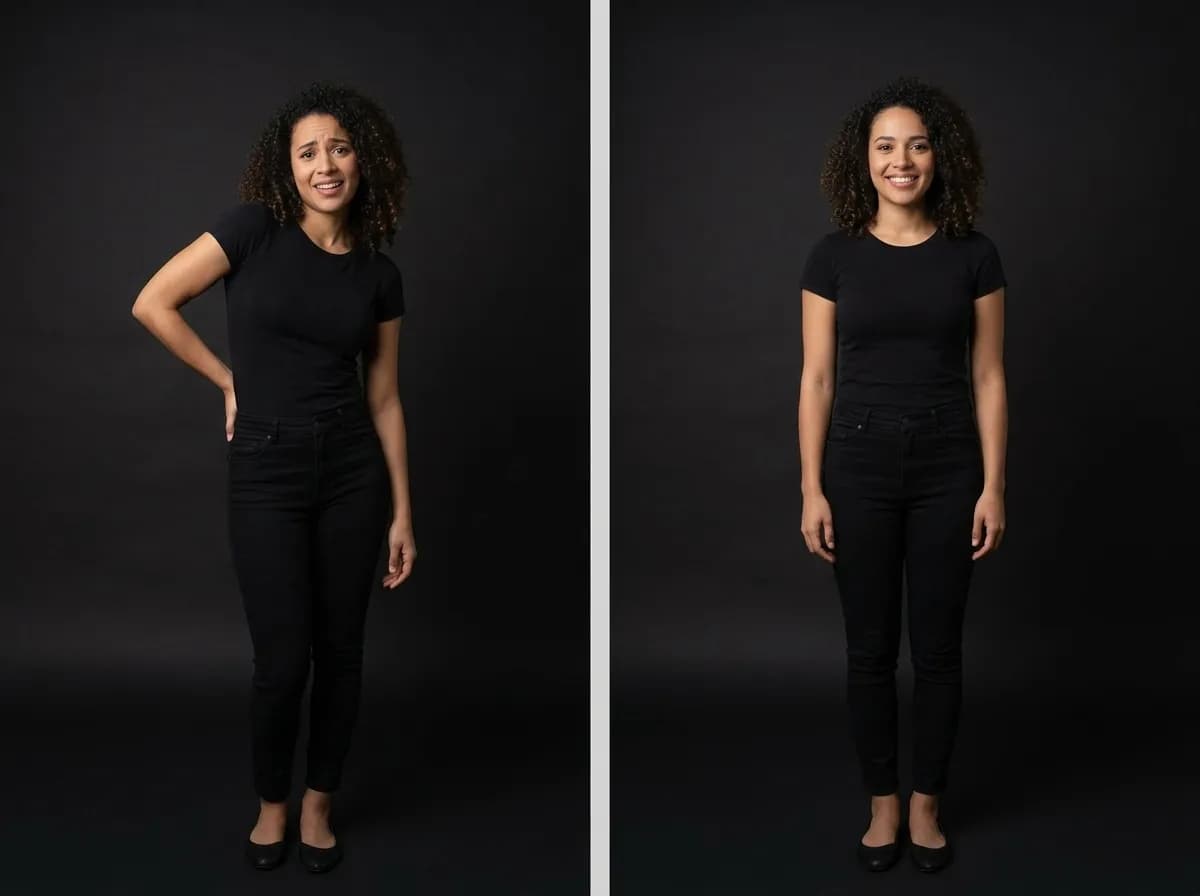
The difference between Pose Control and prompt-based positioning is not just about convenience. It affects output consistency, iteration speed, and how scalable your workflow becomes when you need to generate multiple images in the same visual direction.
Explore Lighting PresetsWith Mujo Pose Control
Set body position, stance, and orientation as a separate structured input
Get consistent framing across multiple generations without rewriting
Save pose setups and reuse them across different subjects and prompts
Reduce the number of iterations needed to reach your target output
Build headshot series, model campaigns, and content sets with predictable body logic
Combine pose control with lighting and camera presets for fully structured generation
With open-ended prompt descriptions
Describe body position inside the same prompt as style, subject, and lighting
Get variable results as small wording changes affect the full output
Rebuild body description logic every time you start a new generation
Spend more credits iterating toward consistent pose outputs
Harder to scale into a repeatable series or campaign workflow
Pose drift increases as prompt length grows and content changes
What you can control with AI Pose Control
Every positioning parameter that affects body logic in GPT Image 2 outputs
Pose Control covers the main dimensions of body positioning that matter most in portrait, model, and campaign image workflows. Each control is separate from your creative prompt and passed to GPT Image 2 as a structural instruction.
See Camera PresetsStanding and seated stances
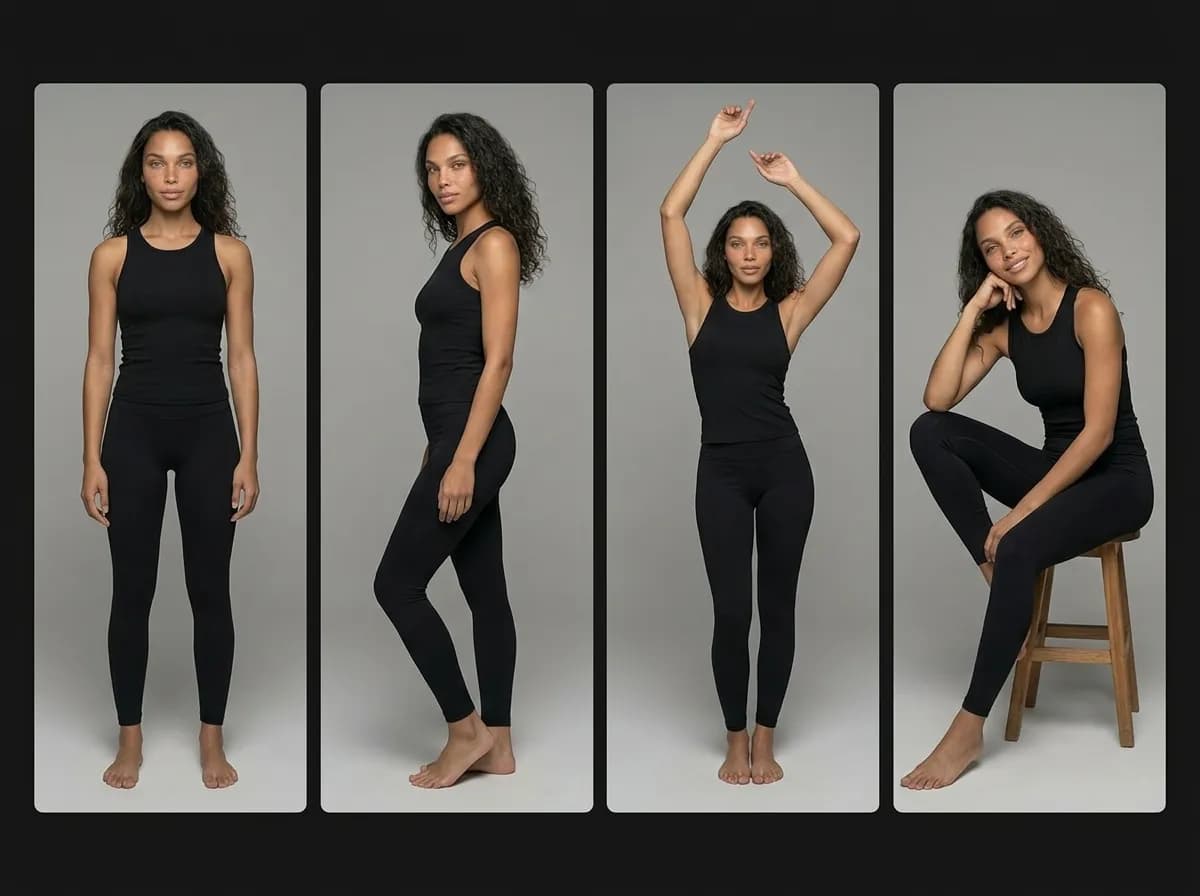
Set the primary body position — upright, relaxed standing, seated, leaning, or crouching — as a fixed structural input rather than a phrase in your prompt.
Subject orientation and facing direction
Guide whether the subject faces the camera directly, turns to profile, is positioned at a three-quarter angle, or looks away. Consistent across generations.
Body framing and crop logic
Define how much of the body appears in frame — full body, waist-up, shoulder-up portrait, or close crop — and hold that framing across multiple outputs.
Arm and hand positioning logic
Influence whether arms are at rest, crossed, raised, or in a specific contextual position without over-specifying in your creative prompt.
Symmetry and weight distribution
Guide natural body weight balance — centered, shifted to one side, dynamic — to produce images that feel considered rather than stiff or artificial.
Pose reuse and session memory
Save a complete pose setup and apply it across new subjects, styles, and creative directions without rebuilding any of the position logic from scratch.
How Pose Control fits into your GPT Image 2 workflow
Workflow stage | With Pose Control | Without Pose Control |
|---|---|---|
Initial pose setup | Set once in ControlBar, applied structurally | Written into prompt, mixed with other instructions |
Output consistency | Higher — pose treated as a fixed constraint | Variable — depends on prompt interpretation |
Iteration to target | Fewer generations needed | More credits spent on body position drift |
Scaling to a series | Reuse saved pose across all outputs | Reprompt body logic for each new generation |
Style changes mid-series | Pose stays stable while style varies | Style changes often pull body position with them |
Multi-session or team use | Shared pose setup, consistent results | Each session produces a different baseline |
Where Pose Control makes the biggest difference
Headshot and portrait series where every image needs consistent framing and orientation across different subjects.
Product model photography where stance and body position must stay aligned across an entire catalogue.
Social and campaign content where the same pose logic needs to apply across different creative directions without re-describing it each time.
Pose consistency is one of the most common pain points when scaling AI image generation beyond single outputs. This table shows where structured pose control makes the biggest practical difference compared to relying on prompt text alone.
How to use AI Pose Control in Mujo
A simple four-step workflow for consistent GPT Image 2 outputs
Open ControlBar in your Mujo workspace
Access pose controls inside your active AI image generation session. No setup required — it is part of your existing workflow.
Set body position, orientation, and framing
Choose stance, facing direction, and how much of the body appears in frame. These become structural inputs passed directly to GPT Image 2.
Write your creative prompt without body position logic
Describe your subject, style, and visual direction. Pose is handled separately — your prompt stays cleaner and more focused on what matters.
Generate, review, and save what works
Review your output. If the pose is right, save the control setup to reuse across future generations, new subjects, and different styles.
Where AI Pose Control makes the biggest difference
Workflows that depend on consistent body positioning across multiple GPT Image 2 generations
Pose Control is not just a convenience feature. For workflows that require visual consistency at scale, it is the difference between a repeatable production system and a manual rework loop.
See All Use CasesAI headshots and portrait series
Generate a full headshot series where every portrait has the same framing, crop, and subject orientation — regardless of who the subject is or what style you apply.
E-commerce product model photography
Keep model stance, body position, and framing consistent across an entire product catalogue so listing images look systematic and professional.
Social media and influencer content
Apply the same pose logic across different post concepts, creative directions, and visual styles without re-describing body position in every generation.
Campaign and advertising creatives
Maintain subject positioning across multiple ad formats and creative variations so your campaign has a coherent visual identity from first image to last.
Team and corporate photography
Generate consistent portrait images for an entire team — same framing, same orientation, same level of formality — from different individual input photos.
Personal branding and creator content
Build a recognizable visual style across your content by locking in a signature pose that stays consistent as you change backgrounds, outfits, and themes.
How to write better prompts when using Pose Control
What to put in your prompt — and what to leave out — when body position is already handled structurally
When Pose Control is active, you do not need to describe body positioning in your creative prompt. This frees up space to write more precise, focused instructions for everything else. Here is how to get the most from this separation.
Explore the AI Image GeneratorFocus your prompt on these
Subject description: appearance, clothing, expression, age, and style
Visual direction: mood, aesthetic, lighting quality and tone
Background and environment: setting, context, color palette
GPT Image 2 specific instructions: realism level, detail preferences, style reference
Output format: aspect ratio, portrait vs landscape, composition space
Leave these to Pose Control instead
Body stance: standing, seated, relaxed, upright, crouching
Facing direction: front-facing, profile view, three-quarter angle
Body framing: full body, waist-up, portrait crop, tight framing
Arm and hand logic: at rest, crossed, raised, contextual
Weight and symmetry: centered, shifted, dynamic body balance